Kari in 5 minutes
Copyright © 2026GotoAI Inc.Based on the goose project
Kari (Japanese Hiragana かり and Kanji 雁, which means "Wild goose") is an AI assistant that reads, thinks and works alongside you on the files on your own machine. Drafting email, summarizing documents, translating material, building slides, analyzing and visualizing data, retrieving information from the web — Kari brings all of that work into a single tool, as a user-centered front end for AI agents.
This tutorial walks through the following steps in order.
- ✅ Install Kari
- ✅ Configure an AI provider
- ✅ Choose a working folder
- ✅ Create a new AI session
- ✅ Start chatting and working with the AI
Let's begin 🚀
Install Kari
Download the build for your platform below.
- Windows
- macOS
- Linux
- Run the downloaded installer (KariSetup-version-x64.exe).
- Follow the installer's prompts, then launch Kari from the Start menu or the desktop.
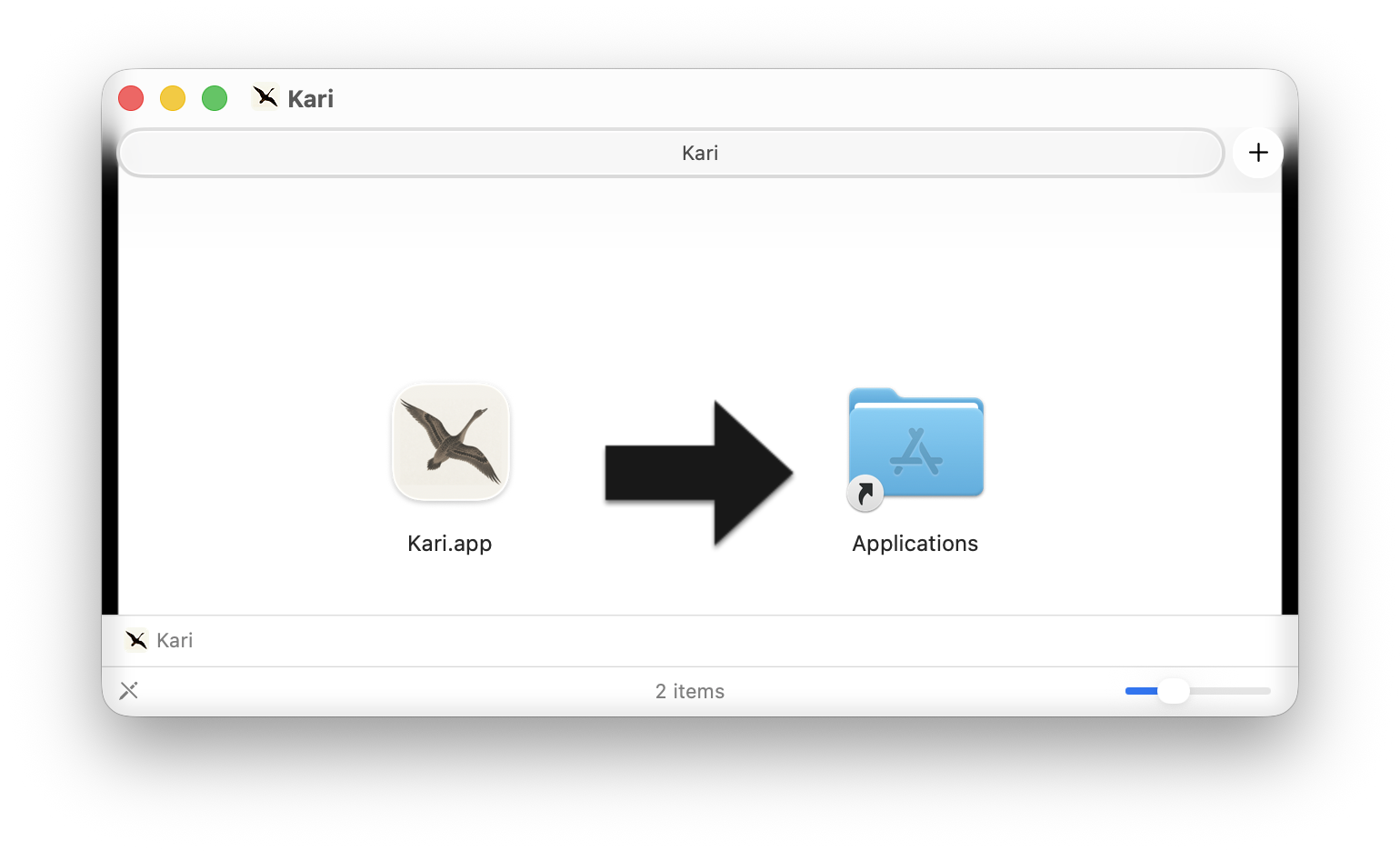
- Download the DMG for your Mac, Apple Silicon or Intel, open it, and drag Kari into the Applications folder.
- Launch Kari from the Applications folder.
Screenshot shown in the original Japanese.
- Download the
.debfile to a local folder. - Install it with sudo privileges.
sudo dpkg -i kari_<version>_amd64.deb
- On Ubuntu, launch Kari from Applications / Programming / Kari. From the command line, run
karito start the application.
kari
Configure an AI provider
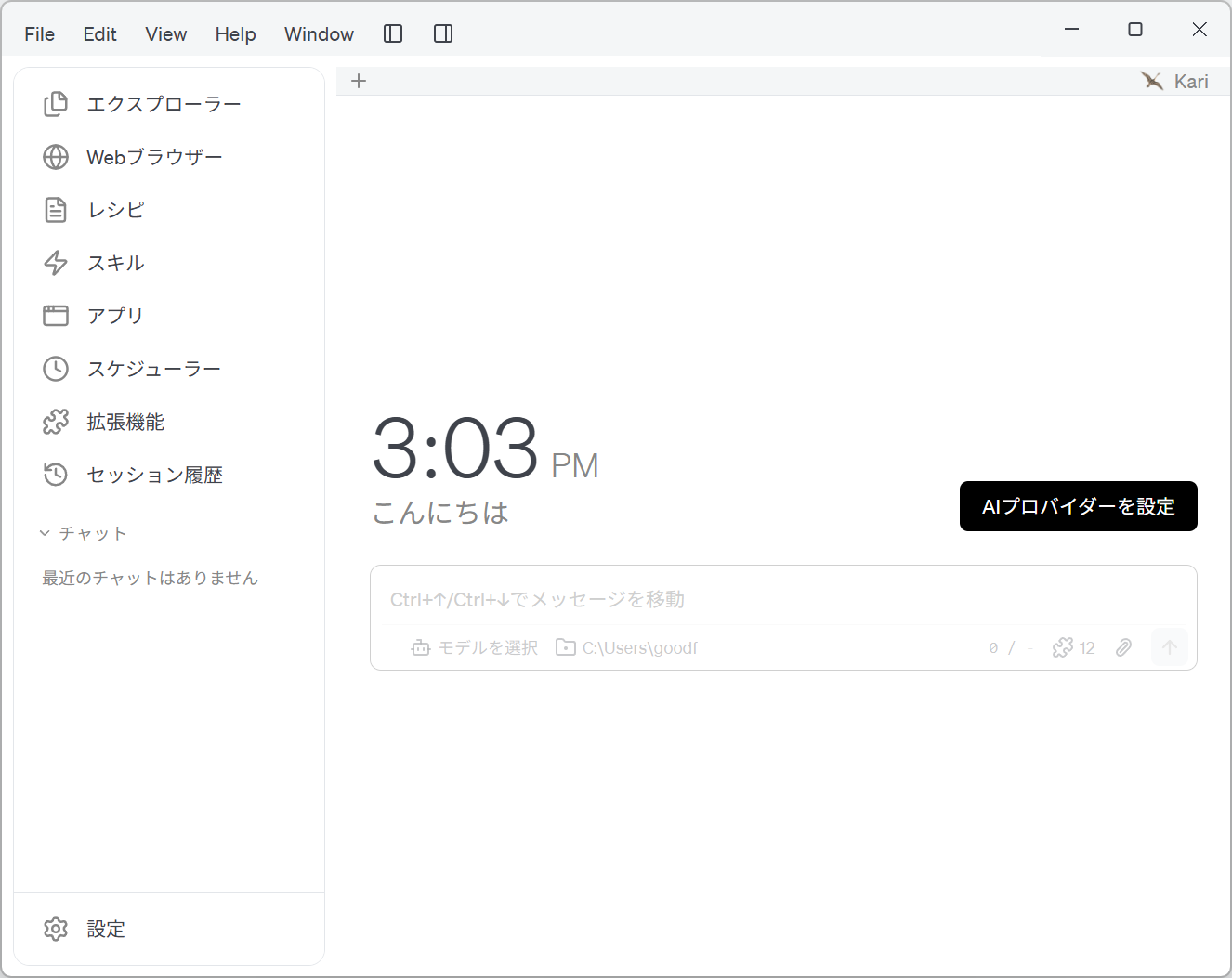
On the start screen, click Configure your AI Provider.
Screenshot shown in the original Japanese.
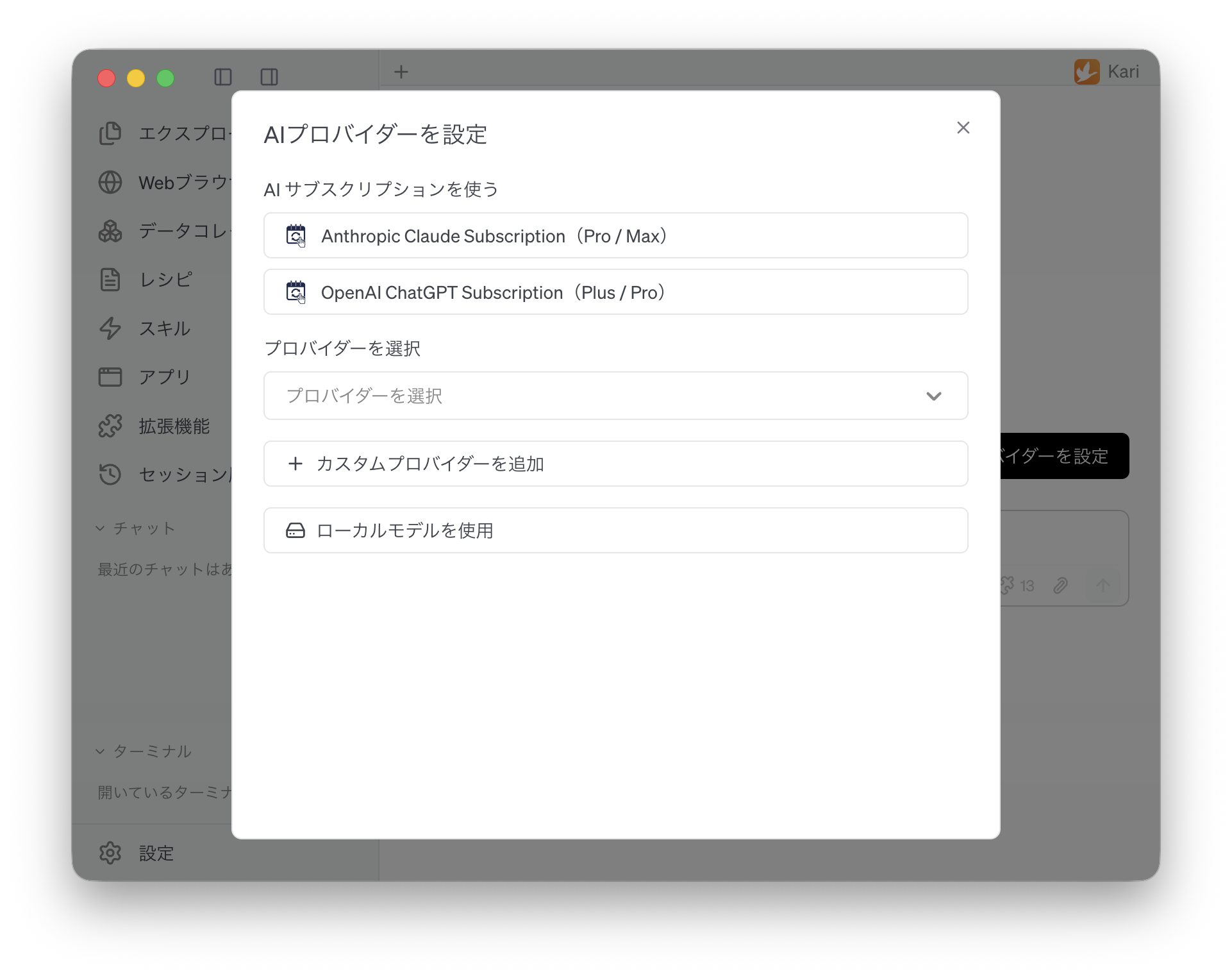
The Configure your AI Provider dialog opens. Select a provider from the list, or choose Add a custom provider. To run a model on this machine instead, choose Use a Local Model.
Screenshot shown in the original Japanese.
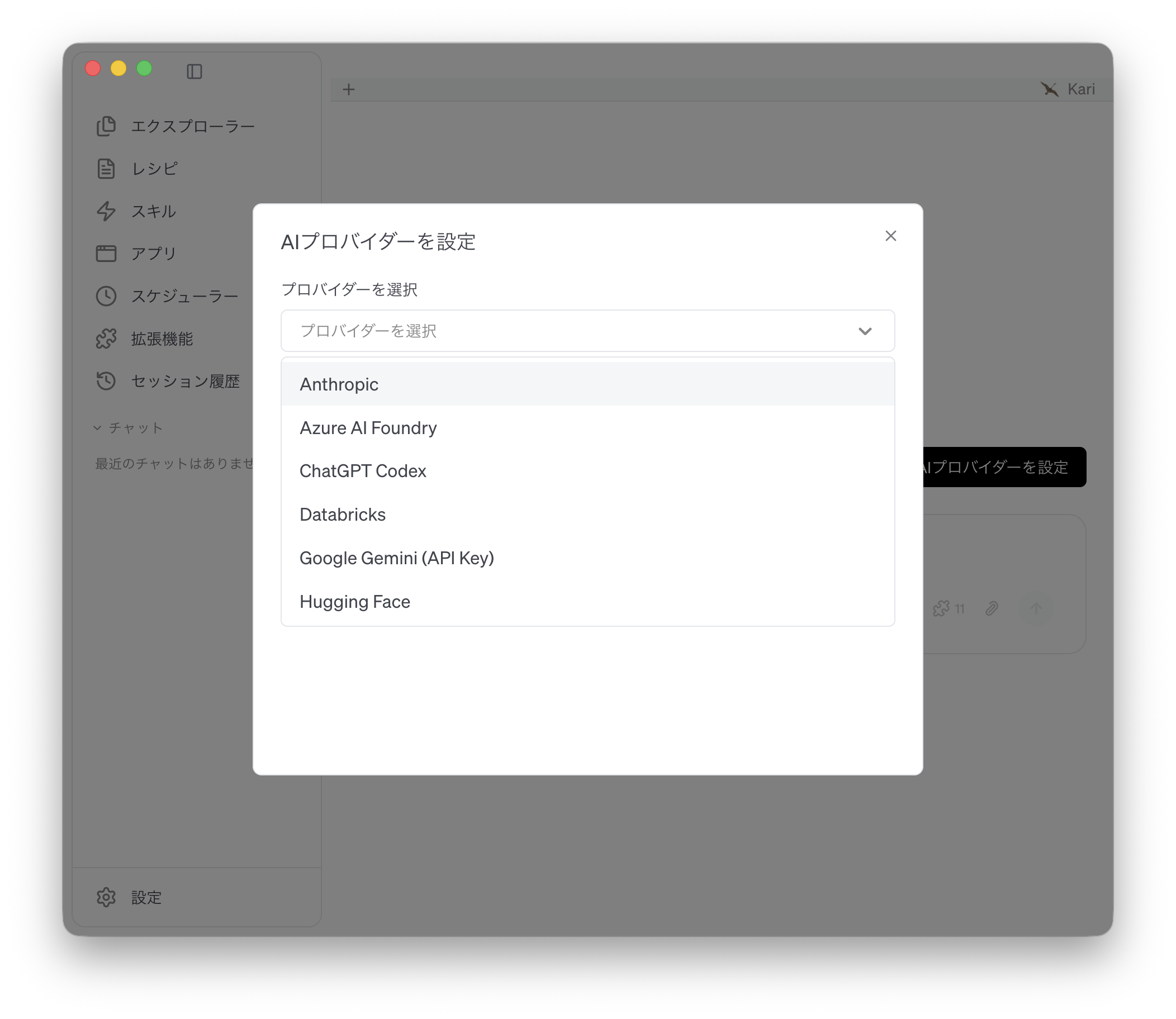
Click Select a provider to choose from about 70 pre-defined AI providers.
Screenshot shown in the original Japanese.
Click Add a custom provider to add an AI provider either by starting from a provider template or by configuring it manually.
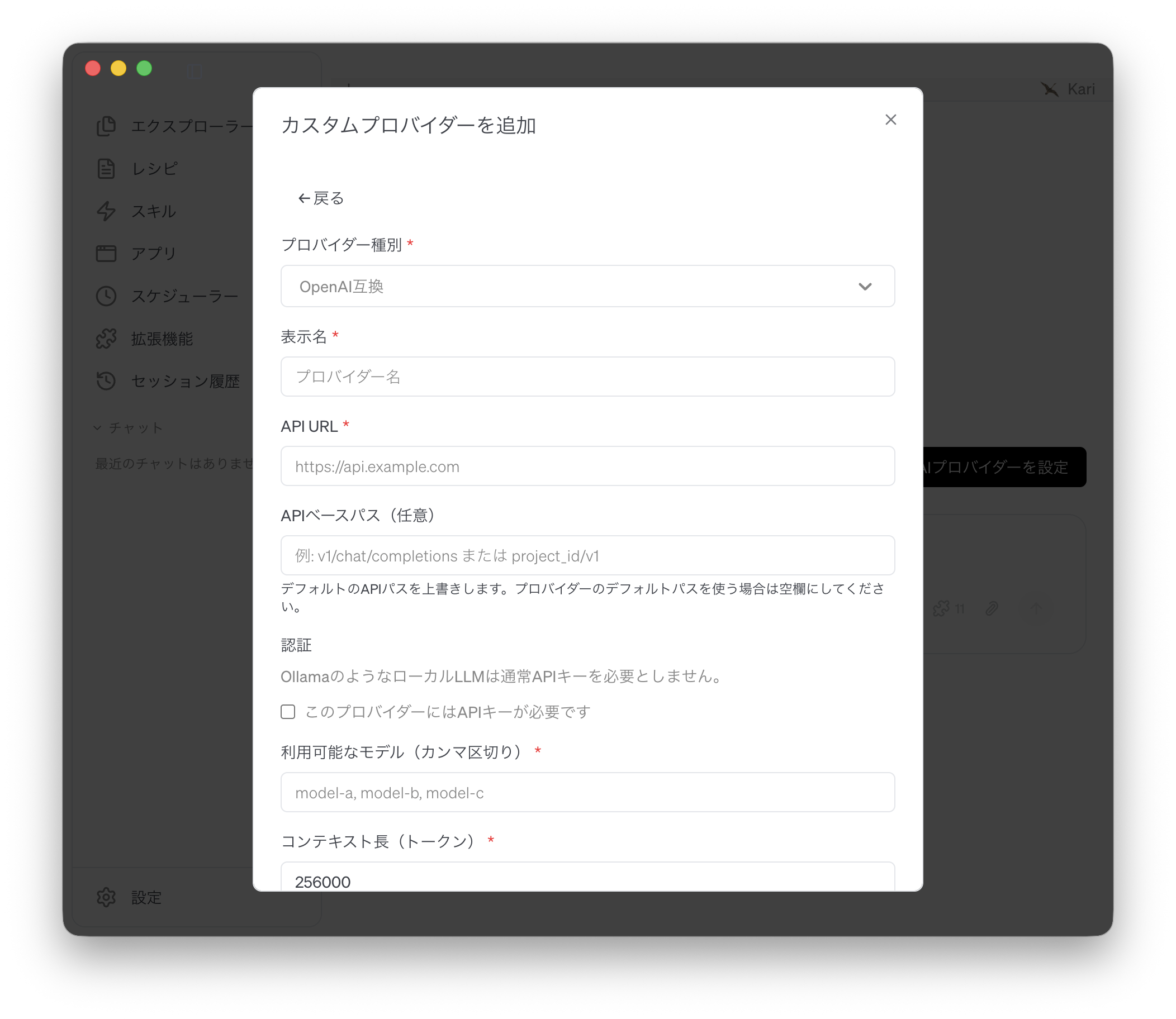
Screenshot shown in the original Japanese.
Choose a working folder
Right-click Explorer in the left navigation panel. Choose Open Folder… from the menu that appears, then pick your working folder.
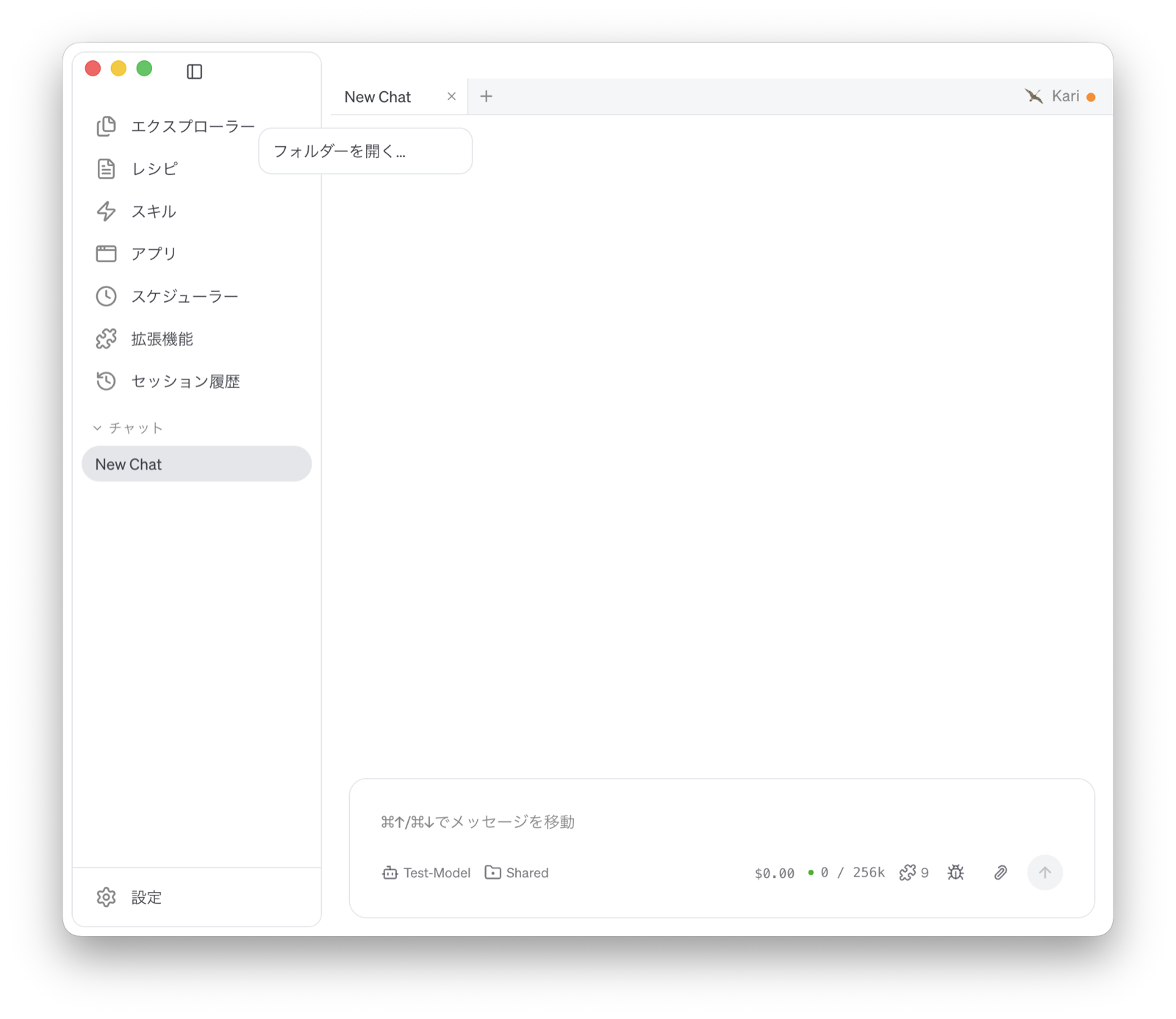
Screenshot shown in the original Japanese.
Once a working folder is chosen, the files under it are listed. Click a file name and its contents open in the viewer in the center of the window.
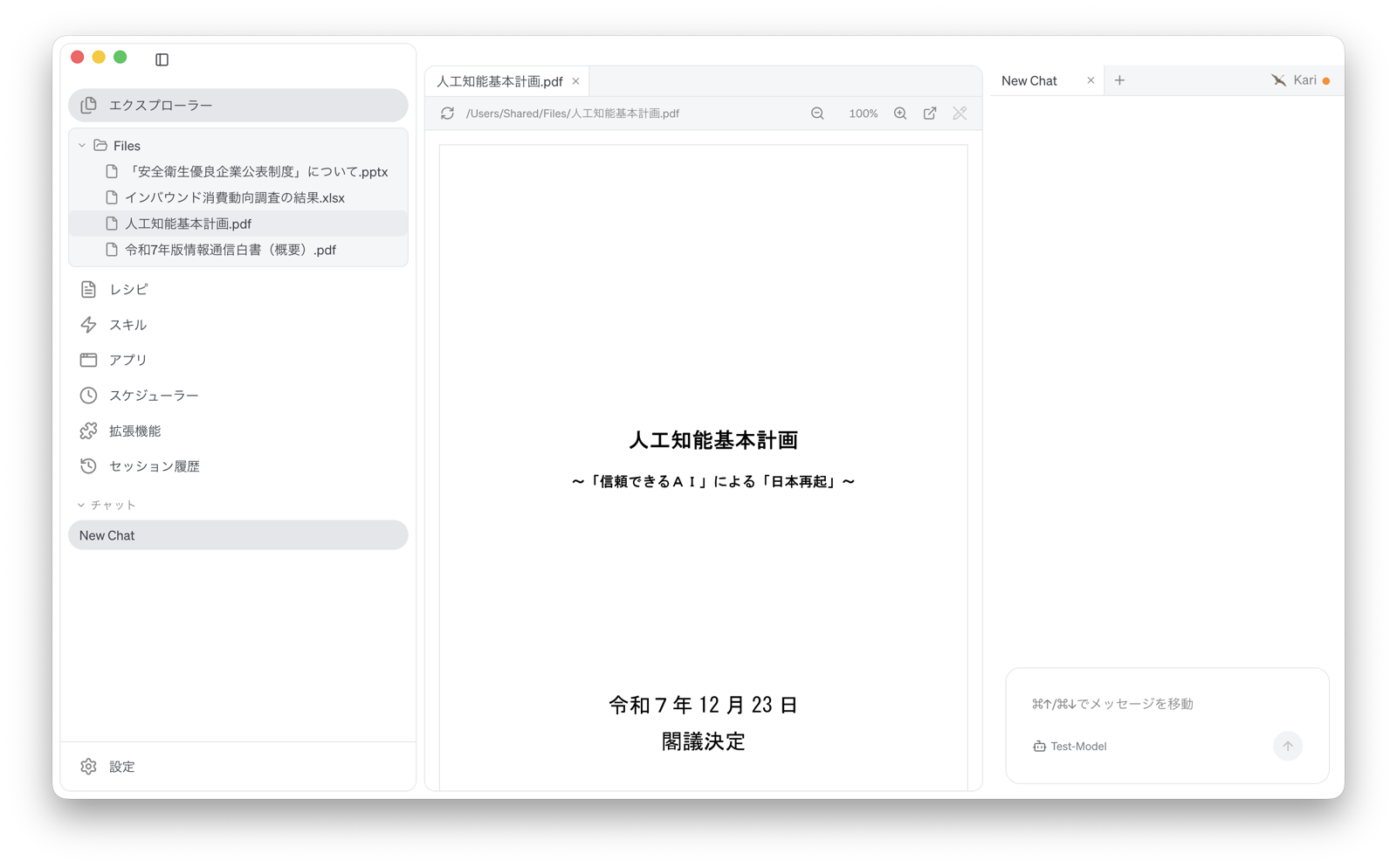
Screenshot shown in the original Japanese.
Create a new AI session
Click the + button in the bar at the top of the session panel on the right to create a new AI chat session. When you have several pieces of work in flight, open a session for each of them.
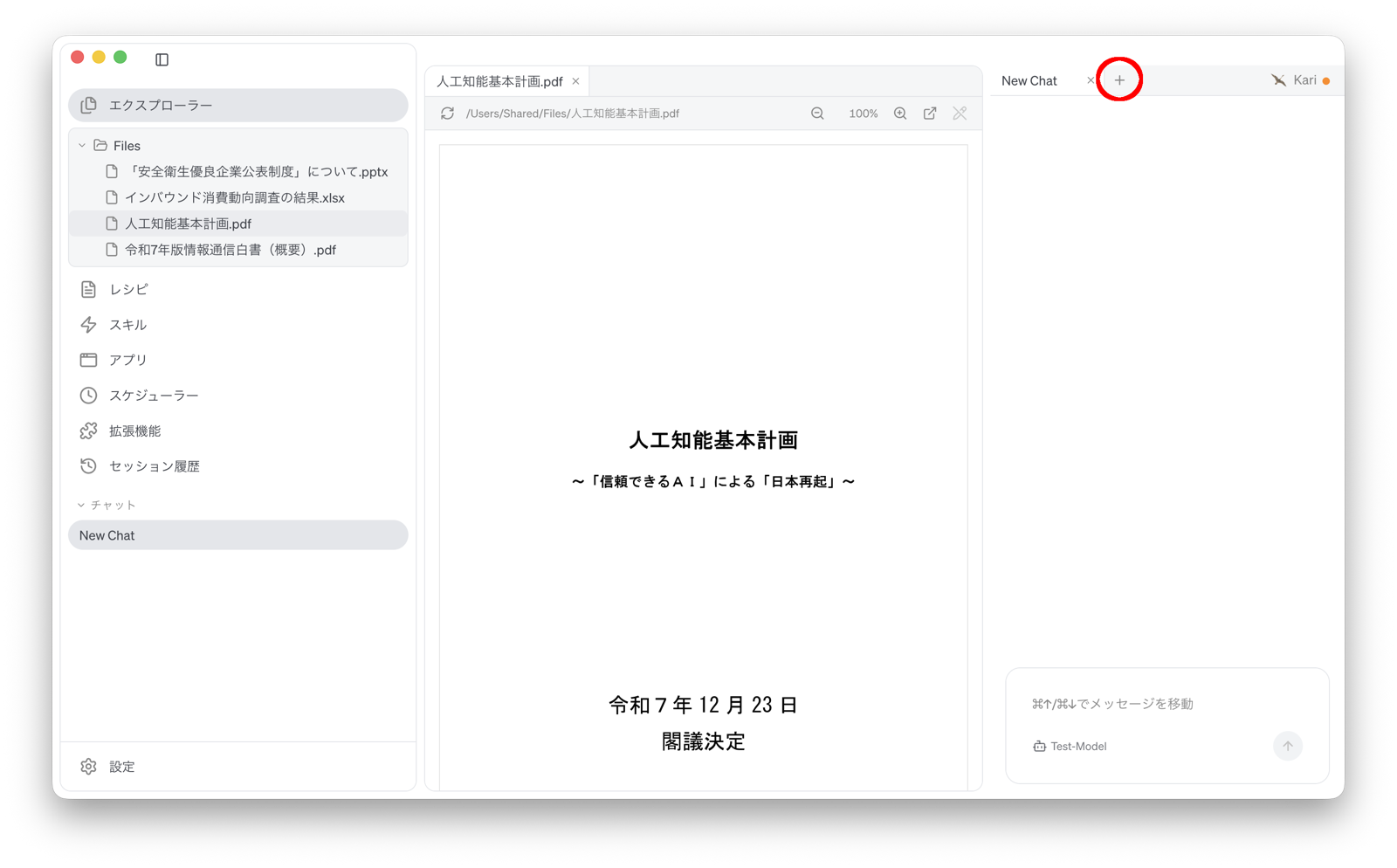
Screenshot shown in the original Japanese.
Start chatting and working with the AI
Type what you need done into the chat box, and the AI works through the request. Follow along as it goes, and send further instructions or corrections whenever you want to steer it.
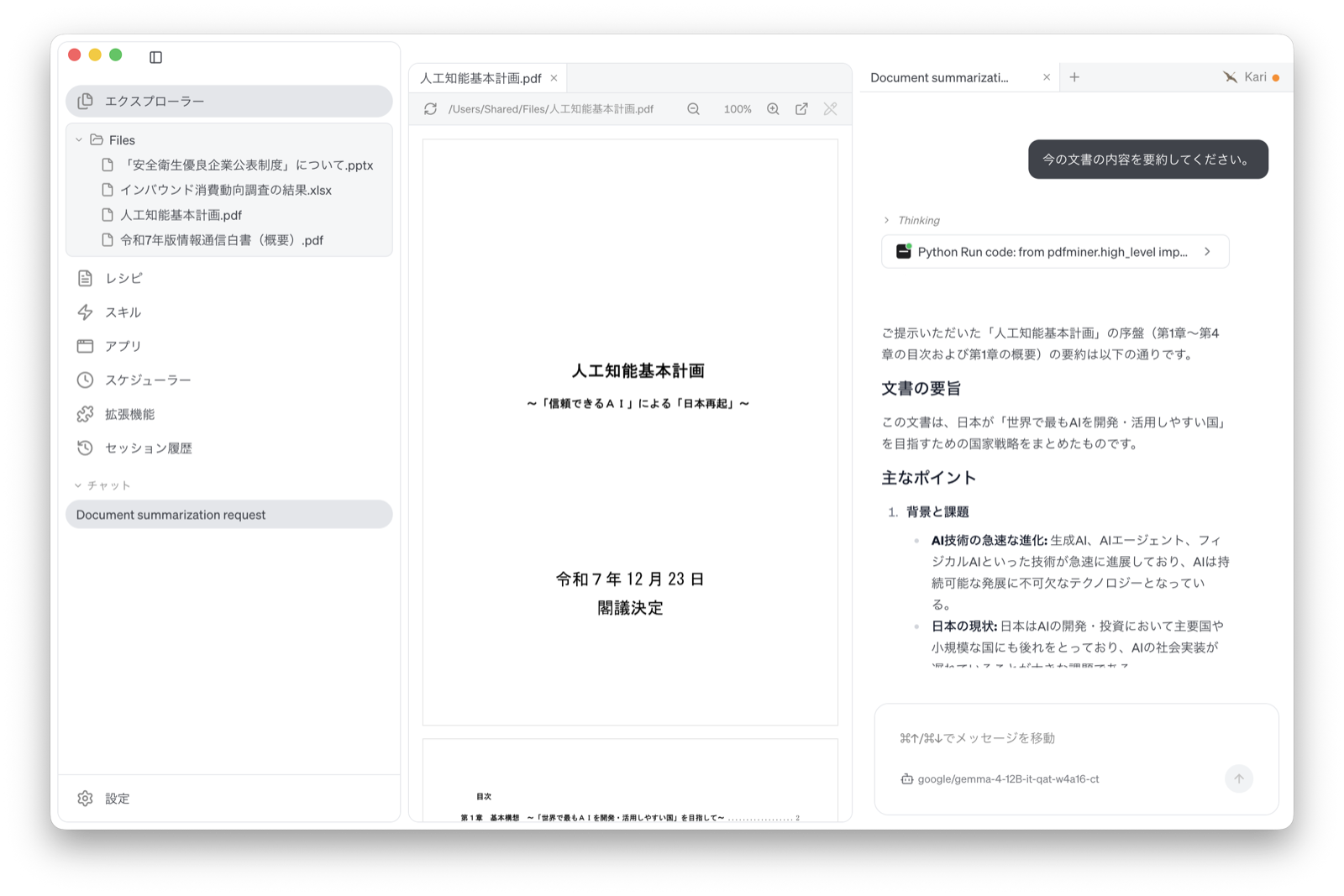
Screenshot shown in the original Japanese.
Next steps
Next we walk through concrete examples of using Kari to make everyday work go faster.