Choosing the OpenAI ChatGPT subscription in Kari
Copyright © 2026GotoAI Inc.Based on the goose project
Sign in to Kari with an OpenAI ChatGPT subscription (Free / Go / Plus / Pro) and you can put the AI agent to work without an API key.
How this relates to OpenAI's policy
The way Kari uses a ChatGPT subscription is built to follow the approach OpenAI has published. In short:
- Kari runs OpenAI's official Codex agent as it is. Kari does not bundle Codex; the first time you use it, Kari downloads the official package published by OpenAI, unmodified. Codex is an open-source agent that OpenAI publishes under the Apache-2.0 licence.
- Sign-in completes on OpenAI's own pages. What opens in the browser is OpenAI's authentication page, and the sign-in runs through Codex's own
codex loginmechanism. Codex stores the sign-in information on your device and shares it with the Codex CLI and IDE extensions on the same device. Kari does not transmit or relay that information anywhere. - Usage counts against your own plan. Kari does not buy, resell, or broker ChatGPT usage on your behalf. Use is governed by your own contract with OpenAI, and only the models OpenAI allows for your account are shown.
- Chat runs on Codex's own agent. Kari's built-in agent never uses subscription sign-in information to connect to OpenAI. Subscription credentials are used only with each vendor's own agent.
The terms and usage limits for a ChatGPT subscription are set by OpenAI and may change without notice. Depending on the change, using your subscription from Kari may become restricted, the available models or limits may change, or usage may be billed differently. These are OpenAI's decisions: we cannot anticipate them, and we cannot guarantee continued availability.
Kari also works with an API key. If subscription use stops being available to you, you can switch to an API key in settings.
- On the Configure your AI Provider screen, click the OpenAI ChatGPT Subscription (Free / Go / Plus / Pro) button.

Screenshot shown in the original Japanese.
- When the OpenAI ChatGPT subscription sign-in screen appears, click the Sign in… button. The first time, a dialog asks you to confirm the download of the Codex agent and the browser sign-in; click Continue.
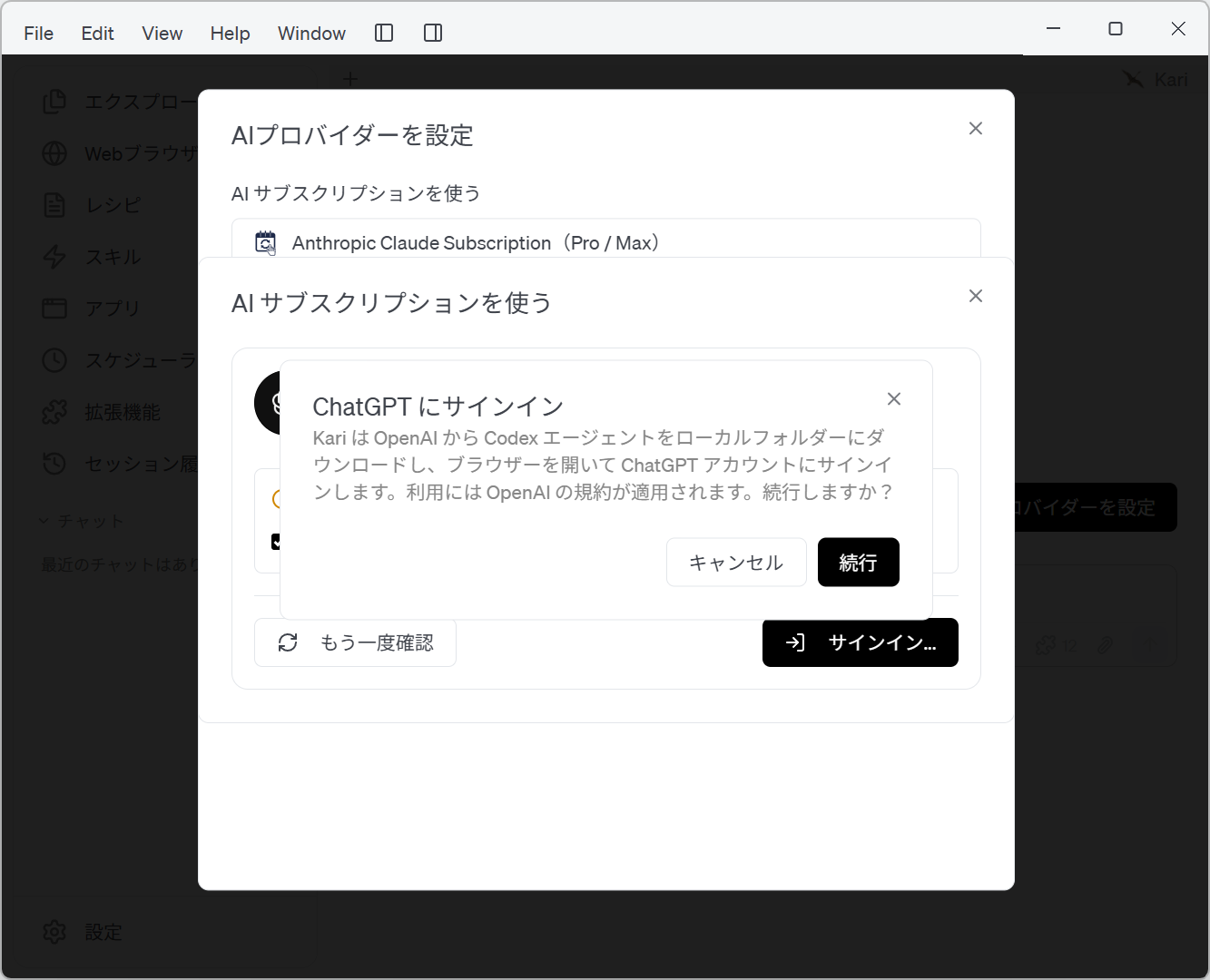
Screenshot shown in the original Japanese.
- The download and installation of the Codex agent begins.
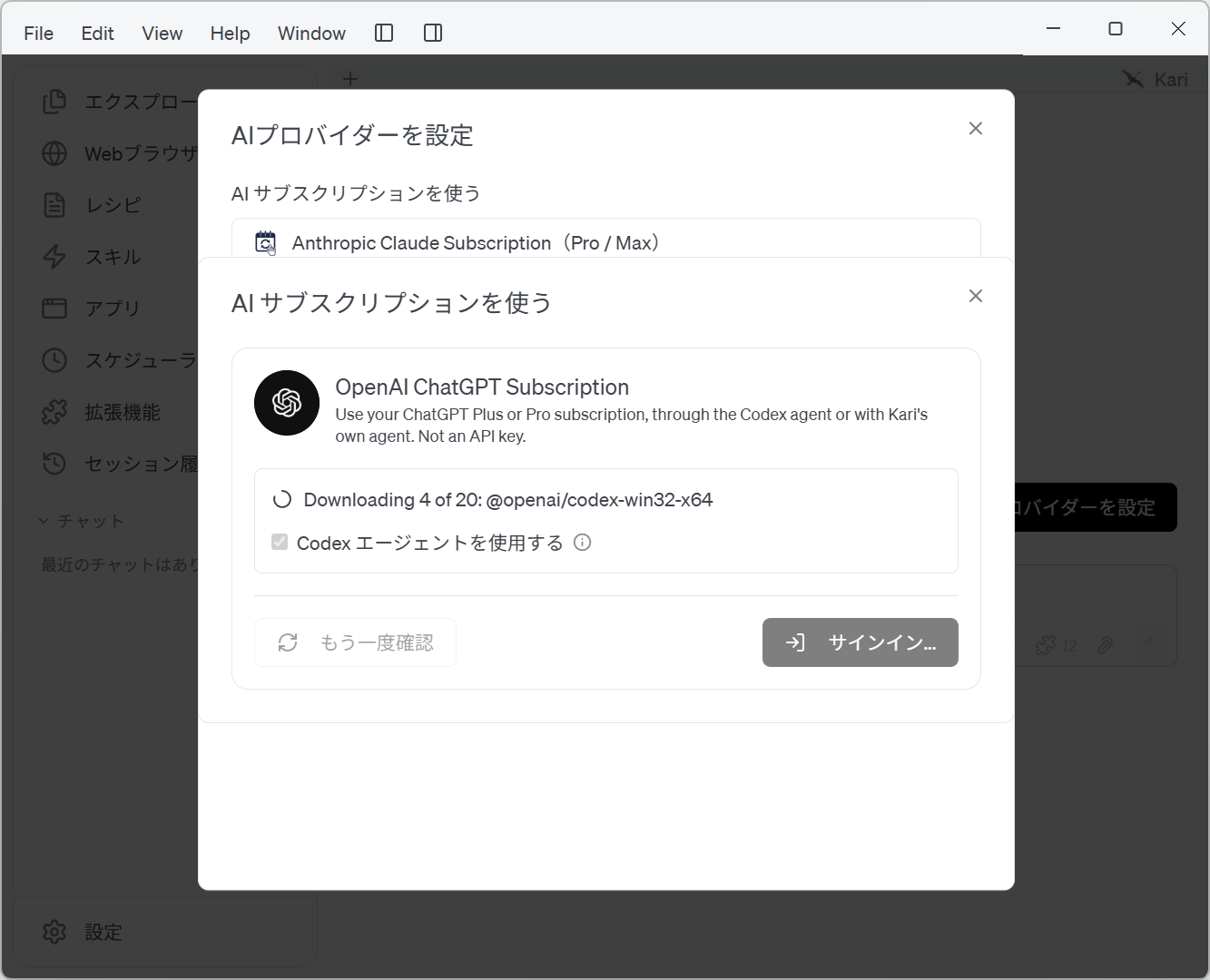
Screenshot shown in the original Japanese.
-
Once the Codex agent is installed, Kari checks your sign-in status automatically. If you are already signed in on this device, your account and plan details are shown.
-
If you are not signed in yet, the ChatGPT sign-in page opens in your web browser and Kari waits for the browser sign-in to complete.
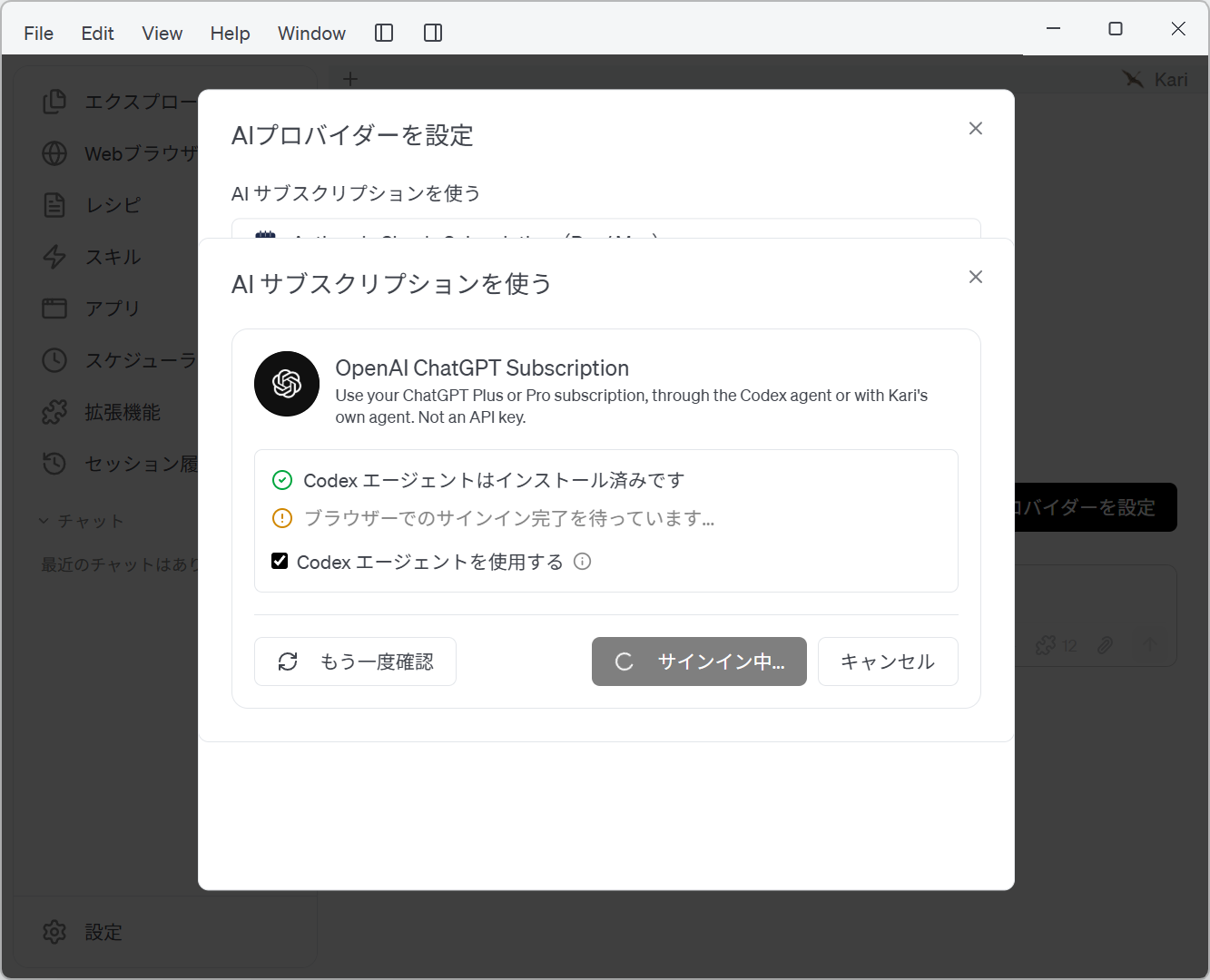
Screenshot shown in the original Japanese.
- (1) On the browser's sign-in page, choose Google, Apple, Microsoft or phone number, or enter the email address for your subscription and click Continue.
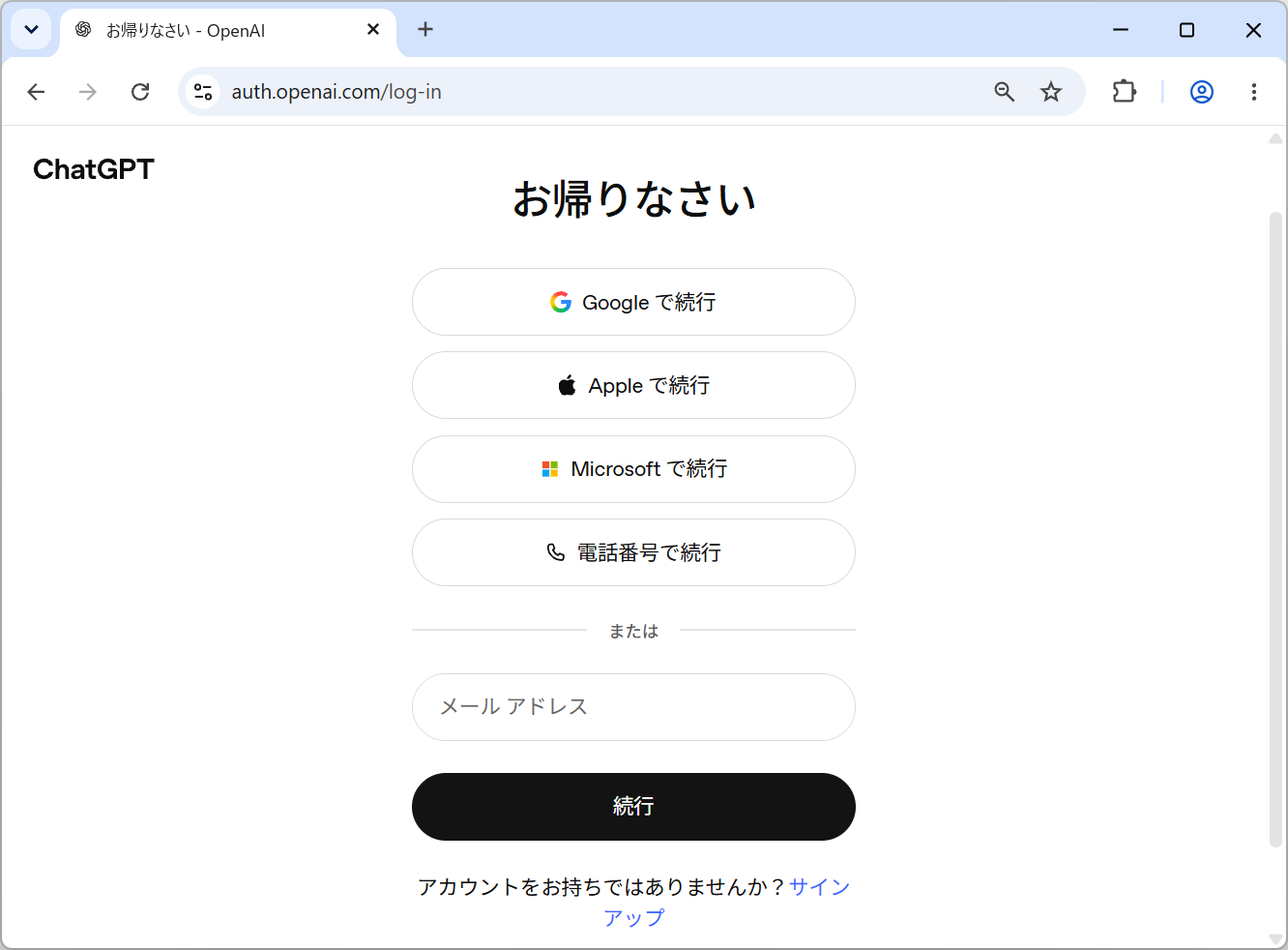
Screenshot shown in the original Japanese.
- (2) If you sign in with an email address, ChatGPT emails you a verification code. Enter the code you receive to authenticate.
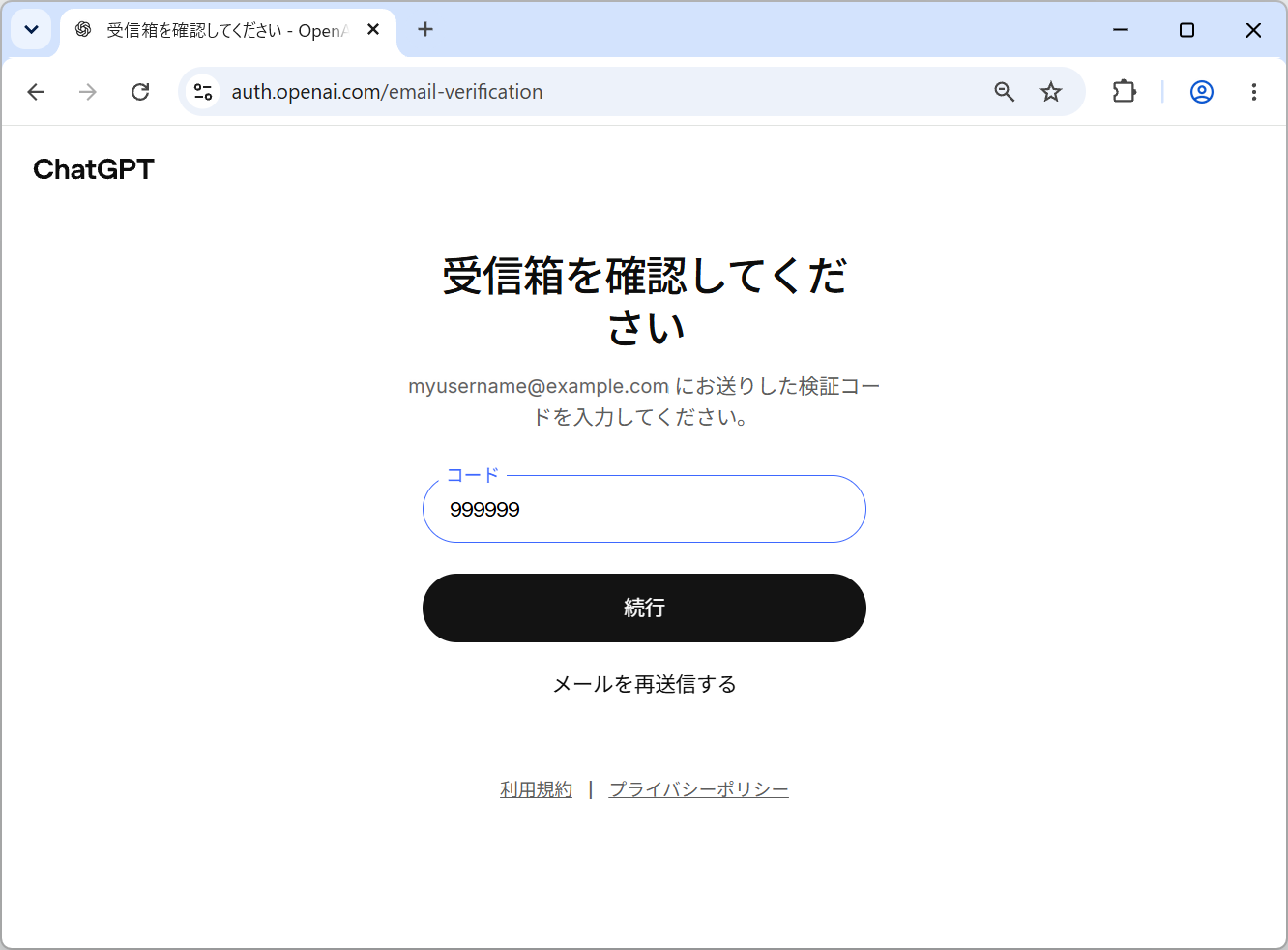
Screenshot shown in the original Japanese.
- (3) When the browser sign-in completes successfully, Kari shows the signed-in account and its plan details.
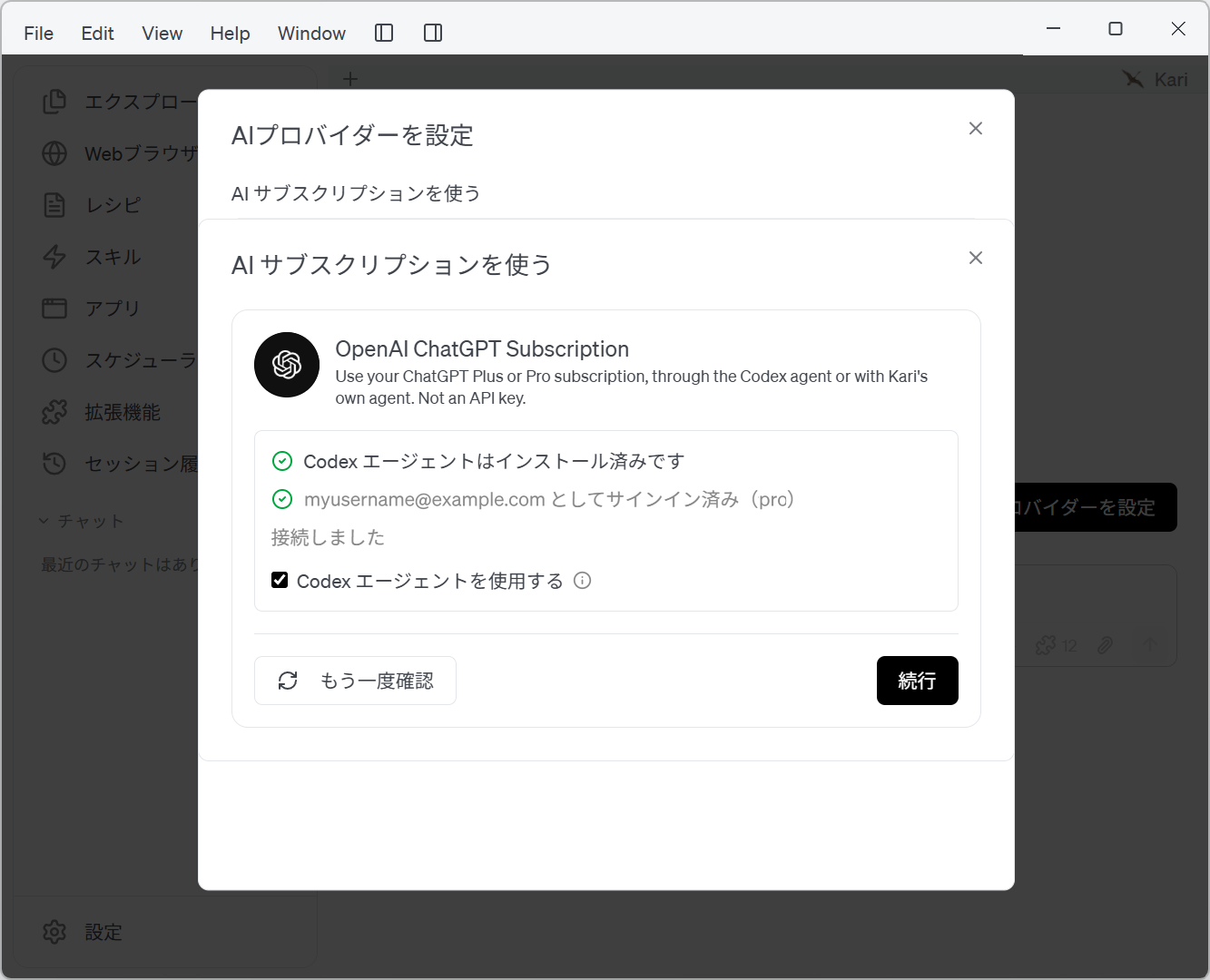
Screenshot shown in the original Japanese.
- (4) Use the Codex agent is always on and cannot be changed. Chat runs on Codex's own agent and tools.
- With the OpenAI ChatGPT Subscription selected, create a new AI chat session. At the bottom of the session window, click the model icon to the lower left of the input box and the Change model menu appears.
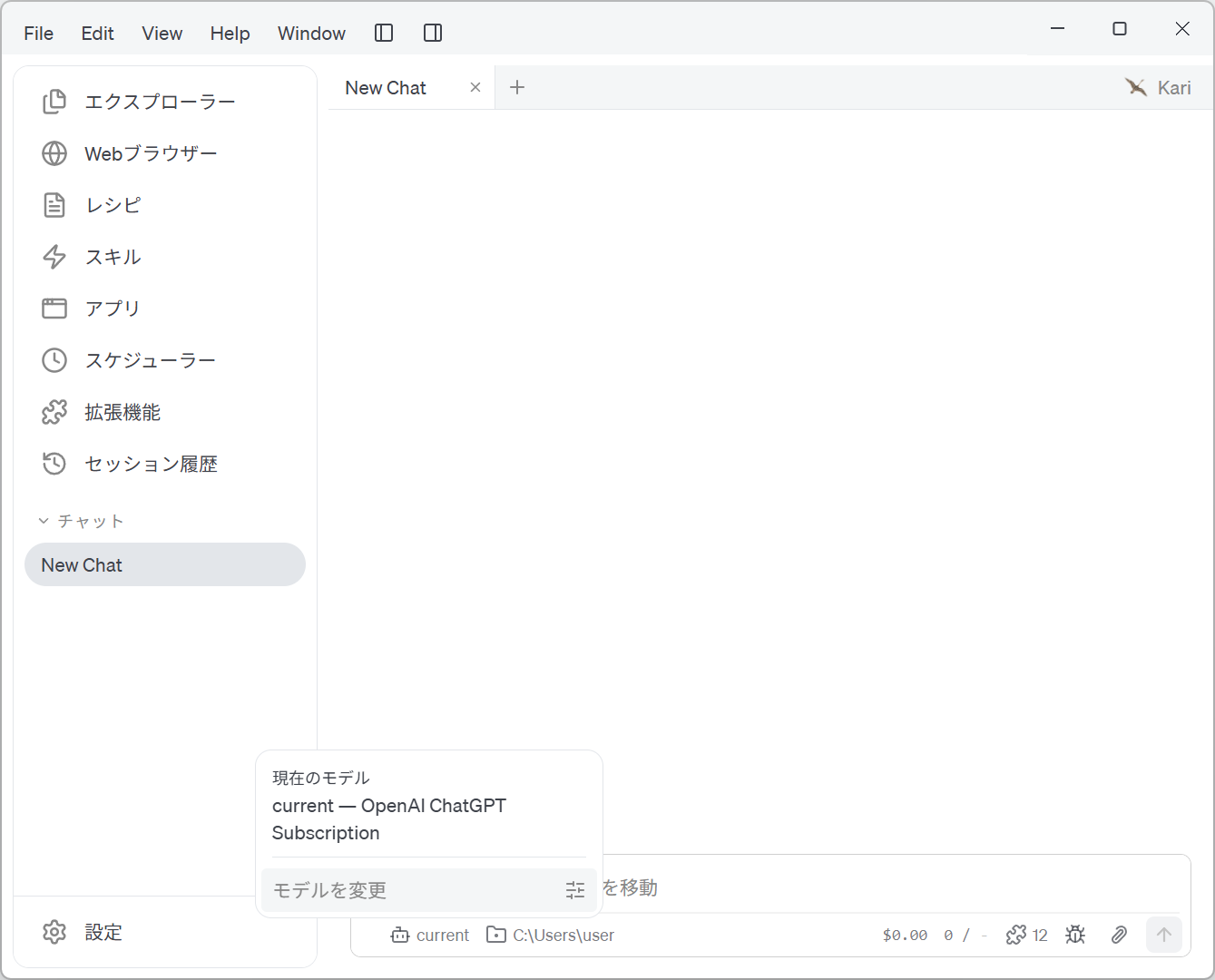
Screenshot shown in the original Japanese.
- Select the model you want to use.
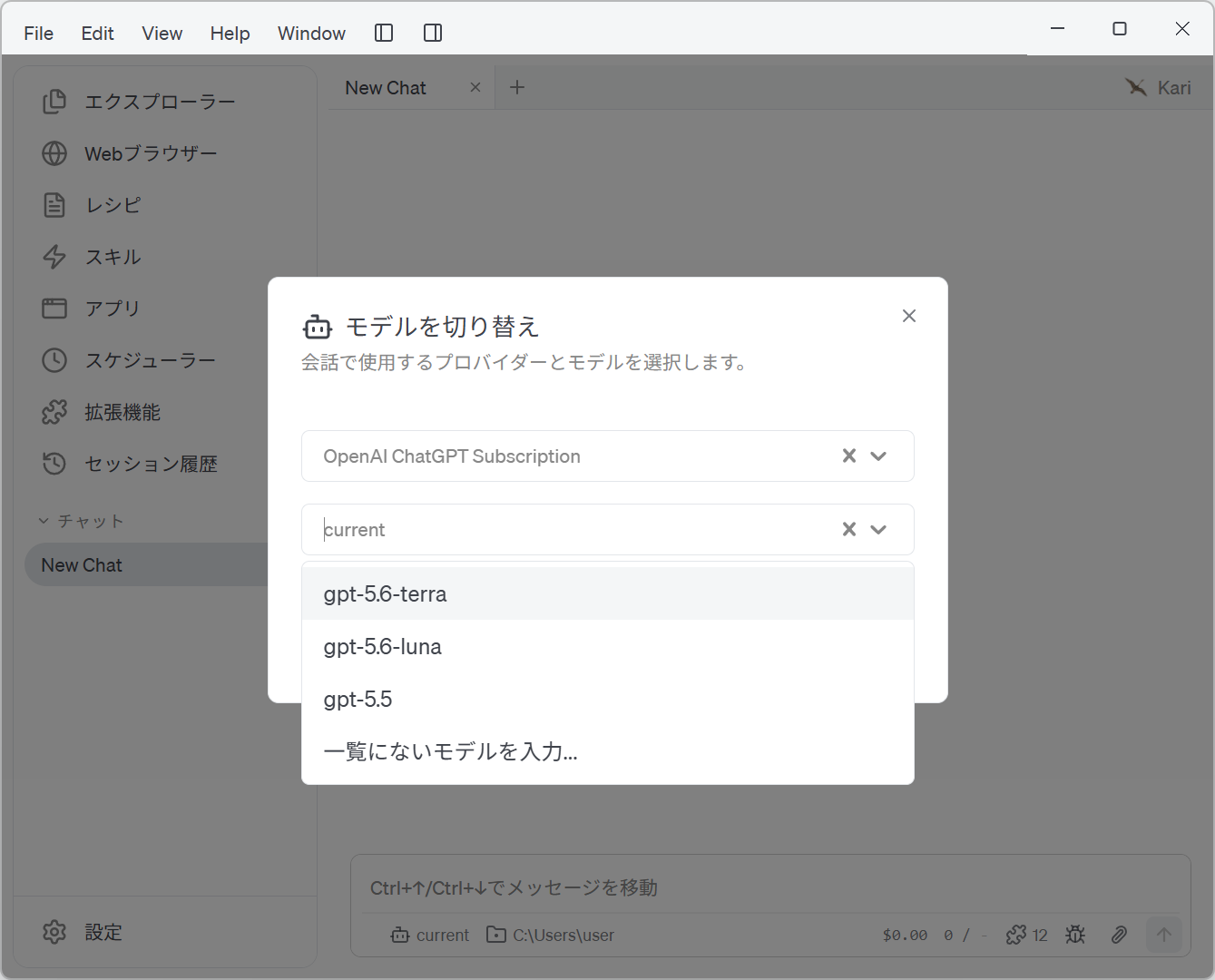
Screenshot shown in the original Japanese.
- Start working in the chat session.
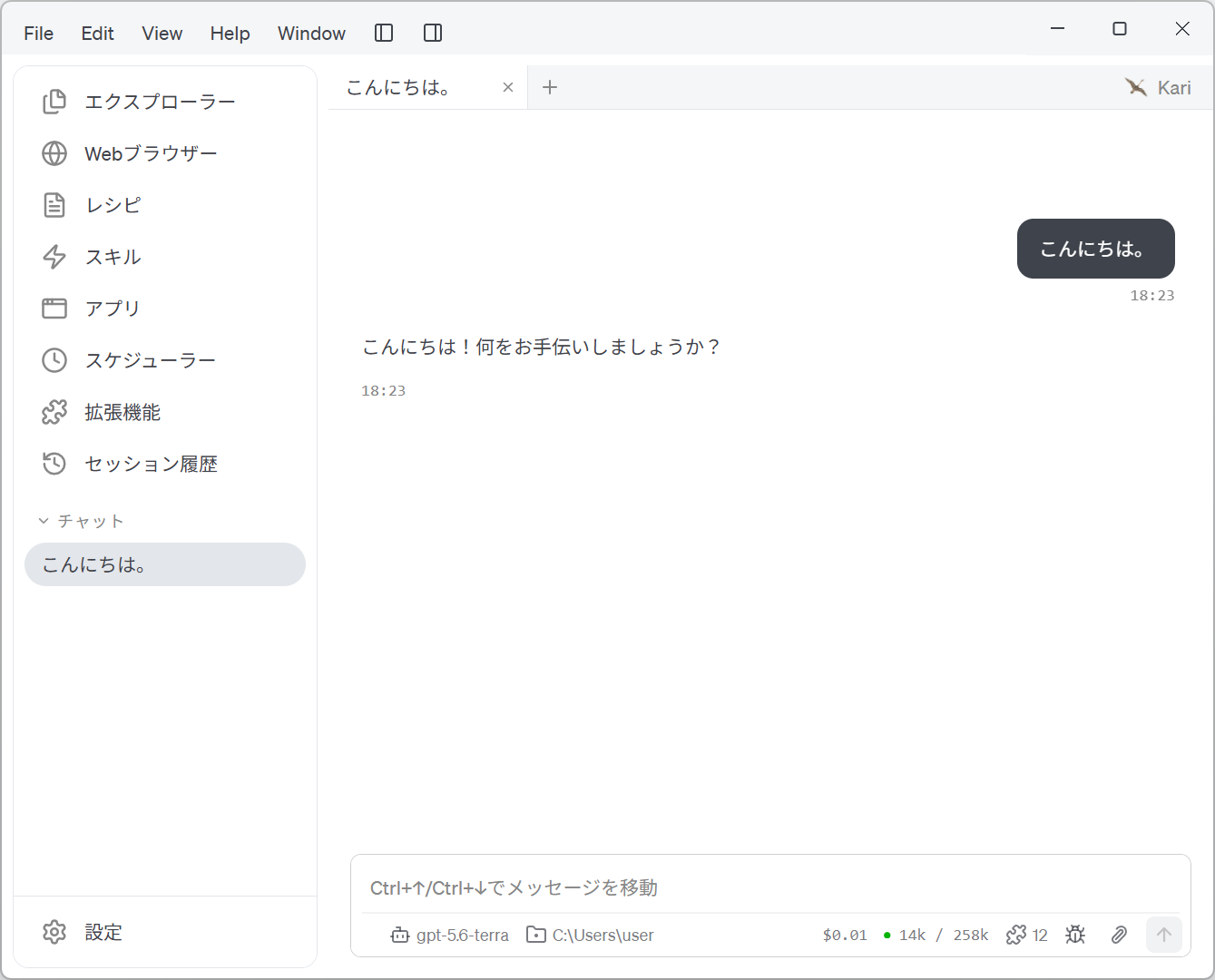
Screenshot shown in the original Japanese.