Download data automatically and save it under a defined file name
Copyright © 2026GotoAI Inc.Based on the goose project
The steps on this page were verified in the following environment.
- Kari: version 0.6.0, Windows
- AI provider: Anthropic Claude subscription
- Model: Opus 5 (1M)
About this use case
Have you ever downloaded files from a website one at a time by hand? Often there is no web API, the system is internal, or it requires signing in — so web scraping is not an option and you end up spending your time downloading the data manually.
On top of that, the original file names may not suit your purpose and have to be changed by hand. The more files there are, the higher the risk of human error: a file missed, a name mistyped.
With Kari's browser automation, work like this is easily handed to an AI agent. This page uses a public site for the walkthrough, but the same steps apply to a closed site.
Scenario
The user wants to download, comprehensively, the last three years of Excel tables from the Japan Tourism Agency's page on the Consumption Trend Survey for Foreigners Visiting Japan (「インバウンド消費動向調査」), and save them under a defined file name. Using an AI agent brings the following benefits.
- There are more than 20 files to collect, and they are a mix of Excel and PDF, so an AI agent reduces the risk of mistakes.
- The original file names do not describe their contents, and the user wants meaningful names instead. An AI agent can apply the naming rule automatically — less effort, fewer mistakes.
- While the AI agent works, the user can get on with something else, so the overall work goes faster.
Preparing the work
-
Decide on the working folder the files will be saved into. Right-click Explorer in the left navigation panel and choose Open Folder…. Downloaded files are saved into this folder, so choose one you have write access to.
-
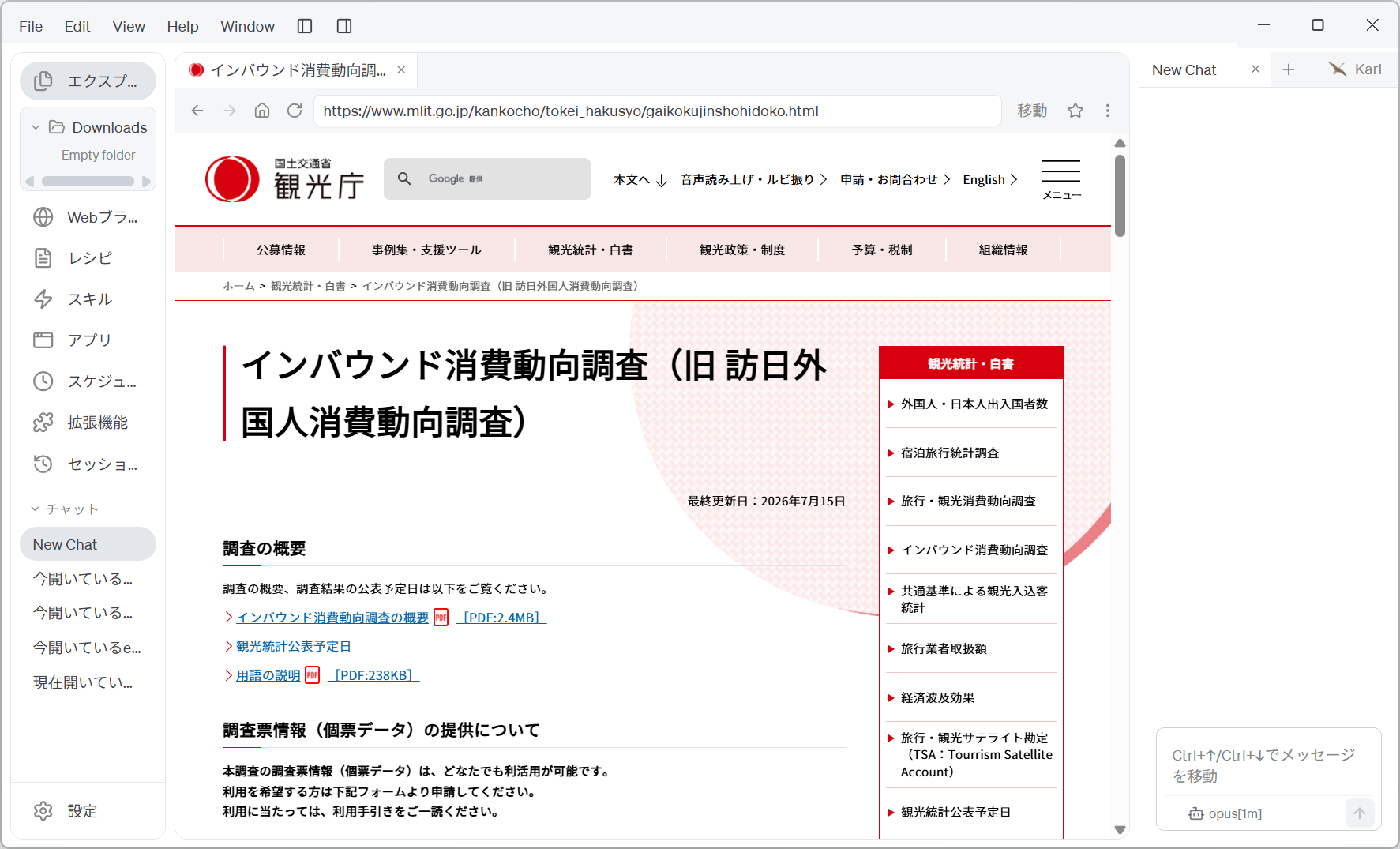
Open Web Browser in the left navigation panel and go to the target page. URL: https://www.mlit.go.jp/kankocho/tokei_hakusyo/gaikokujinshohidoko.html
Screenshot shown in the original Japanese.
- Scroll down the page and look over what you are about to collect. Under the heading 「調査結果」 (survey results) there are sub-headings by year (2026, 2025, 2024 …), and under each of those, links such as 「4-6月期 集計表(1次速報)」 (April–June tables, first preliminary report), 「2025年年間 集計表」 (2025 annual tables) and 「1-3月期 【参考】都道府県別集計表」 (January–March reference tables by prefecture). Some link texts contain the year and some do not, so the year has to be taken from the structure of the page (the year sub-heading). That is the crux of the file-naming rule below.
The same applies to an internal system or a closed site that requires signing in: sign in first in Kari's web browser, and you can then hand the same steps to the AI, working in that session.
Instruct the AI
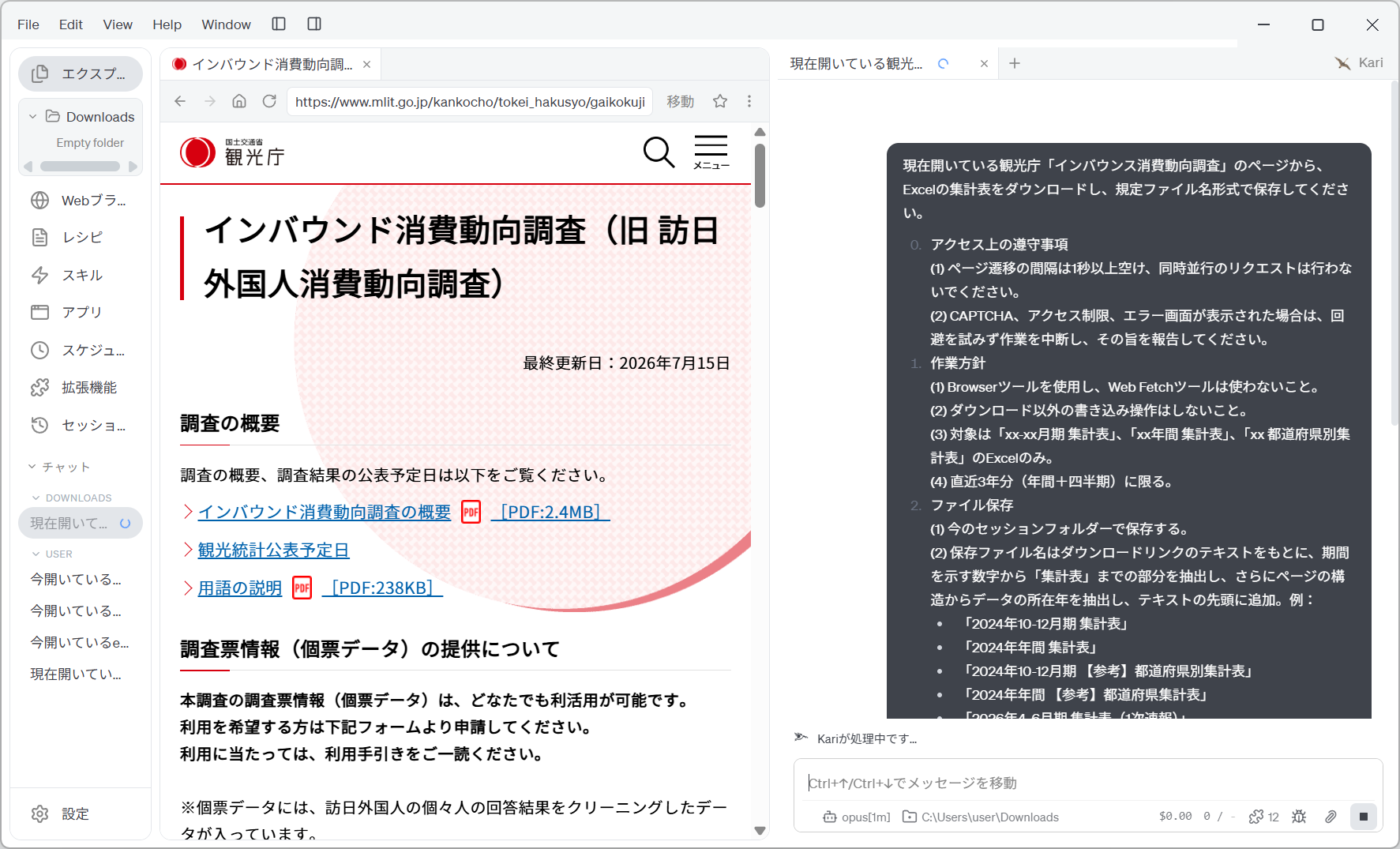
- Set out the scope, the file-naming rule and the access rules together, and instruct the AI as follows. The prompt below is an English rendering of the Japanese prompt shown in the screenshot; the link texts and file names are quoted as they appear on the Japanese source page.
From the Japan Tourism Agency's Consumption Trend Survey page that is currently open, download the Excel tables and save them under the defined file-name format.

0. Access rules to observe
(1) Leave at least one second between page transitions, and do not make concurrent requests.
(2) If a CAPTCHA, an access restriction, or an error screen appears, do not try to work around it — stop and report it.

1. Approach
(1) Use the Browser tool; do not use the Web Fetch tool.
(2) Perform no write operations other than downloading.
(3) Only the Excel files for 「xx-xx月期 集計表」, 「xx年間 集計表」 and 「xx 都道府県別集計表」 are in scope.
(4) Limit this to the last three years (annual plus quarterly).

2. Saving the files
(1) Save them in the current session folder.
(2) Base the file name on the download link's text: take the part from the digits that indicate the period through to 「集計表」, then take the year of the data from the page structure and prefix it to the text. For example:
 ・「2024年10-12月期 集計表」
 ・「2024年年間 集計表」
 ・「2024年10-12月期 【参考】都道府県別集計表」
 ・「2024年年間 【参考】都道府県集計表」
 ・「2026年4-6月期 集計表(1次速報)」
 ・「2026年1-3月期 【参考】都道府県別集計表」
(3) Keep the original file extension.

3. Chat output: besides saving the files, report in the chat reply as bullet points plus a table.
(1) A table of the files saved: new file name / original ID / link text / file size / source URL.
(2) State explicitly anything that could not be downloaded, or that you could not decide a name for.
(3) State the source (source: Ministry of Land, Infrastructure, Transport and Tourism website, with the page URL).
Screenshot shown in the original Japanese.
The way this instruction is put together has a few key points.
| Block of the instruction | What it is for |
|---|---|
| 0. Access rules | Spells out the interval and serial execution so the site is not put under load. Requiring the AI to stop and report rather than work around a CAPTCHA or error screen prevents unintended circumvention. |
| 1. Approach | Limits the tool to Browser and narrows the target to "Excel tables only" and "the last three years". This excludes the report PDFs and summary PDFs. |
| 2. Saving the files | Defines separately the span to take from the link text (from the period digits through to 「集計表」) and the year to supply from the page structure, and gives six examples. Giving several examples keeps the handling of irregular patterns stable — 「年間」 (annual), 「【参考】都道府県別」 (reference, by prefecture), 「(1次速報)」 (first preliminary report). |
| 3. Chat output | Has the results reported as a table, and requires anything that failed to be stated explicitly. This is where the human check concentrates. |
Spell out the range of operations the AI is allowed to perform, as in "perform no write operations other than downloading". That avoids unintended writes such as submitting a form or changing a setting.
Check the AI's work
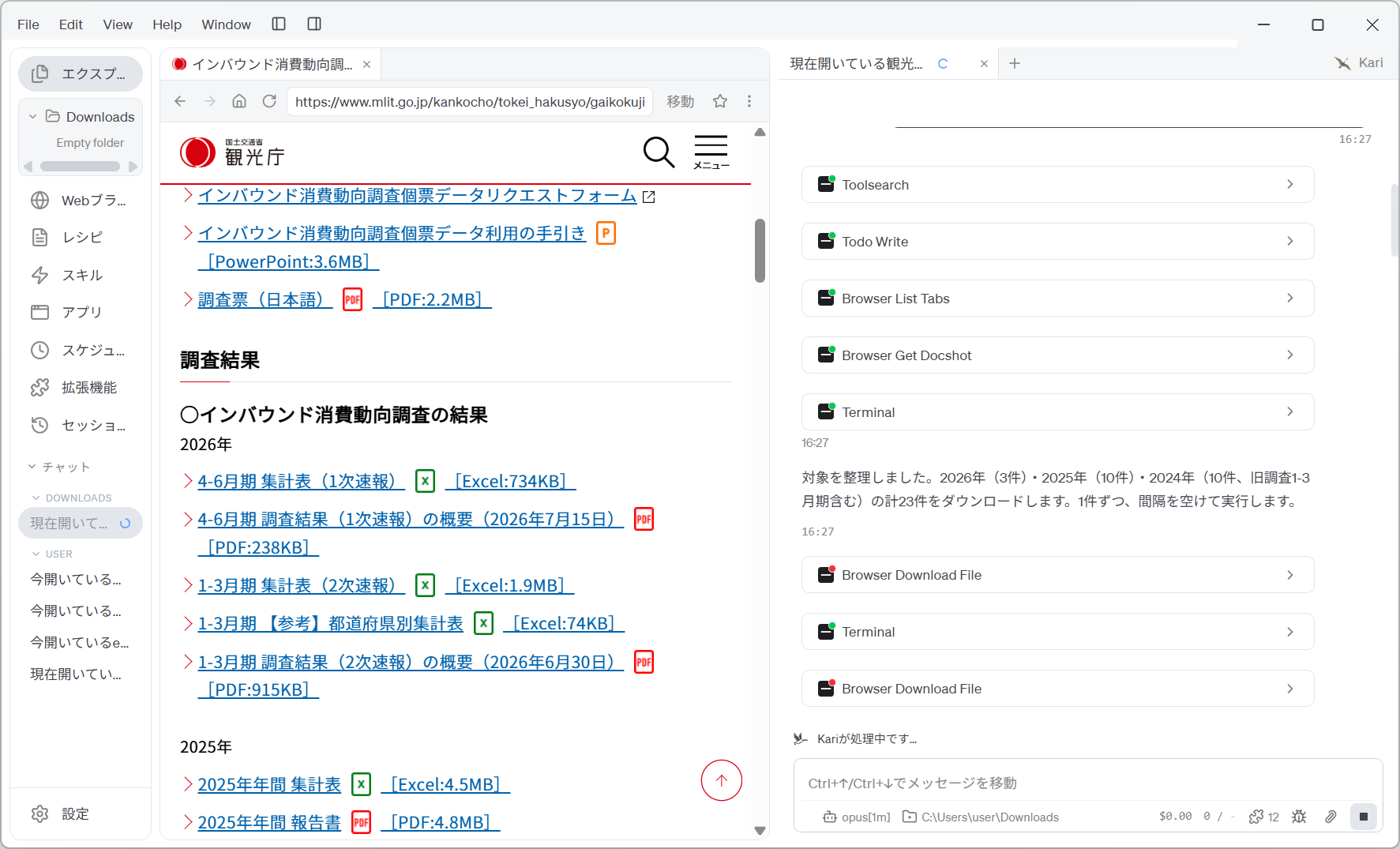
- The AI reads all the links on the page, organizes the targets, reports how many it will collect, and then downloads them one by one. While it works, the tool activity is shown in the session window.
Screenshot shown in the original Japanese.
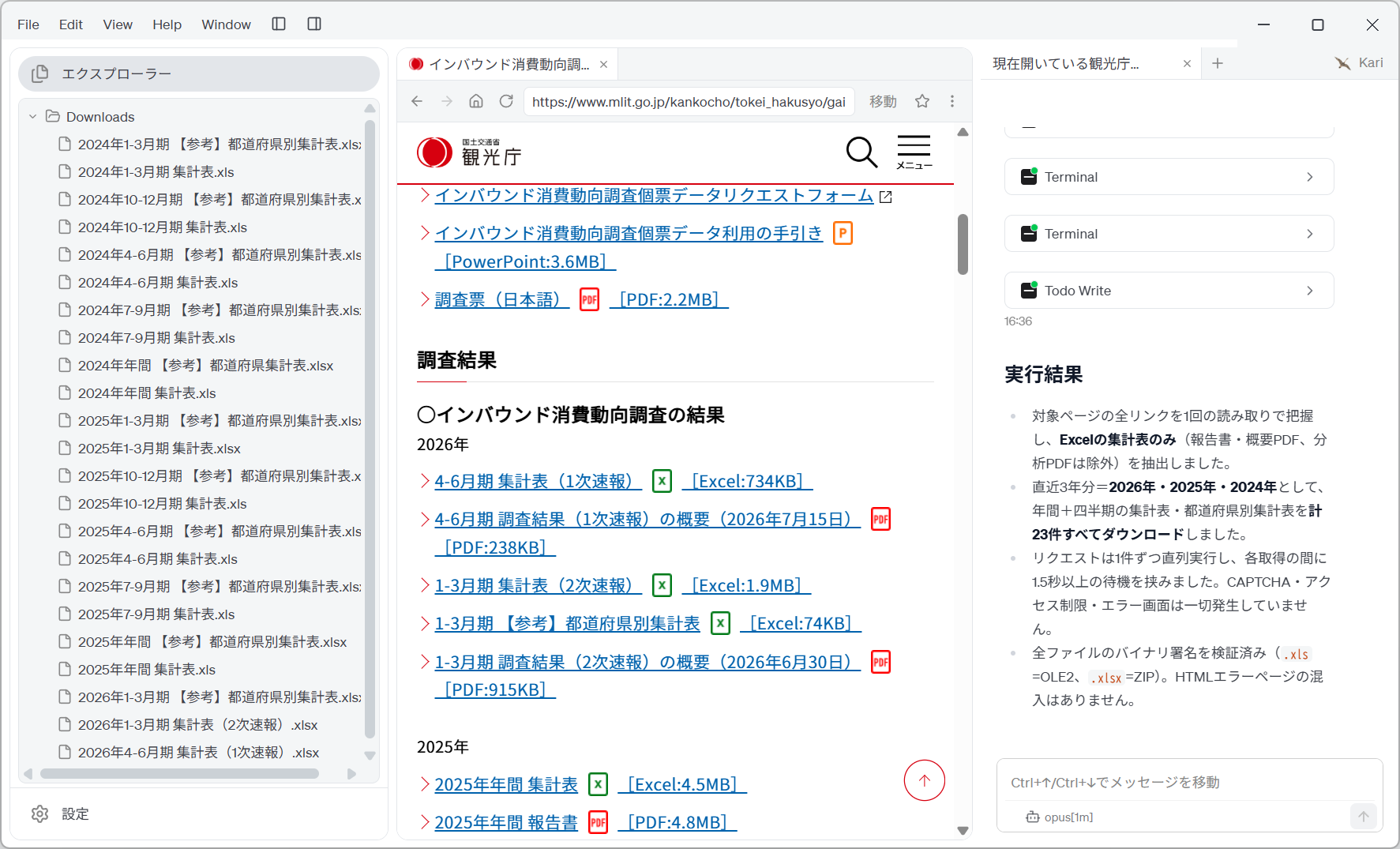
- When the work finishes, a summary of the run appears, reporting how the targets were narrowed down, how many were collected, and the interval between requests.
Screenshot shown in the original Japanese.
In this example, the AI reported the following.
-
It extracted only the Excel tables (excluding the report and summary PDFs and the analysis PDFs) and downloaded 23 files in total for the last three years — 2026, 2025 and 2024.
-
Requests were run serially, one at a time, with at least 1.5 seconds of waiting between each. No CAPTCHA, access restriction or error screen occurred.
-
It verified the binary signature of every file (
.xlsis OLE2,.xlsxis ZIP), confirming that no HTML error page had slipped in disguised as a file. -
The table of saved files is printed in the chat reply. With columns for the new file name, the original ID, the link text, the size and the source URL, you can trace which link became which file name, row by row.
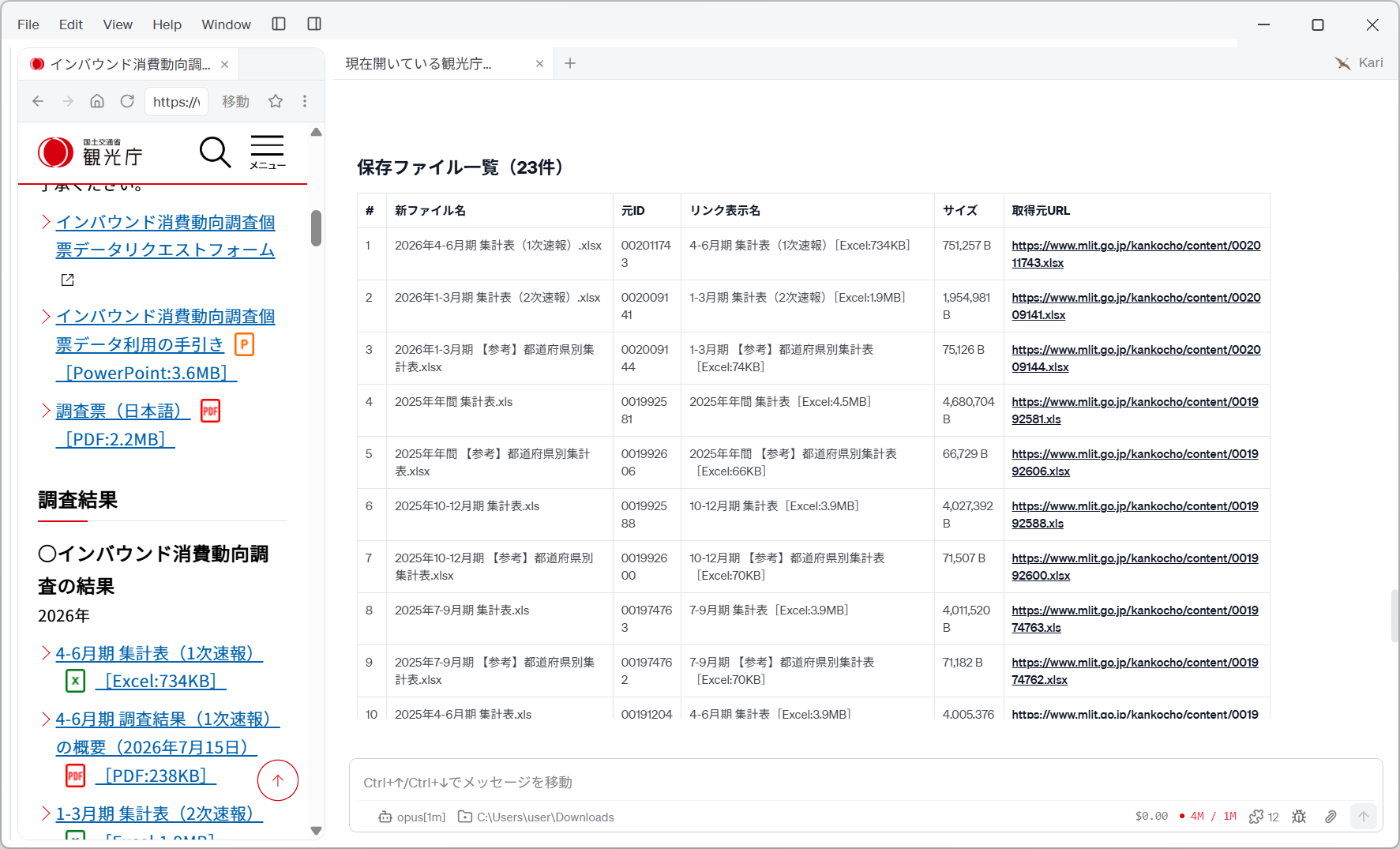
Screenshot shown in the original Japanese.
- Check the file names actually saved in the Explorer on the left. Even the links whose text had no year in it have the year, read from the page structure, prefixed to the name.
| Link text (on the page) | Saved file name |
|---|---|
| 4-6月期 集計表(1次速報) | 2026年4-6月期 集計表(1次速報).xlsx |
| 1-3月期 【参考】都道府県別集計表 | 2026年1-3月期 【参考】都道府県別集計表.xlsx |
| 2025年年間 集計表 | 2025年年間 集計表.xls |
| 10-12月期 【参考】都道府県別集計表 | 2025年10-12月期 【参考】都道府県別集計表.xlsx |
- Open a few of the source URLs from the table and confirm that the file sizes match what the original page states (for example,
[Excel:734KB]).
Human-in-the-loop points
Do not leave everything to the AI. Check the following yourself.
-
Confirm the destination in advance Prepare the destination folder before asking the AI to work. The AI's write permissions are the same as the account Kari runs under. Confirm that you can write to the destination, and check afterwards where the files actually went.
-
Reconcile the counts A relative condition such as "the last three years" changes as the page is updated. Compare the count the AI reports (in this example, 3 files for 2026, 10 for 2025 and 10 for 2024, 23 in total) against what is published on the page.
-
Check the basis for the year in each file name The year is inferred from the page structure (the year sub-heading), not from the link text. On a quarter that straddles a year boundary, or on a page whose heading structure differs, that inference can be wrong. Spot-check the files at year boundaries first (January–March, October–December, and so on).
-
Read the AI's report when something fails Always read the answer to "state explicitly anything that could not be downloaded, or that you could not decide a name for". What was not collected matters more than how many were.
-
Confirm the contents really are Excel files When access is restricted, an HTML error page can be saved under the same file name instead of the Excel file. Ask for binary signature verification, as in this example, or open a few of the saved files afterwards to check.
-
Observe the target site's terms The interval between requests and the level of concurrency are the requester's responsibility. Check the target site's terms of use and
robots.txt, and judge whether secondary use of the data you collect is permitted.
The accuracy of the reading and the shape of the output vary with the LLM used. For a long list, check it against the original page.
References
The steps on this page use the following public site for illustration. Screenshots are reproduced as quotations with the source stated. The list the AI produced and the file names it saved were generated by GotoAI as an example of Kari's operation; they were not created or published by the Japan Tourism Agency or the Ministry of Land, Infrastructure, Transport and Tourism.
- Material: Consumption Trend Survey for Foreigners Visiting Japan (「インバウンド消費動向調査」, formerly the Consumption Trend Survey for Foreign Visitors to Japan)
- Provider: Japan Tourism Agency (Ministry of Land, Infrastructure, Transport and Tourism)
- URL: https://www.mlit.go.jp/kankocho/tokei_hakusyo/gaikokujinshohidoko.html
- Accessed: September 18, 2026
- Terms of use: Used in accordance with that website's terms (links, copyright and disclaimer). Source: Ministry of Land, Infrastructure, Transport and Tourism website (URL above).
- The external information quoted on this site is provided to illustrate examples of using Kari. This site does not guarantee the accuracy or currency of that information. Quoted sources may be changed or removed without notice.
- The AI output shown on this site was actually obtained in the stated verification environment. However, this site does not guarantee the accuracy or usefulness of that output. AI output varies with the LLM used, its settings, and from one run to the next.
- Before using AI output in your work, always check it against the original material and make your own judgement, at your own responsibility.
- Automated downloading from a website must follow that site's terms of use and
robots.txt. Use of the data you collect is likewise your own responsibility. - Screenshots were taken with the version of Kari current at the time of writing. The display may differ in your version.
- The organizations quoted have no affiliation with, and do not endorse, this site or Kari.