Automate parsing the raw CSV data with Kari's AI Analysis feature
Copyright © 2026GotoAI Inc.Based on the goose project
The steps on this page were verified in the following environment.
- Kari: version 0.7.3, Windows
- AI provider: OpenAI ChatGPT subscription
- Model: GPT-6.1 Sol High
About this page
The 不動産価格.csv (real estate prices) file retrieved on the previous page has 207,636 rows and 28 columns, and is 39.3 MB. The nature of a CSV file is that its file information alone does not settle which columns are numbers and which are categories. Before you start the analysis, you need to load this raw data as a Table and give each column an appropriate type. With a file of few rows you can check the data types by eye, but as the file grows that becomes difficult.
Done by hand, this typing means looking at the columns one at a time and writing a conversion for each. Bring the file into a Kari Data Collection and use AI Analysis, and you can hand this work to the AI. What the AI writes is also kept as a Python script, so you can read it afterwards and verify what was converted and how. This conversion from raw data to a Table is the starting point of data analysis.
Preparing the work
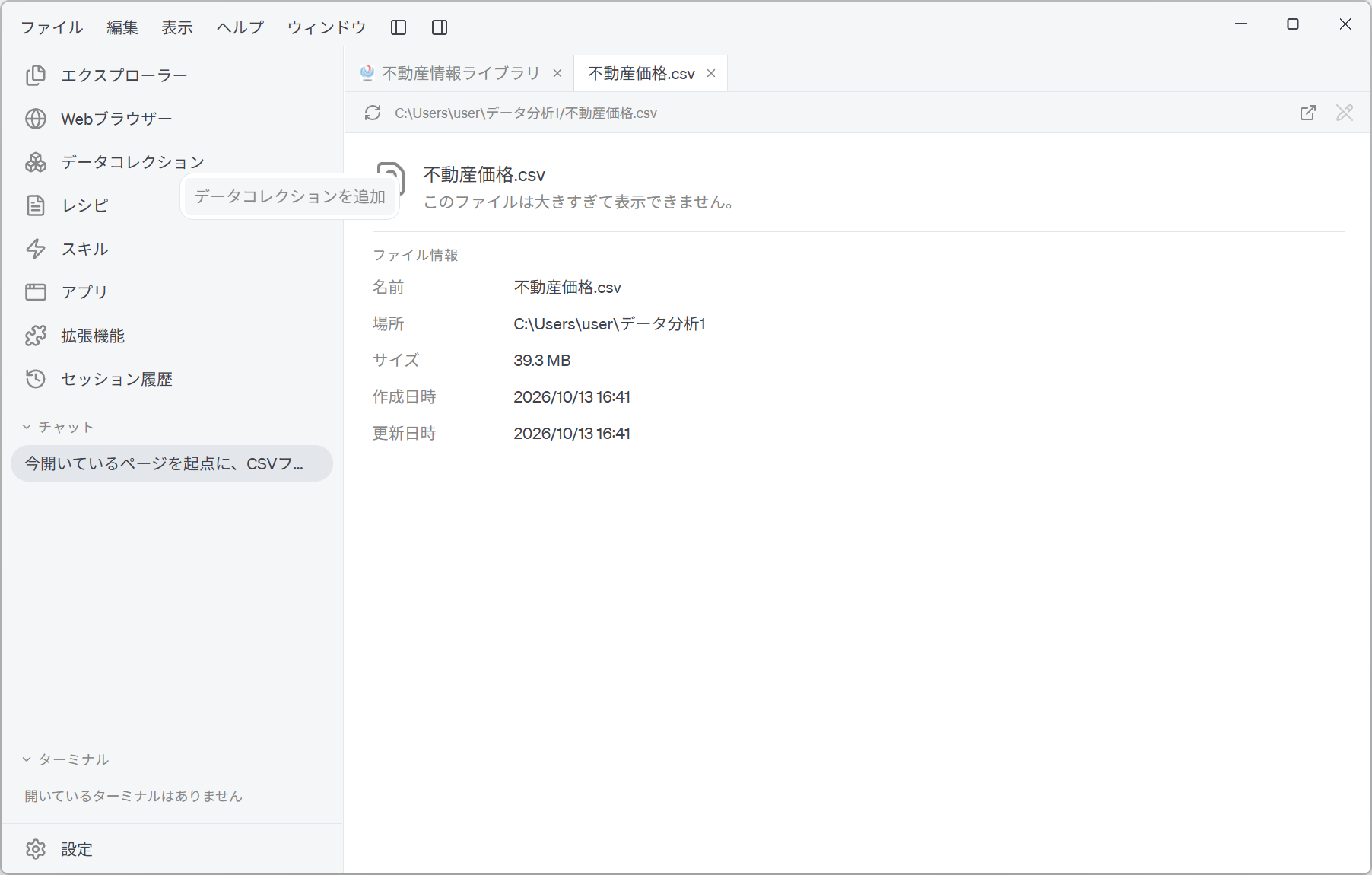
- Hover over Data Collection in the left navigation panel and click Add Data Collection.
Screenshot shown in the original Japanese.
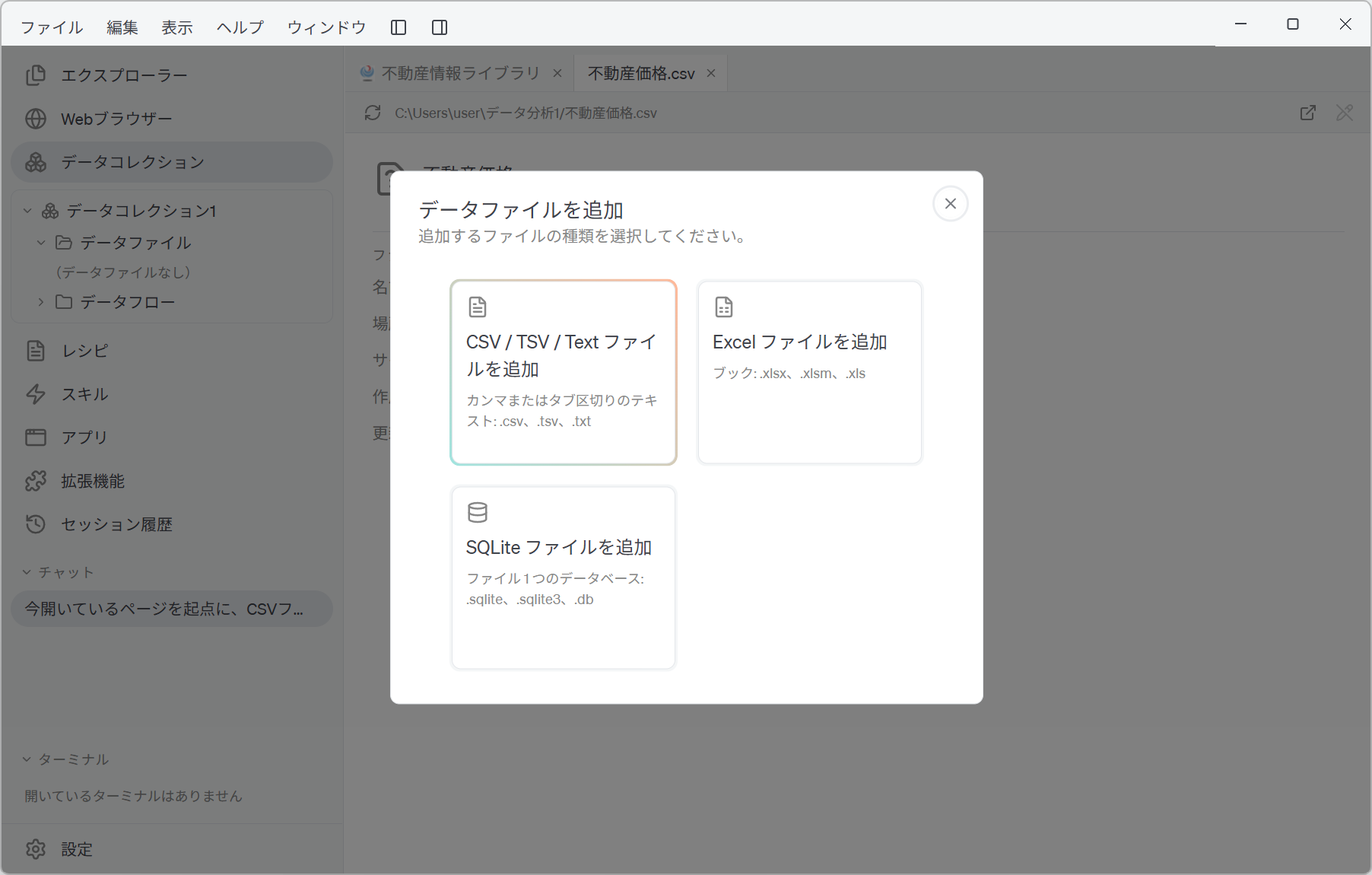
- 「データコレクション1」 (Data Collection 1) is created. At this point Data File contains only "No data files yet". When you add a file from Data File, a dialog opens to choose the kind of file. Choose "Add CSV / TSV / Text file" at the top left, and specify the
不動産価格.csvsaved on the previous page.
Screenshot shown in the original Japanese.
A Data Collection does not copy the original files; it refers to where they are stored. CSV, Excel and SQLite files can be gathered into one collection, so you can work with data from different sources side by side.
Check the default parse result
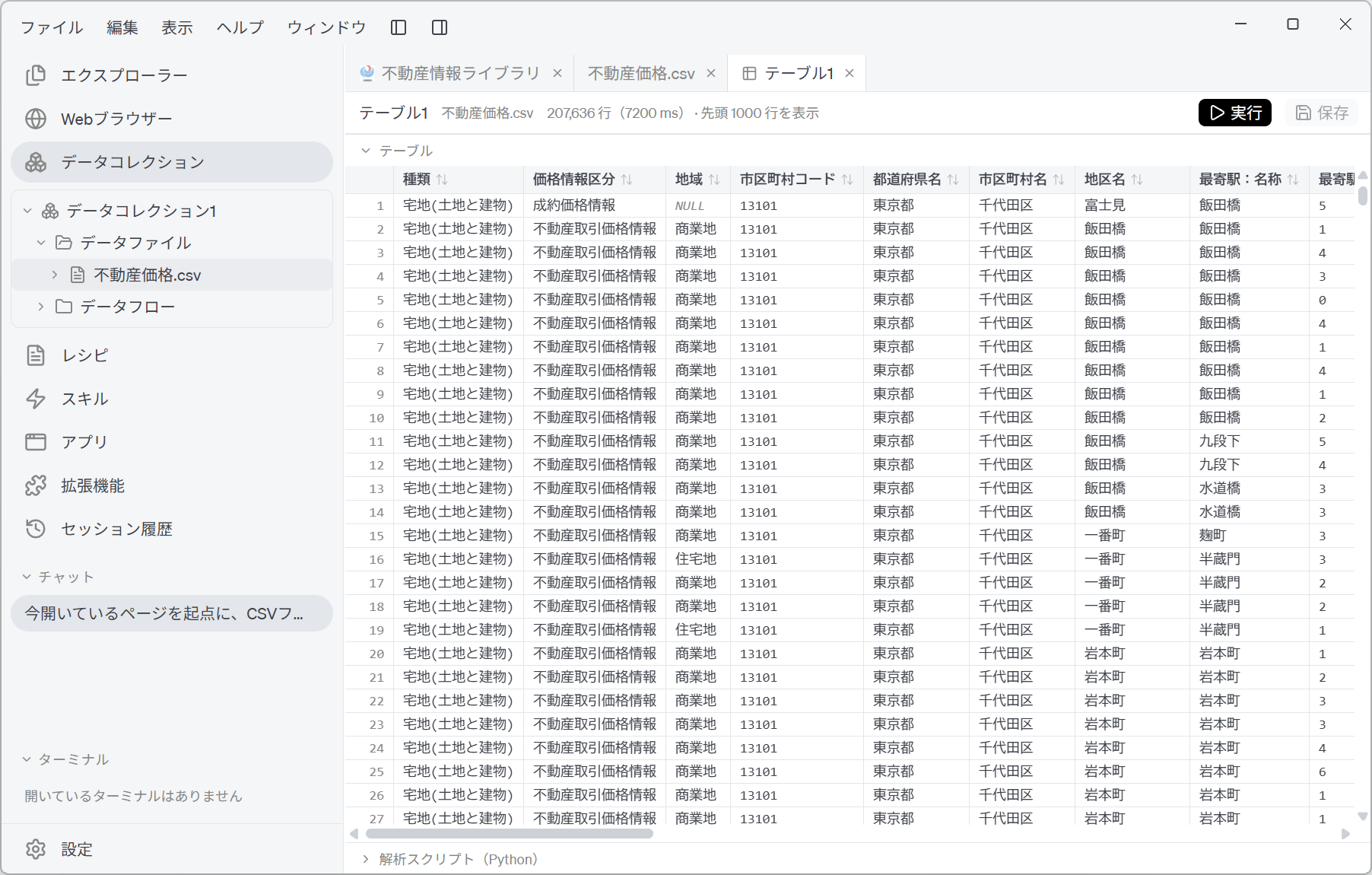
- When you add the file, 「テーブル1」 (Table 1) is created automatically. Expand the Data File and open 「テーブル1」, and the parse runs on the spot (you do not need to press Run). At this stage the parse is done not by the AI but according to parse rules predefined in Kari. In this example it shows 207,636 rows (7200 ms), and the grid displays the first 1000 rows.
Screenshot shown in the original Japanese.
- At first glance, this looks finished. However, at this point all 28 columns have been loaded as "Text". A CSV carries no type information, so Kari's rules go only as far as interpreting delimiters and quotes, and deliberately leave the decision on types for later. The default parse script states this policy as follows.
The file is read as text on purpose, so that every type is converted here, where you can see and change it, rather than guessed at by the reader.
- As things stand, sorting by 「取引価格」 (transaction price) gives string order, and neither a sum nor an average can be calculated. Giving the columns types is the foundation of all the analysis from here on.
Instruct the AI to parse
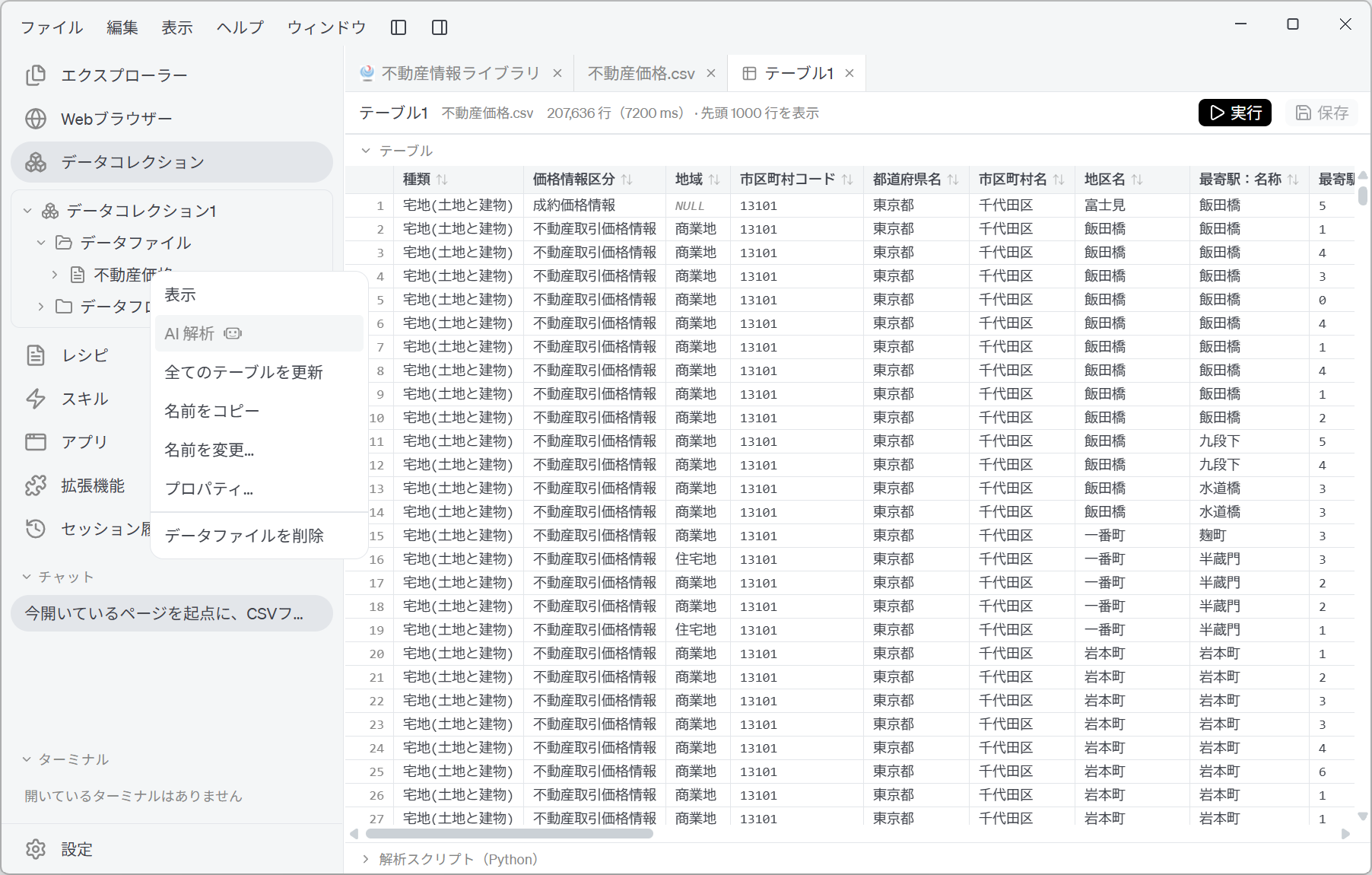
- In the tree on the left, right-click the Data File
不動産価格.csvand choose AI Analysis.
Screenshot shown in the original Japanese.
If you choose AI Analysis on a Data File that already has Tables, a confirmation appears: "All Tables created so far for this data file will be discarded. Continue?" The AI rereads the file from a clean slate, so if you have edited scripts or recorded column descriptions, keep a copy first.
- If you continue, a new chat session opens and the instruction is entered and sent automatically. You do not need to write a prompt yourself.
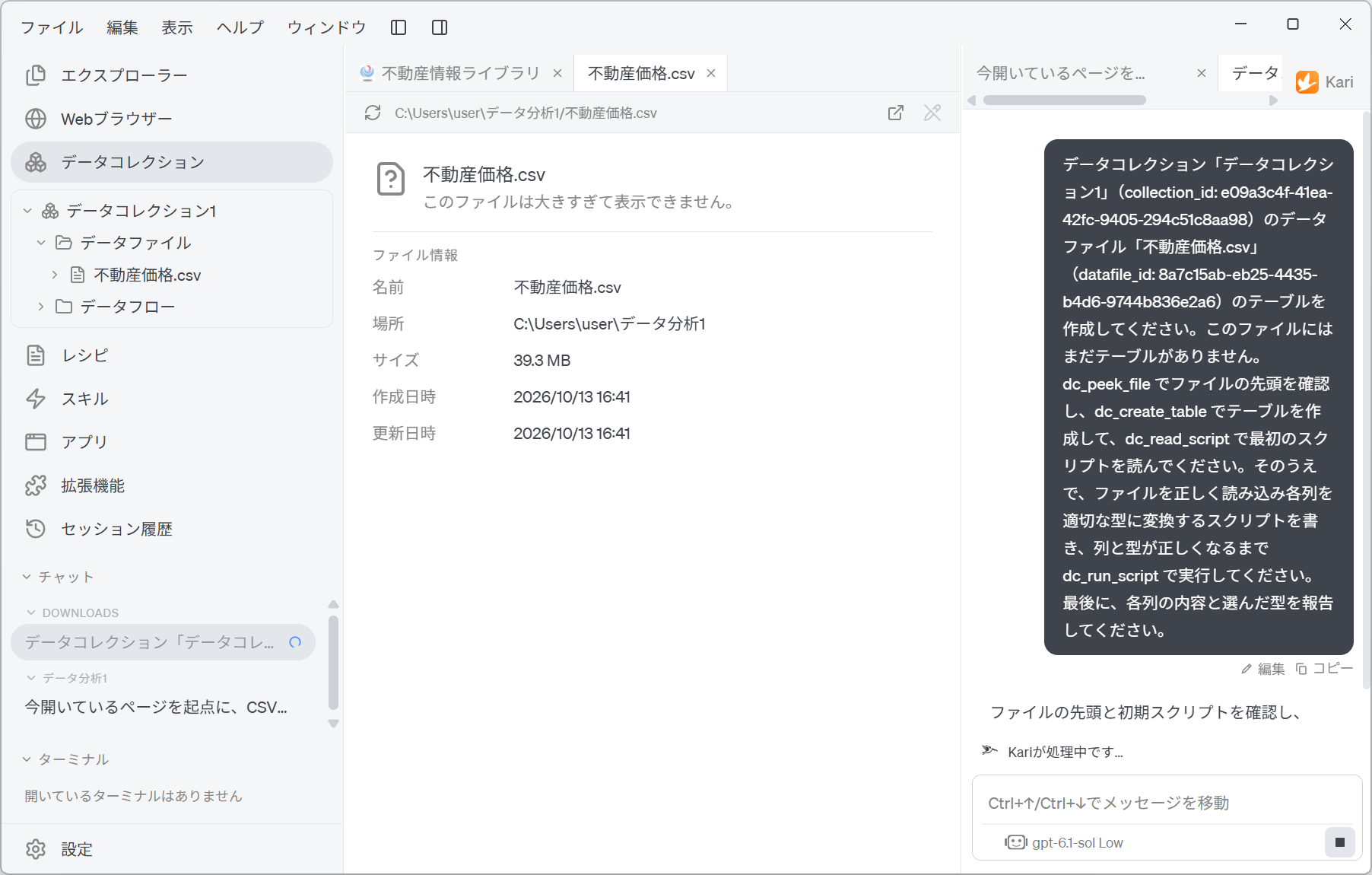
Screenshot shown in the original Japanese.
The instruction sent is as follows, with the collection name, the file name and their IDs filled in. The text below is the English version Kari sends when its interface is set to English; the screenshot shows the Japanese version.
Create the Table for the data file "不動産価格.csv" (datafile_id: ...) in the data
collection "データコレクション1" (collection_id: ...). The file has no Table yet.
Look at the file with dc_peek_file, create a Table with dc_create_table and read its
starting script with dc_read_script. Then write a script that reads the file correctly
and converts each column to its proper type, and run it with dc_run_script until the
columns and types are right. Finally, tell me what each column holds and which type
you chose for it.
This instruction has the following devices built in.
| Element of the instruction | What it is for |
|---|---|
Look at the start with dc_peek_file | Rather than having the AI read all 39.3 MB, it grasps the structure of the columns from the start of the file only. |
Read the first script with dc_read_script | Makes the default script the starting point. The AI does not write from scratch; it edits something that already works. |
Run with dc_run_script until the columns and types are right | Rather than stopping once the script is written, one instruction goes as far as actually running it to check. |
| Report each column's contents and the type chosen | Leaves the grounds for the AI's decisions in a form a person can verify. The checking work is concentrated here. |
Check the AI's parse result
- The AI writes a script, runs it and reports the result. In the tree on the left, a new 「テーブル1」 appears under
不動産価格.csv.
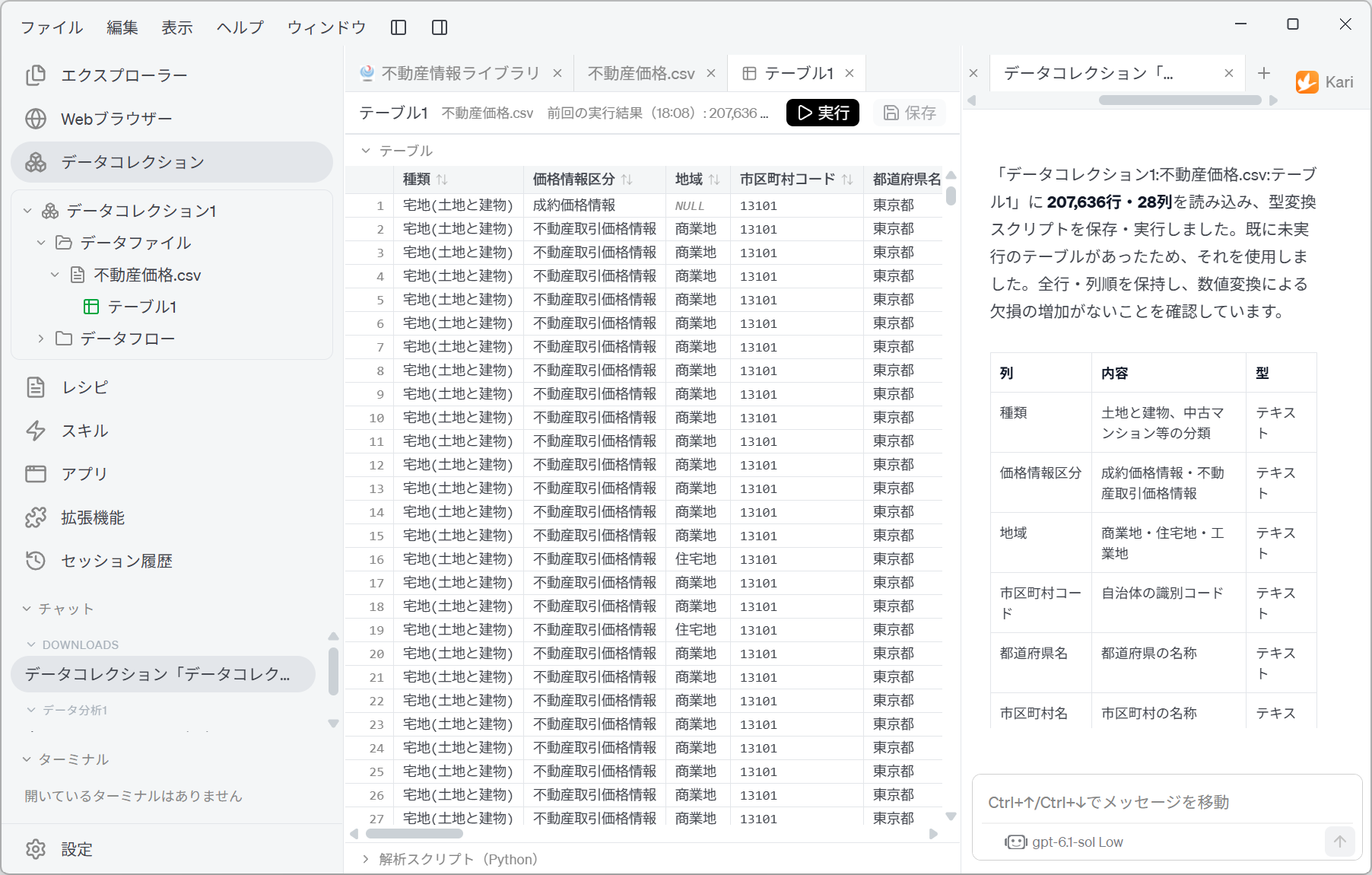
Screenshot shown in the original Japanese.
In this example, the AI reported the following.
-
It loaded 207,636 rows and 28 columns into 「データコレクション1:不動産価格.csv:テーブル1」 and saved and ran a type-conversion script.
-
It confirmed that all rows and the column order were preserved, and that numeric conversion did not increase the number of missing values.
-
Next, a "column / contents / type" table is output for all 28 columns. The first six columns are as follows.
| Column | Contents | Type |
|---|---|---|
| 種類 (type) | Classification as land and building, or second-hand condominiums | Text |
| 価格情報区分 (price information category) | Closed-sale price information or real estate transaction price information | Text |
| 地域 (district type) | Commercial, residential or industrial area | Text |
| 市区町村コード (municipality code) | Identification code of the municipality | Text |
| 都道府県名 (prefecture name) | Name of the prefecture | Text |
| 市区町村名 (municipality name) | Name of the municipality | Text |
- What to note in this table is that 「市区町村コード」 is "Text". Since it consists only of digits, as in
13101, it is a column that mechanical processing could easily turn into a number. A municipality code, however, is an identifier, not something to calculate with, and turning it into a number drops leading zeros and produces a different code. The AI's judgement that this column is text rather than a number is a typical point a person should confirm by reading the report table.
Check the generated Parse script
-
Kari lets you view and edit the Parse script (Python) behind the data processing. This serves three main purposes:
- It ensures the data processing is reproducible and makes the logic more transparent.
- The logic you have built can be carried over to other data processing systems.
- For advanced use, you can edit the script to customize the data processing.
-
Open Parse script (Python) below the grid, and you can read the script the AI wrote exactly as it is.
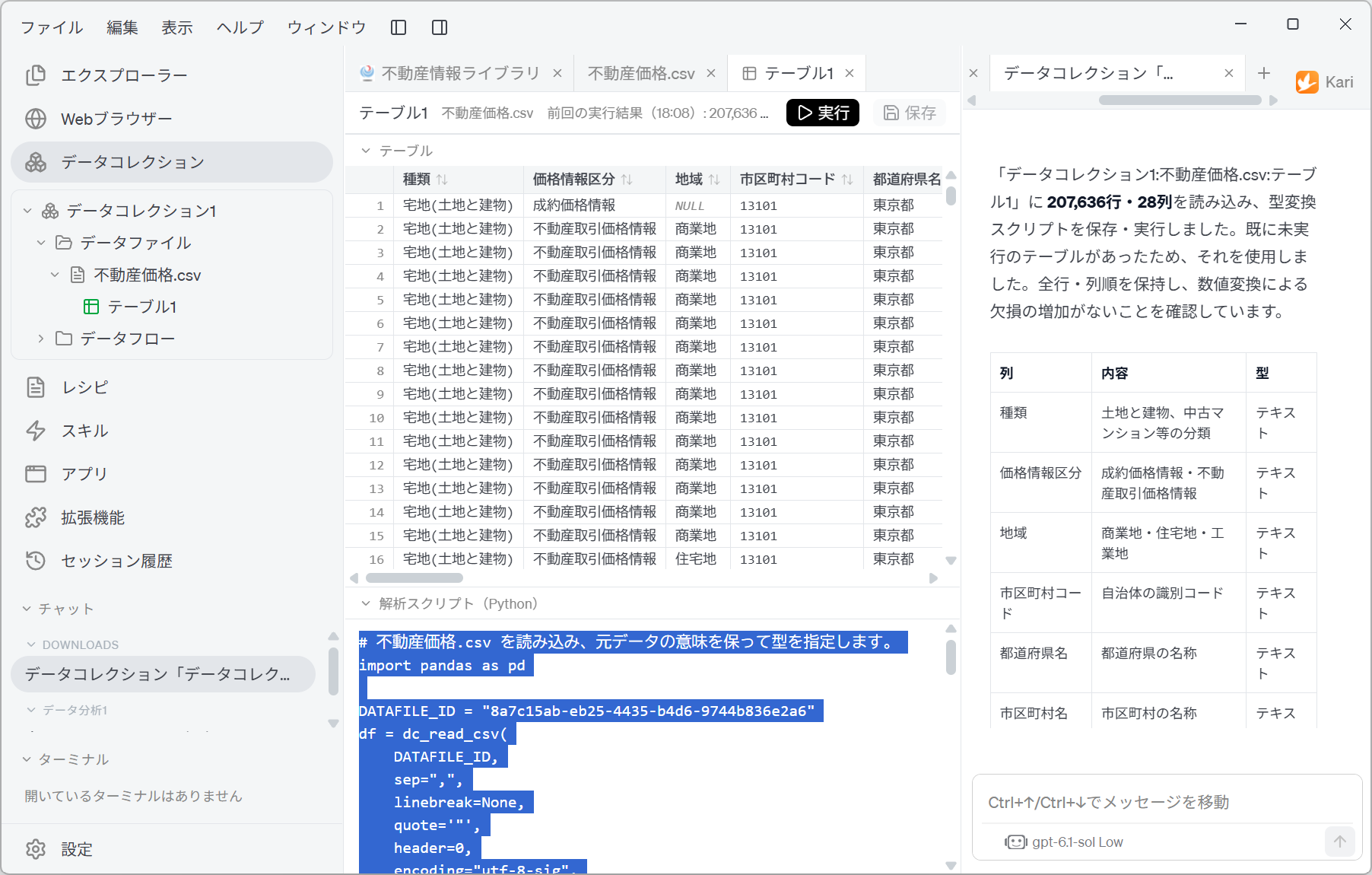
Screenshot shown in the original Japanese.
# 不動産価格.csv を読み込み、元データの意味を保って型を指定します。
import pandas as pd

DATAFILE_ID = "8a7c15ab-eb25-4435-b4d6-9744b836e2a6"
df = dc_read_csv(
    DATAFILE_ID,
    sep=",",
    linebreak=None,
    quote='"',
    header=0,
    encoding="utf-8-sig",
    ...
)
(The comment on the first line reads: "Read 不動産価格.csv and specify the types while preserving the meaning of the original data.")
-
Note
encoding="utf-8-sig". The default script hadencoding=None(automatic detection), but the AI has fixed it explicitly as UTF-8 with BOM. This matches the AI's report on the previous page that "the character encoding is UTF-8 with BOM". Because the encoding is not left to guesswork, this script always returns the same result for the same file. -
The lines that follow carry out the type conversion of each column. The script is saved, so if the original CSV is updated, pressing Run is all it takes to redo the same parse. That the parse procedure remains as code rather than prose is what underpins the reproducibility of AI Analysis.
You can edit the script yourself. If you are not satisfied with the AI's type decision for a column, rewrite the relevant line, Run it, check the result and then Save. The AI's output is a starting point, not the final form.
Export the Table
- You can take the finished Table out through Export… in the right-click menu.
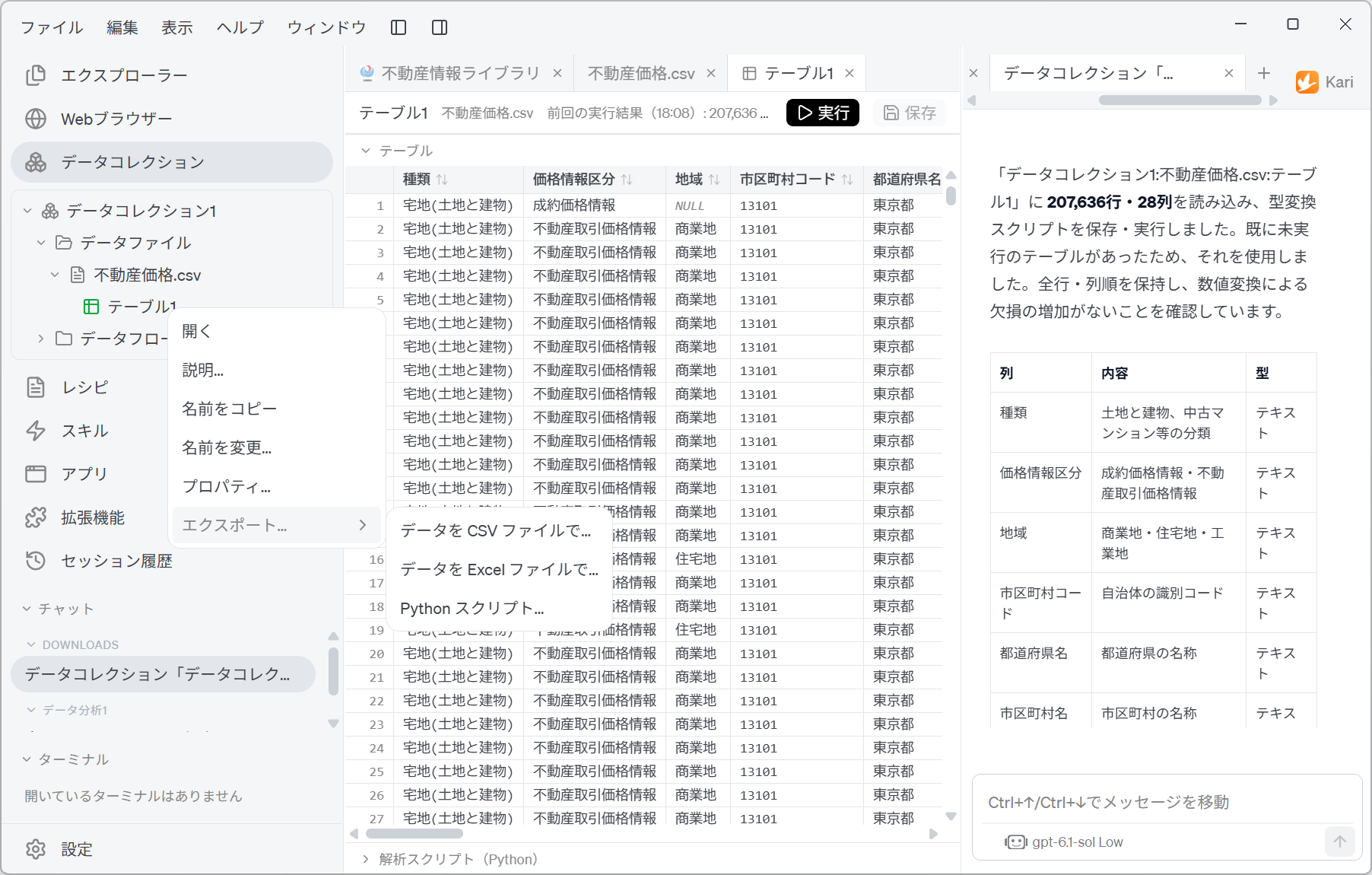
Screenshot shown in the original Japanese.
| Export type | Use |
|---|---|
| Data as CSV file… | Passes the data, now with types, to other tools. |
| Data as Excel file… | Opens it directly in Excel for checking and sharing. |
| Python script… | Takes out the parse procedure itself. You can reproduce the same processing outside Kari or send it for review. |
- If you are continuing the analysis, exporting is not required. The Table stays in the Data Collection, so you can go straight on to the next analysis.
Human-in-the-loop points
Do not leave everything to the AI. Check the following yourself.
-
Confirm that the row count has not changed
If type conversion corrupts values, rows can drop out or turn into missing values. In this example the same 207,636 rows as at retrieval on the previous page were preserved, and the AI also reported that "numeric conversion did not increase the number of missing values". First check that this figure matches the count at retrieval. -
Check that identifier columns have not become numbers
Some columns, such as 「市区町村コード」 (municipality code) and 「郵便番号」 (postal code), are written in digits but are not calculated with. If they become numeric, leading zeros drop and they become different values. Go down the "Type" column of the report table and confirm that identifiers have stayed as text. -
Check that amount and area columns have become numbers
Conversely, you cannot start analyzing while the columns you want to aggregate are still text. Check that columns such as 「取引価格(総額)」 (transaction price (total)) and 「面積(㎡)」 (area (m²)) have a numeric type. The report table lists all 28 columns, so read it to the end. -
Check what missing values mean
NULLin the grid does not distinguish between a cell that was empty in the original data and one that became empty because conversion failed. The former is by design; the latter is a defect. When you find a column with many missing values, check it against the corresponding part of the original CSV. -
Read the generated script
The AI's report is a summary. What it actually did is written in the script. In particular,encodingand theerrorshandling ofto_numeric/to_datetimefor each column are worth a look. -
Redoing AI Analysis is destructive
Running it again discards the existing Tables. If you choose AI Analysis again after adjusting the script by hand, those adjustments are lost. It is safest to keep a copy of an adjusted script with Python script… under Export….
The type decisions and the presentation of the report can vary with the LLM used. In the verification for this page, a lighter model (Low) than the one used for retrieval (High) also produced sound typing, but for data with many columns, read the report table to the end and check the types one column at a time.
References
The data parsed on this page is the data from MLIT's Real Estate Information Library (「不動産情報ライブラリ」) retrieved on the previous page. Screenshots are reproduced as quotations with the source stated. The type decisions and the Parse script that the AI output were generated by GotoAI as an example of Kari's operation; they were not created or published by MLIT.
- Material: Real Estate Information Library, 「不動産価格(取引価格・成約価格)情報の検索・ダウンロード」 (search and download of real estate price (transaction price and closed-sale price) information)
- Provider: Ministry of Land, Infrastructure, Transport and Tourism (MLIT)
- URL: https://www.reinfolib.mlit.go.jp/realEstatePrices/
- Accessed: October 13, 2026
- Terms of use: In accordance with that site's terms of use. Source: MLIT website (URL above).
- The external information quoted on this site is provided to illustrate examples of using Kari. This site does not guarantee the accuracy or currency of that information. Quoted sources may be changed or removed without notice.
- The AI output shown on this site was actually obtained in the stated verification environment. However, this site does not guarantee the accuracy or usefulness of that output. AI output varies with the LLM used, its settings, and from one run to the next.
- Check any Parse script generated by the AI yourself before using it, at your own responsibility. If you aggregate with wrong type decisions, the results will be wrong.
- Screenshots were taken with the version of Kari current at the time of writing. The display may differ in your version.
- This page deals with actual real estate transaction price data. If you use it for purchase or investment decisions, always check it against the original data.
- The organizations quoted have no affiliation with, and do not endorse, this site or Kari.