General settings
Copyright © 2026GotoAI Inc.Based on the goose project
General in the settings window holds the basics of the desk and the conditions it runs under.
AI Providers, Inbound Channels, Extensions and the Desk Scheduler are covered in Other settings.
While a desk is running, its settings can be read but not changed. Stop the desk to change them.
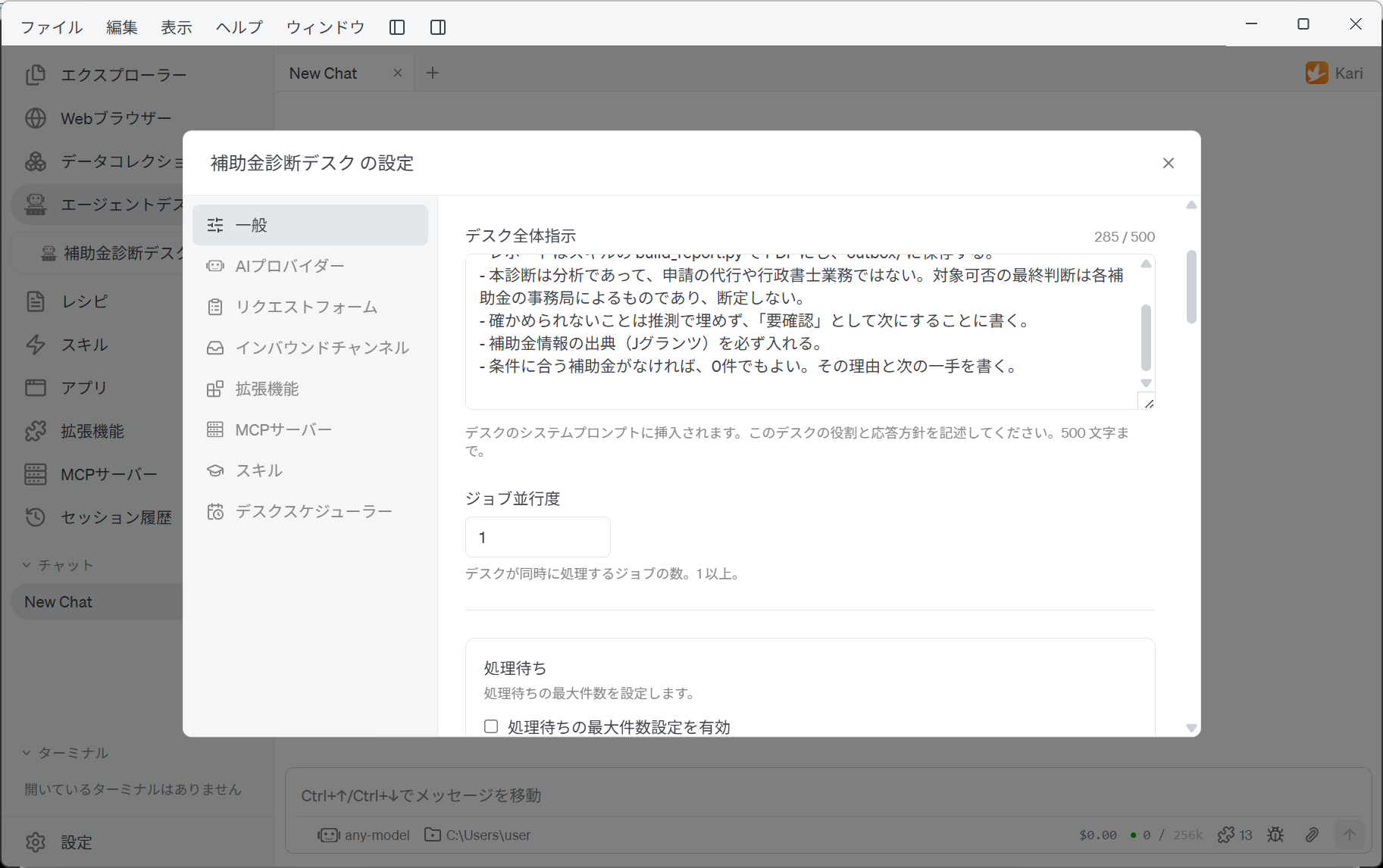
Basic desk settings
| Setting | What it is |
|---|---|
| Display name | The name used in the navigation, in notifications and in page headings. It is the name of the counter (for example, Quote Desk) |
| Desk Overall Instructions | The job description for this desk. Write the role and how it should respond. The text is inserted into the desk's system prompt and is read on every request. Up to 500 characters |
Write the role, what is in scope, what is out of scope, and the tone of the reply. Long, detailed procedures belong in a skill, not here. The Desk Overall Instructions are read every time, whereas a skill is read when it is needed. Packing detailed procedures into the overall instructions means reading the whole text on every request, spending tokens on parts that have nothing to do with it.
Parallel Jobs and the Wait Queue
- Parallel Jobs is how many requests the desk works on at once (one or more). Raising it means more requests in flight, and that much more load and cost at the AI provider.
- Setting a maximum for the Wait Queue makes the request form pause acceptance once that many requests are waiting. You can write the message that is shown; left empty, the portal uses its own wording.
If the queue grows without limit, requests accepted today will not finish today. The limit is there to keep the counter's promise: what has been accepted gets answered.
Reception Time and the Closing Command
A counter has hours. An Agent Desk works the same way, and closes only the acceptance of requests by the clock.
- Set the Reception Time (JST) by day of week and start and end time, and outside it the request form closes and shows the message for outside hours — 「本日の受付は終了しました。」 by default. The closing time itself is already outside reception.
- The Closing Command runs once, at the moment everything accepted that day has finished. For example, you can have the command that stops an hourly-billed GPU server run only after the day's processing is done.
Email Notifications
The desk sends its notifications from an email account of its own. Use an account belonging to the desk, not to a person.
Sending Email Account
| Kind | What to set |
|---|---|
| Gmail | Signs in with an app password. On the Google side, turn on two-step verification first, then issue an app password (16 characters). Without two-step verification Google will not issue one. The server name and port are fixed, so there is nothing to set |
| Other Email | Any mailbox with an SMTP server — a hosting provider, an ISP, your own server. Enter the sending address, the SMTP server name, the port and the encryption (STARTTLS or SSL/TLS) |
Send a Test sends one message to the administrator's address, proving the account really can send.
Always-Receiving Email Addresses
Every address registered here always receives the kinds of mail ticked for it. An administrator address is required.
| Kind | What arrives |
|---|---|
| Event Notices | What happened at the turning points of processing, such as a failure |
| Reports and Deliverables | The result of a request, and the files it produced |
Separately from this, the requester receives the delivery notification and the download link.
How deliverables are sent
It is not the agent that delivers a result but Kari itself. The destination and the method are decided solely by the settings here. Nothing in the text of a request, and no decision by the agent, can change where a deliverable goes.
- Handing files over through the Deliverable Download Portal is always on. It is what stops a requester from submitting work and having no way to receive it. Each desk needs its own port (18001 upwards by default).
- Turn on the download verification code and the delivery notification carries a code that must be entered before the files are handed over. It protects a link that was forwarded or shared; it cannot protect a mailbox someone else can read.
- Once File retention is up, the files are deleted and the link says so. The code's lifetime can never be longer than that retention.
- Set a Domain name and the desk writes that address into the links it sends. A name that only resolves inside your network is fine, but the gateway or reverse proxy that answers on it is yours to set up. Without a domain name, no download link can be issued in the email notifications.
- Optionally, turn on email attachments. The deliverable is attached to the message sent to the requester. Files larger than the mail server accepts cannot be attached, so those are left to the download link.
Monitor Console
While the desk runs, this page shows the ticket list and each ticket's full history in a browser. What you set here is how it is published: the port and the credentials. Each desk needs its own port (28001 upwards by default).
The screen itself, and what you can do on it, are covered in Monitor Console.