Overview
Copyright © 2026GotoAI Inc.Based on the goose project
An Agent Desk is a tool for automating office work with an AI agent, modelled on the service desk — the staffed counter — that a company already runs.
Kari has two kinds of agent. The one described so far is the assistant agent: a collaborator sitting beside you, working through a task in conversation. The desk agent that runs on an Agent Desk is different. It accepts a request in a fixed format, through one defined counter, processes it under a written job description, and returns the deliverable to the requester. One characteristic of this agent is that no person takes part while it works.
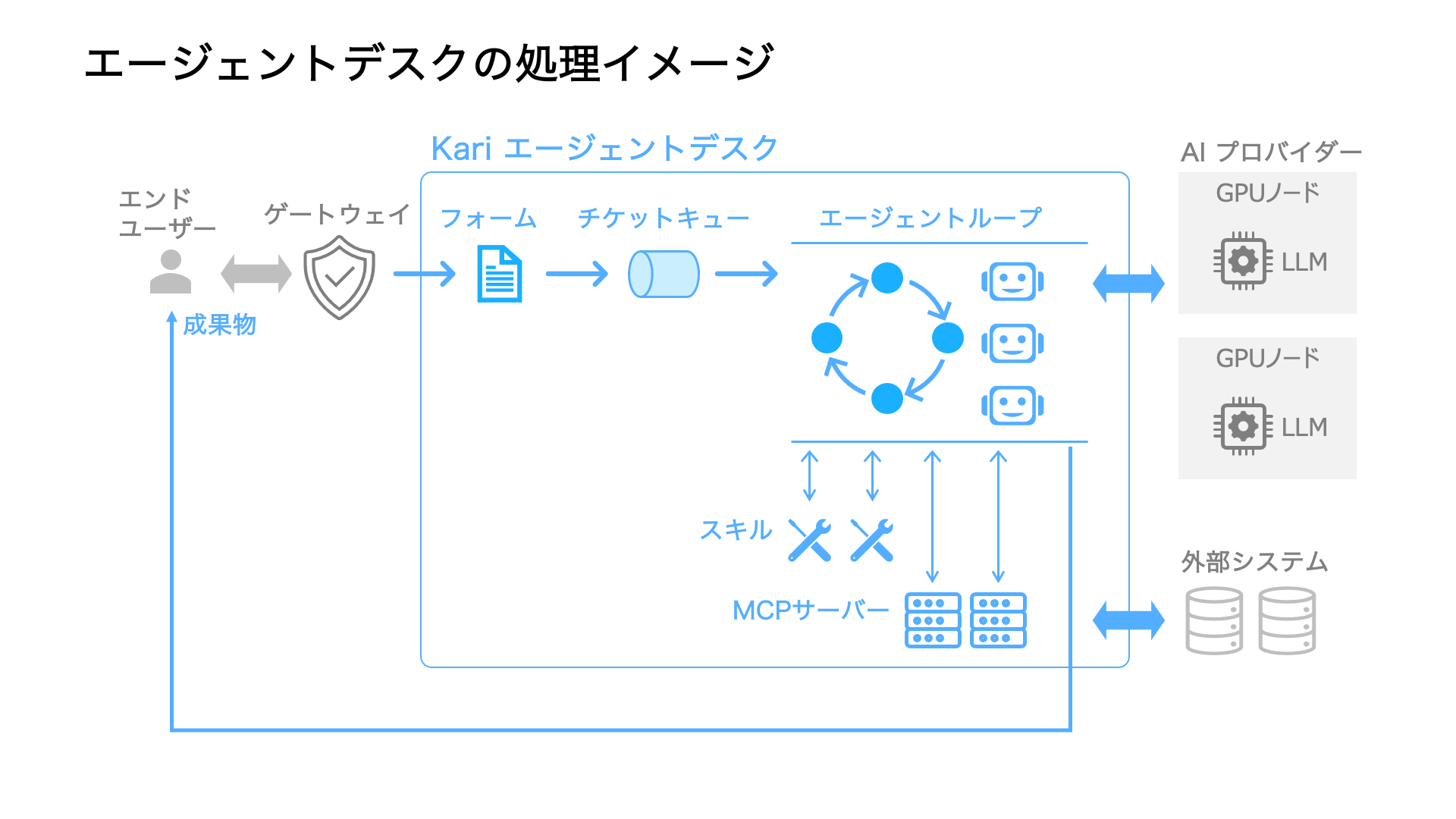
To build an Agent Desk in Kari, you configure the desk to match the work it is meant to do. Four of those settings in particular — choosing the AI provider, defining the request form, configuring the MCP servers, and writing the skills — bear directly on the business requirements, so they are the main decisions, and they are tuned by running the desk and checking the results. (The diagram below labels the request form 「入力フォーム」; Kari's own screens call it the Request Form.)
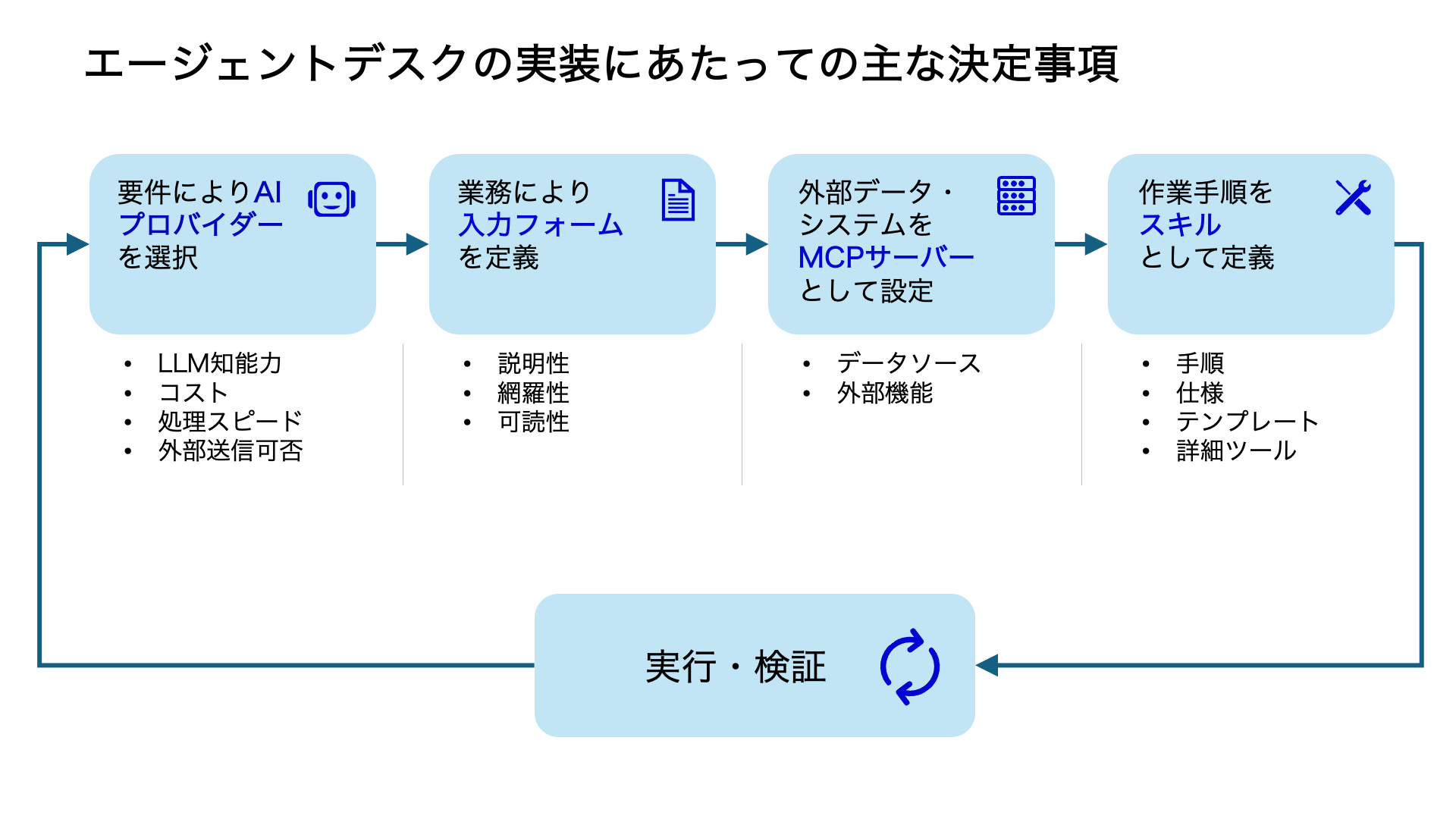
The full list of settings is below.
| Agent Desk settings | |
|---|---|
| Desk Overall Instructions | The job description for this desk. Write the role and how it should respond; the text is inserted into the desk agent's system prompt |
| AI Providers | The AI provider, model and thinking level the agent runs on. Held per desk, separately from Kari's own setting |
| Request Form | The input to a request. Everything the desk needs from the requester is collected here |
| Inbound Channels | The route a request arrives by. Today that is the Web Intake Portal, a page that accepts the form in a browser; you set a port per desk and, if you want them, credentials |
| Sending and receiving email | What the Sending Email Account does: - Code Verification on the request form (a code goes to the address the requester typed, and is checked before the form is submitted) - The delivery notification for a deliverable, and the download verification code - Event Notices and Reports and Deliverables What the Always-Receiving Email Addresses do: - The administrator (required) and any other registered address always receive Event Notices and Reports and Deliverables |
| Extensions | Which of Kari's extensions the desk is given. Today: Python (spreadsheets, documents, PDFs, analysis and charts) and Web Fetch (reading web pages and PDFs) |
| MCP Servers | Which of the MCP servers configured in Kari this desk may use. Data sources specific to the work, and routes to outside systems, belong here |
| Skills | What this desk knows how to do — its working procedures. Written in SKILL.md and kept in a folder of the desk's own, so copying a desk copies its skills |
| Desk Scheduler | Commands run on a crontab schedule (JST) while the desk is running, for work decided by the clock rather than by a request — starting a worker before reception opens, for example |
A desk keeps processing requests with nobody attending it, so only AI providers that use an API key can be chosen. Personal Claude or ChatGPT subscriptions do not appear in the settings, and the desk process refuses them as well.
How it is used
An Agent Desk is built so that designing a desk, checking how it behaves, and trying it out all happen in one window — rather like an IDE. From "Agent Desk" in the left navigation you create a new desk, or import settings you already have, assemble the counter in the settings window, confirm its behaviour in that same window, and start it from there.
Steps to getting a desk running
The topics in the settings window are laid out in the order you set a desk up.
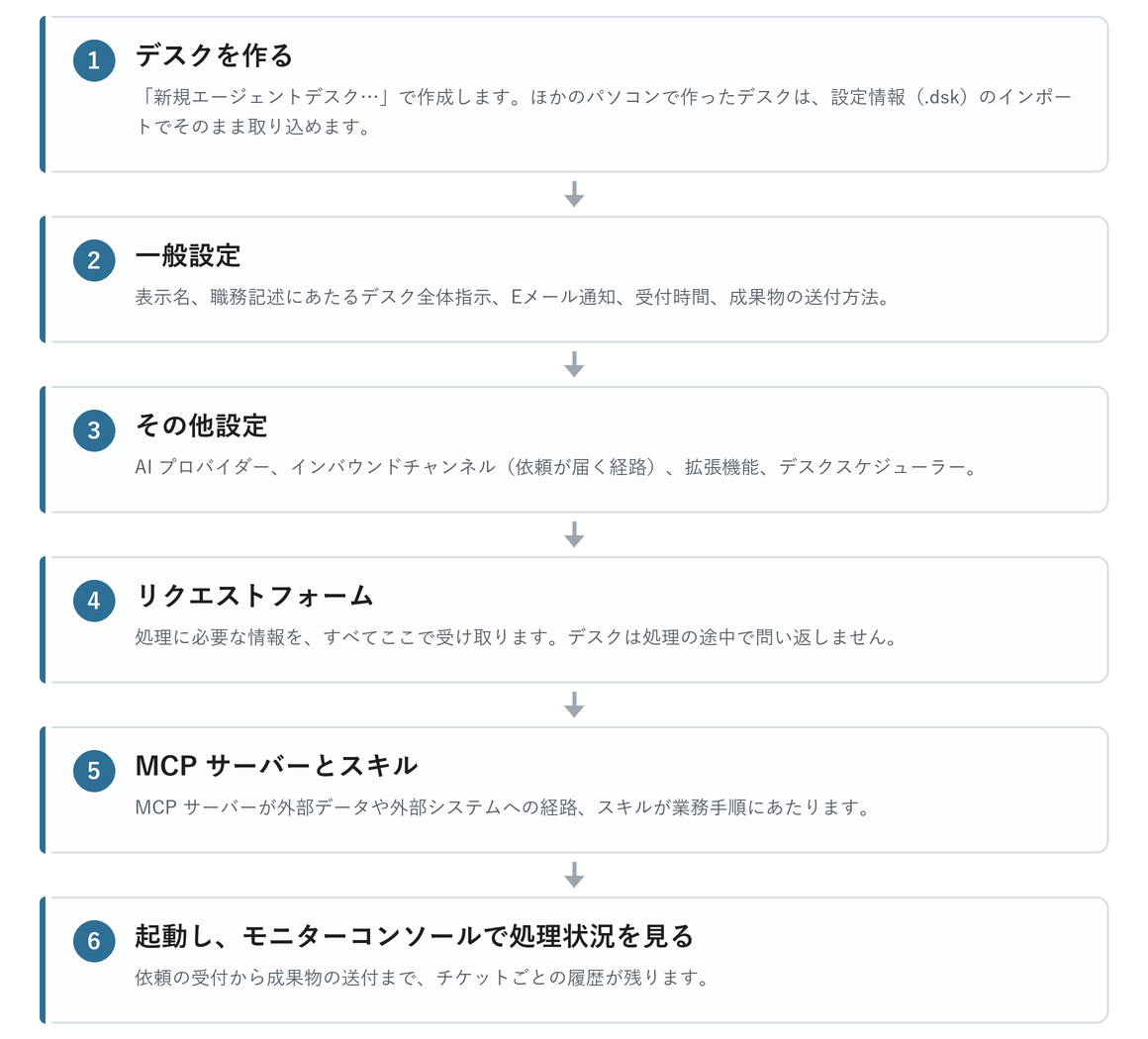
- Create the desk. Right-click "Agent Desk" in the left navigation and choose "New Agent Desk…". If you have a desk built on another computer, "Import Agent Desk from Settings…" takes it as it is.
- Set the basics and the operating conditions in General settings. The display name, the Desk Overall Instructions that serve as the job description, email notifications, reception time, how deliverables are sent, and so on.
- In Other settings, configure the AI provider, the route requests arrive by, the extensions and the Desk Scheduler.
- Decide what the desk accepts in the Request Form. Everything the desk agent needs in order to work a request is collected here.
- Give it tools and procedures with MCP Servers and Skills. An MCP server is a route to outside data or an outside system; a skill is a working procedure.
- Start the desk and watch it work in the Monitor Console. From acceptance to delivery, each ticket keeps its own history.
Exporting and importing settings
Right-click a desk and choose Export Settings…, and its settings, request form and skills are packed into a single file (.dsk). On another Kari, the Agent Desk import reads that file back. Tickets and deliverables — the desk's actual work — are not included. Passwords are not included either, so they are entered again on the importing side.
Where a desk fits
An Agent Desk suits routine work handled at a defined counter, with documents and screens. It fits best at the stage Japanese offices call 一次 — the investigating, checking and drafting that happens before a person makes the final call.
| Example desk | Requester | What arrives | What the desk returns |
|---|---|---|---|
| Subsidy diagnosis desk (Example 1) | Sales, customer support | Company name, homepage URL, industry, headcount, intended use, planned investment | Candidate subsidies the company could apply for, with a diagnosis report |
| Corporate performance diagnosis desk (Example 2) | Sales, planning, corporate planning | The company to analyse, the peers to compare it against | A diagnosis report comparing performance against industry peers |
| First-pass check of applications and invoices | Staff on the floor, suppliers | Applications and invoices as PDF or Excel | A list of omissions, arithmetic that does not add up, and conflicts with internal rules |
| First-pass check of expense claims | All employees | Claim forms and receipts | Findings against the expense rules, and a draft reason for sending one back |
| First-pass handling of quotes and orders | Suppliers, sales staff | Purchase orders and quote requests (PDF, Excel) | A comparison against the price list, a draft quote, and a list of discrepancies |
| First-pass triage of system faults | Internal users | Symptom, time it happened, screenshots, logs | What has been ruled out, a match against known incidents, and recovery steps |
| First-pass response to enquiries | Enquiries from outside | The enquiry itself | A draft reply based on the FAQ and internal material, and which department it belongs to |
| First-pass screening of tenders | Sales, planning | Search conditions, the company's own requirements | Matching opportunities, and the material for deciding whether to bid |
| Recurring report desk | A member of staff, filing the same request weekly or monthly | The period and the scope | A periodic report in a fixed format |
Conversely, work that needs a human judgement part-way through, and acts that cannot be taken back if they are wrong — committing an amount, changing a price, sending something to a customer — should not be designed as a desk's job. An Agent Desk is not there to replace a person's judgement. It is there to carry the work, unattended, up to the point where a person decides.
The examples in this guide
This guide builds two desks, step by step, that are put together in different ways. Both run on Kari Desktop, on a single computer.
Example 1: Subsidy diagnosis desk
A desk that narrows down the subsidies a company could apply for, and writes a diagnosis report.
- The requester fills in the company name and homepage URL, the main industry, the headcount, the expense categories the subsidy would go towards (the intended use), and the planned investment.
- The desk reads the company's homepage with Web Fetch to get a picture of the business, searches open subsidies through the jGrants MCP server, and reads the application guidelines for the strongest candidates.
- The deliverable is a PDF diagnosis report: the conclusion, a profile of the company, where its challenges and direction appear to lie, the candidate subsidies (how well each matches, the subsidy rate, the ceiling, the deadline, the eligibility assessment, the eligible costs, the schedule), what to do next, and what was ruled out.
- Whether a company is eligible is decided by each subsidy's administering office, so the desk never states that an application will qualify. Anything it could not confirm is left marked 「要確認」 — to be checked.
This example covers how to build a desk that researches published opportunities and produces a document in a fixed format, and how to collect, in the form, everything the processing needs. The walkthrough starts at Example 1: Subsidy diagnosis desk.
Example 2: Corporate performance diagnosis desk
A desk that diagnoses a listed company's performance against its industry peers, from its annual securities reports.
- The requester picks the company to analyse from a list. Up to five peers can be chosen as well; the desk fills any remaining slots from its own candidates.
- The desk uses the company profile skill — reference data covering roughly 3,800 listed companies with their basics, headline figures and peer candidates — to settle which companies to compare, and pulls the metrics in one go. It then reads the annual securities reports themselves through the EDINET MCP server, compares revenue growth, operating, EBITDA and net margins, ROE and its components, equity ratio, cash flow, dividends, PER and PBR against the peer median, and works out from the reports why the differences arose.
- The deliverable is a PDF diagnosis report: the conclusion, the companies compared, the metric comparison, the analysis point by point, and what to watch next. It states that the source is EDINET (Financial Services Agency).
- It makes no investment recommendation — no buy, sell or price target. The diagnosis is analysis, not investment advice.
This example covers how to combine an MCP server (fetching outside data) with skills (reference data and working procedures) to build a desk that handles figures. The walkthrough starts at Example 2: Corporate performance diagnosis desk.
Example 1 researches published opportunities and produces a document in a fixed format. It is the smaller build — one MCP server and one skill — so reading it first gives you the shape of the whole thing.
Example 2 adds reference data to that arrangement: an MCP server plus a skill carrying a database of about 3,800 companies. Read on to Example 2 if you want to see how a desk that works with figures is put together.