Monitor Console
Copyright © 2026GotoAI Inc.Based on the goose project
The three web UIs of a running desk
Start a desk and three web UIs, each with its own role, answer on their own ports.
| Web UI | Who looks at it | What it is for | Notes |
|---|---|---|---|
| Web Intake Portal | The requester | Filling in and submitting the request form. Closed outside reception time, and while the wait queue is at its limit | |
| Deliverable Download Portal | The requester | Opening the link in the delivery notification and entering the code to receive the files | |
| Monitor Console | Administrators and operators | Following what the desk is doing: the ticket list and history, re-run, stop, cancel | Covered on this page |
If you set a reception time, the Web Intake Portal closes outside it, but the Deliverable Download Portal and the Monitor Console stay open.
The ticket list
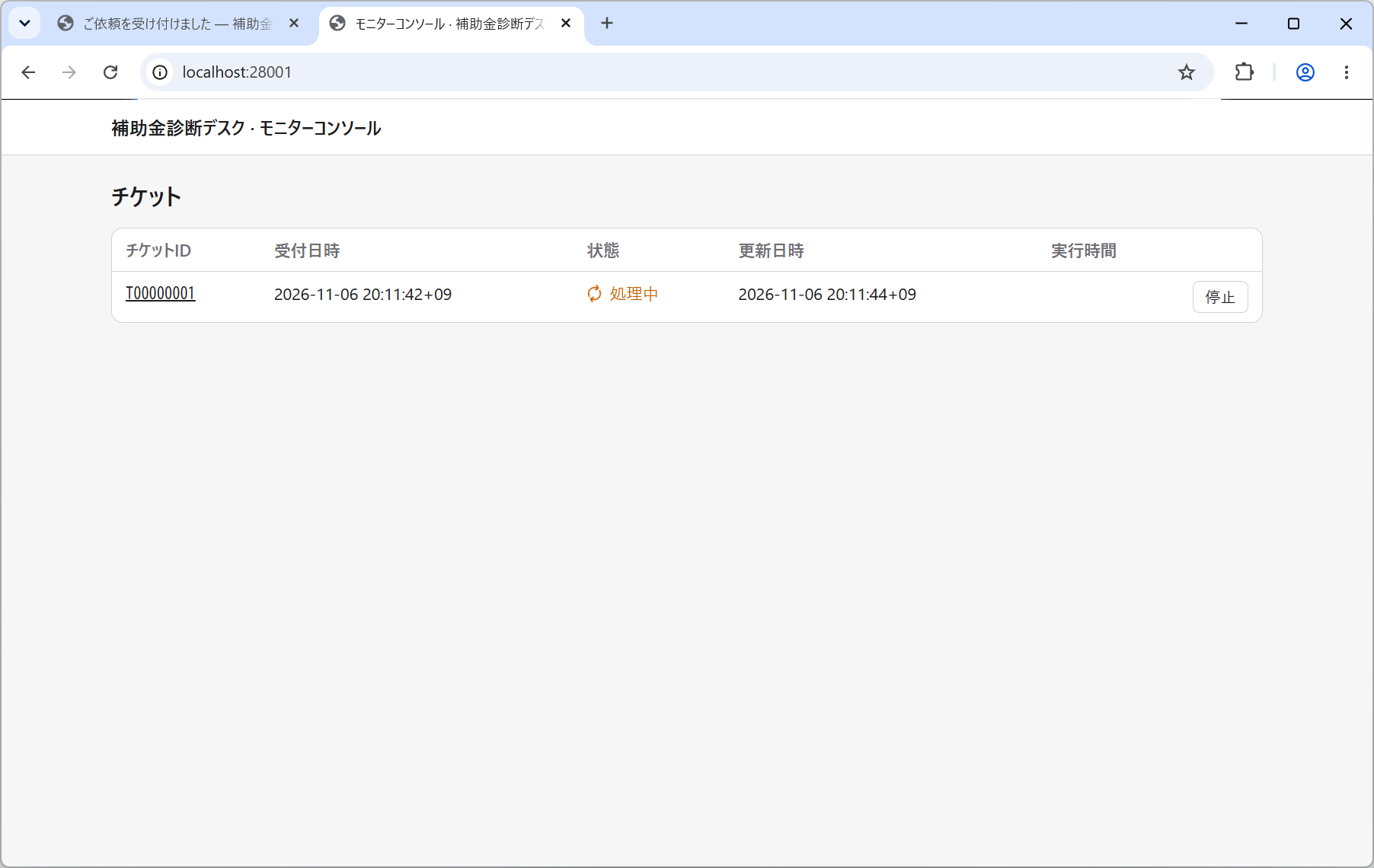
| Column | What it shows |
|---|---|
| Ticket ID | The identifier of a request. It also appears in the notifications sent to the requester |
| Received | When the request was accepted |
| Updated | When the state last changed |
| Running Duration | How long the processing took (completed tickets only) |
| State | One of the states below |
Ticket states
| State | What it means |
|---|---|
| Received | Accepted, waiting its turn |
| Processing | An agent is working it |
| Done | Finished, and the deliverable has been sent |
| Failed | Could not be completed. The reason is sent to the requester and to the administrator |
| Stopped | A person stopped the run from this screen |
| Canceled | A person took a waiting ticket out of the queue from this screen |
When the processing needs information it does not have, the desk does not ask and wait. It states what was missing and returns the ticket as Failed.
A ticket in detail
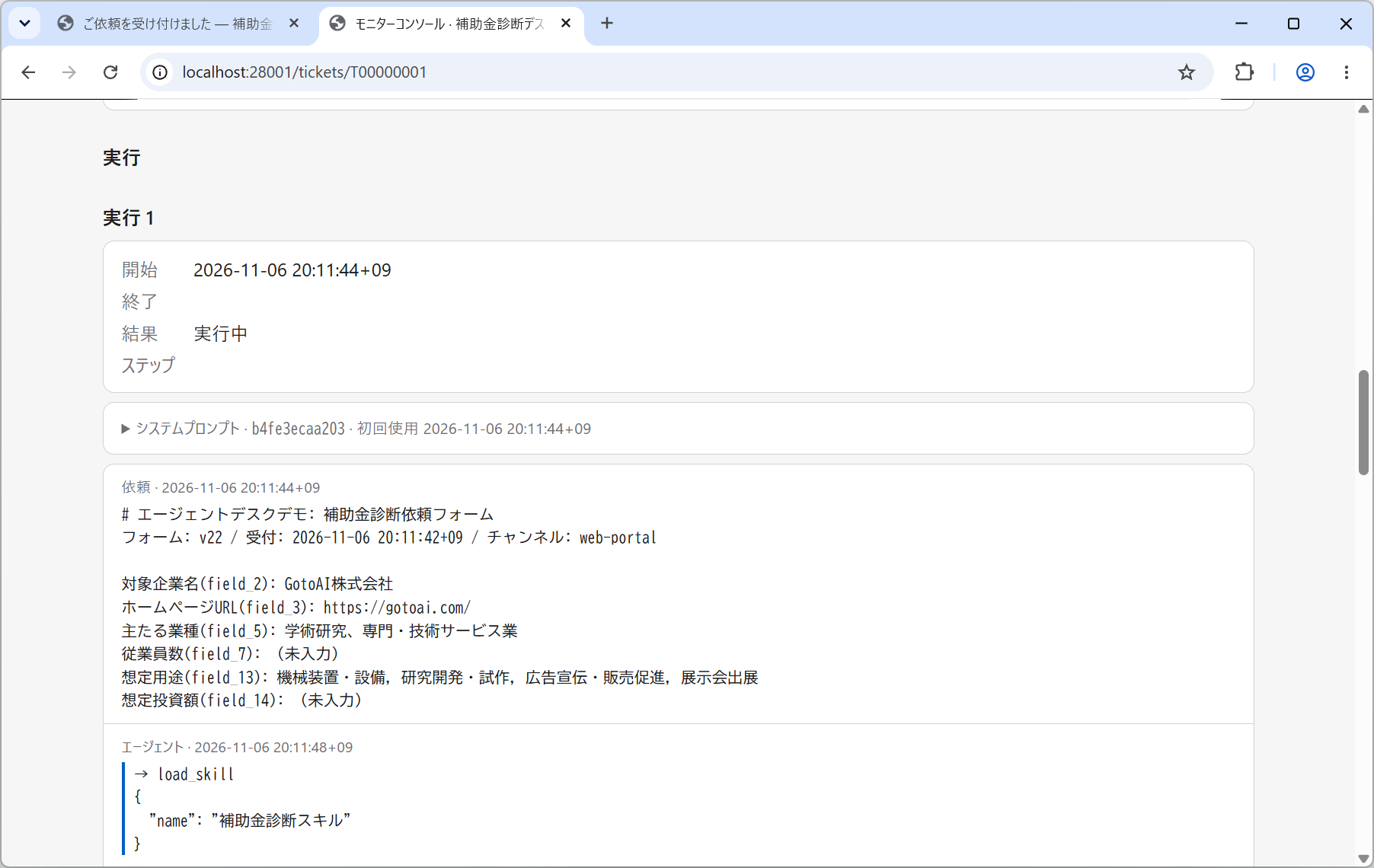
Opening a ticket shows everything recorded about that request.
- Request: what the request form accepted.
- Events: time, event and detail in order. Everything that happened between acceptance and delivery is listed here.
- Runs: started, finished, outcome, why it was stopped, and Steps (how many moves the agent made). Re-running a ticket adds another run.
- System prompt: the full text of the instructions the agent was given on that run. It is where you can see how the Desk Overall Instructions were actually assembled.
- The full transcript: the request, the agent's replies, tool results and its thinking. You can follow what the agent saw and what it did.
Look first at the Outcome and "Stopped by" of the run, then work backwards through the full transcript. If it failed for want of information, the fix is a new field in the Request Form. If it lacked a tool, look again at the MCP Servers and the Skills.
What you can do with a ticket
Exactly one action is offered, depending on the state of the ticket. Each one goes through a confirmation screen.
| State | Action | What happens |
|---|---|---|
| Finished | Re-run | The request and its attachments are carried over as they were received, and queued as a new ticket. The desk works it as it is set up now (system prompt, tools, skills, model). The requester is not told about the re-run itself, though result notifications — an error, a delivery — are still sent |
| Processing | Stop | The run is stopped and the ticket becomes Stopped. Nothing made so far is delivered, and the requester is not told. A stopped ticket cannot be resumed, but it can be re-run |
| Received | Cancel | Taken out of the queue; the ticket becomes Canceled. The requester is not told. A canceled ticket can be queued again with Re-run |
Re-run is also how you check a change you have just made. Fix the Desk Overall Instructions or a skill, re-run a failed ticket, and you can see how the result changes for the same request.
Note, though, that a re-run is processed like any other ticket: once it is done, the requester receives the delivery notification. If you do not want that, stop the ticket before the processing finishes.