Request Form
Copyright © 2026GotoAI Inc.Based on the goose project
A desk agent does not ask the requester anything once it has started, so everything the processing needs has to be settled in the form. Deciding the fields of the request form is the same thing as deciding what this desk agent will accept.
Put the other way round: if requests keep failing for want of information, the form is missing a field. A failed request records what was missing, so adding that field fixes it.
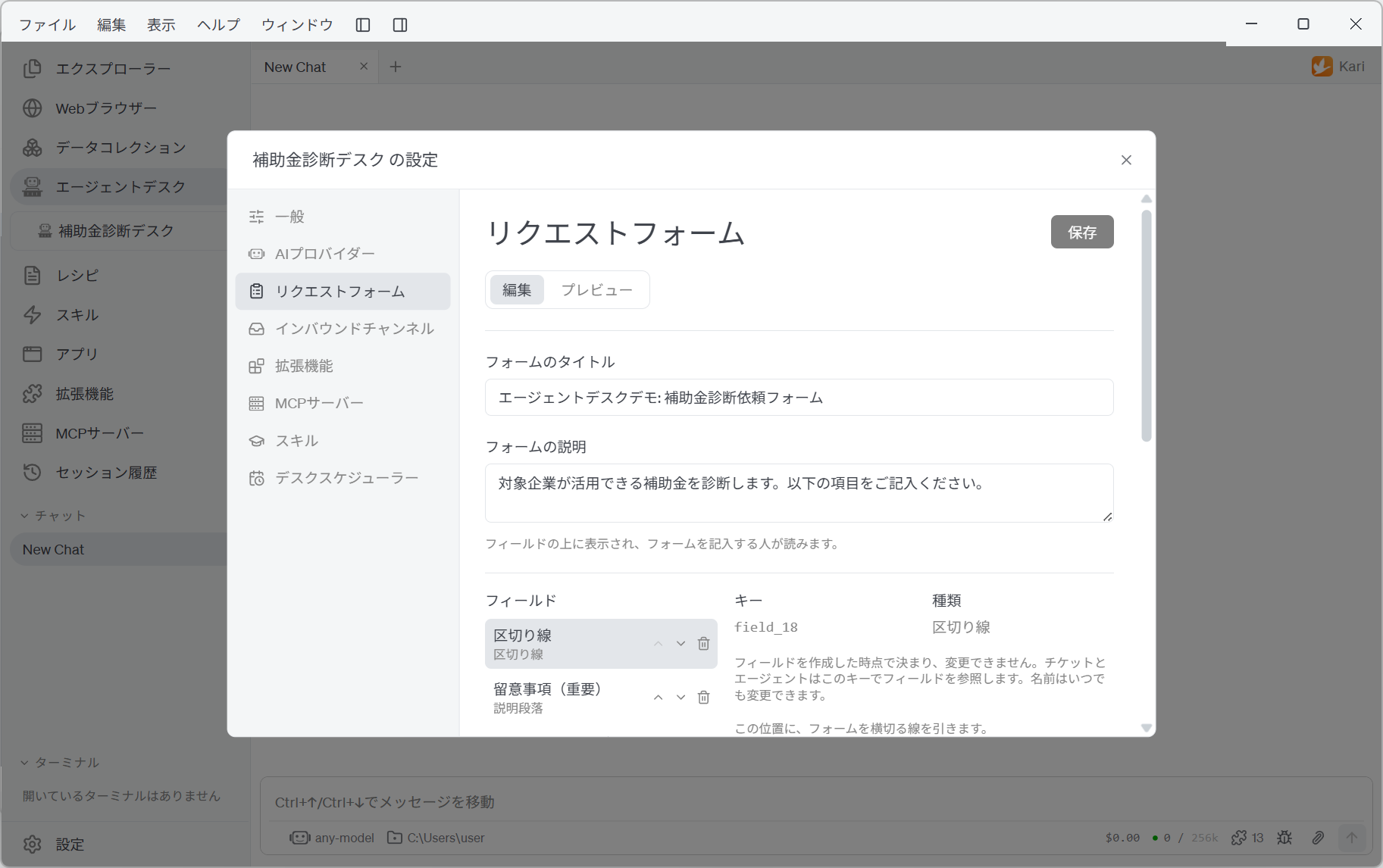
Building the form
The Request Form topic in the settings window has two modes, Edit and Preview.
In Edit, the list of fields is on the left and the settings of the selected field are on the right.
- Add a field… adds one; the up and down buttons reorder them.
- The form as a whole gets a Form Title (for example, Quote request) and a Form Description, which is shown above the fields for whoever fills it in.
Field types
| Type | Example use | Main settings |
|---|---|---|
| Text | A company name, a contact name — one line | Minimum and maximum length |
| Long Text | The request itself, background — several lines | Minimum and maximum length |
| Number | Headcount, an amount, a count | Minimum, maximum, whole numbers only |
| Yes / No | Whether something applies | Checked at first or not |
| Choice (one) | The kind of request, a region — pick one | Choices, search to choose |
| Choice (several) | Pick everything that applies | Choices, maximum number of choices |
| Date | A requested due date, a target period | — |
| URL | A homepage or other reference | — |
| File | Material, a quote, logs | Allowed extensions, maximum size per file, maximum number of files |
| Recipient Email Address | The address the delivery notification goes to | Code Verification |
| Consent Check | Agreement to terms or to a notice | The agreement text (always required) |
| Anti-Spam | Stops simple bots submitting | — |
| Logo | An image and title at the top of the form | Image (PNG, JPEG, SVG), title |
| Description | Guidance or notices in the body of the form | The text |
| Separator Line | A line across the form | — |
The last three are there for presentation; they do not collect anything from the requester.
For each field you can set whether it is Required, its Help Text and its Default. In the agreement text and in a Description, [label](https://…) adds a link.
Keeping out requests you do not want
| Feature | What it does |
|---|---|
| Anti-Spam | Each time the form is shown, the requester is asked to add two one-digit numbers. It stops simple bots, not people |
| Code Verification | Attaches to a Recipient Email Address field. Before submission, a code sent to the address has to be entered. It is sent from the account set up under Email Notifications |
| Limit requests per day | Caps how many requests one email address may send in a day, counted in JST and reset at midnight. Another address walks straight past it, so it is a courtesy limit rather than a defence |
Checking it in Preview
In Preview, nothing is sent: only the input checks run, and you see the request statement the agent would be given, exactly as it would be.
Once you have built a form, submit it in Preview at least once. Two things are worth confirming.
- That the input checks behave as intended. That a required field cannot be left empty; that a file type you did not allow does not get through.
- That the statement the agent receives contains everything the processing needs. Whatever is not in there, the agent has no way of knowing.
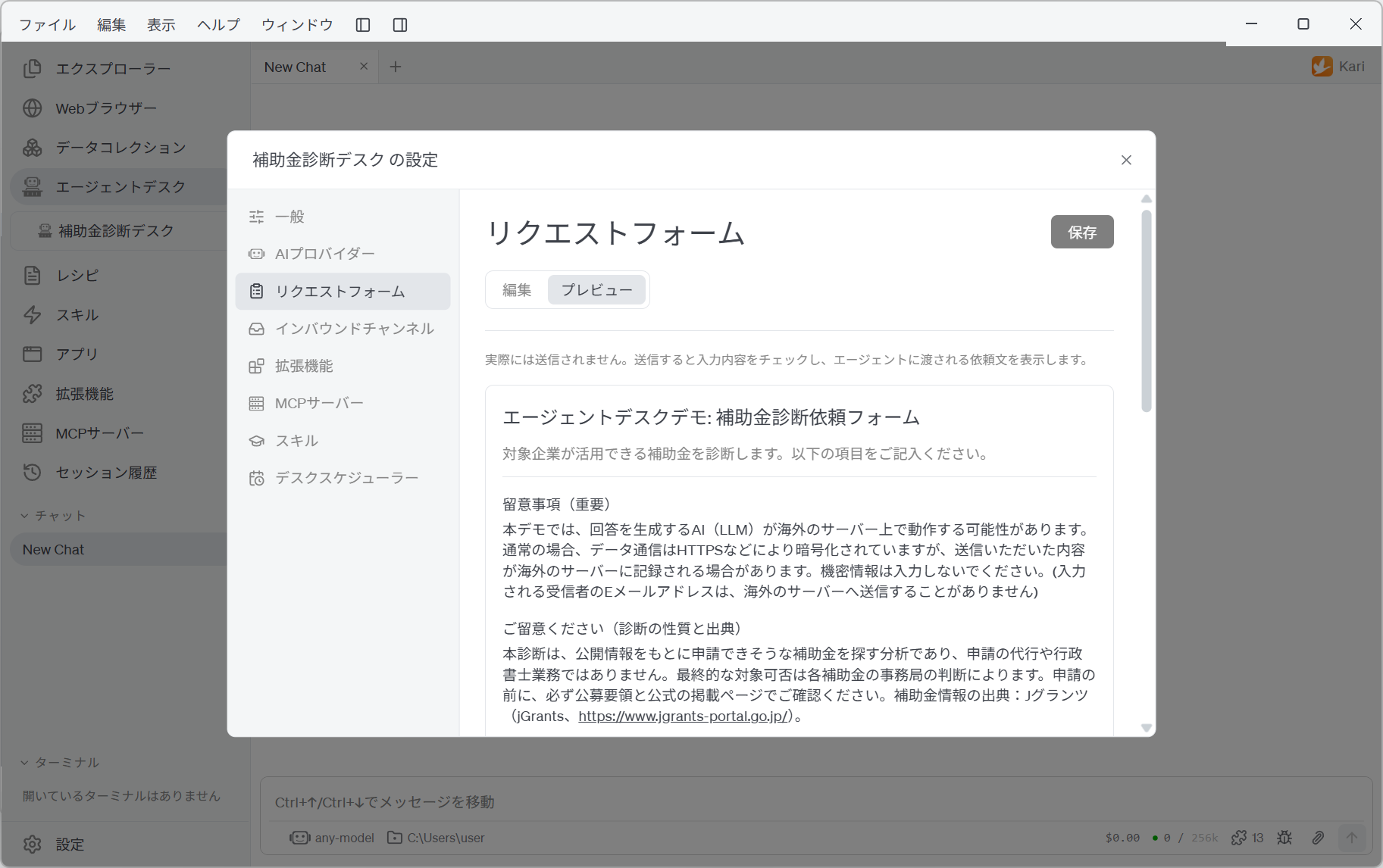
Preview sends no email. If the form has a Code Verification field, the code is shown on screen instead.
A desk will not start on an unfinished form
A desk whose request form has not been built yet, or still has problems in its fields, does not start. Trying to start it says so, with the number of problems. It is what stops a counter from opening with no way in.