Checking the settings and starting the desk
Copyright © 2026GotoAI Inc.Based on the goose project
What is left to set is the AI provider. Choose one, look over what the desk contains, and then start it.
Choose the AI provider
Open AI Providers in the settings window. Straight after an import it reads "not set".
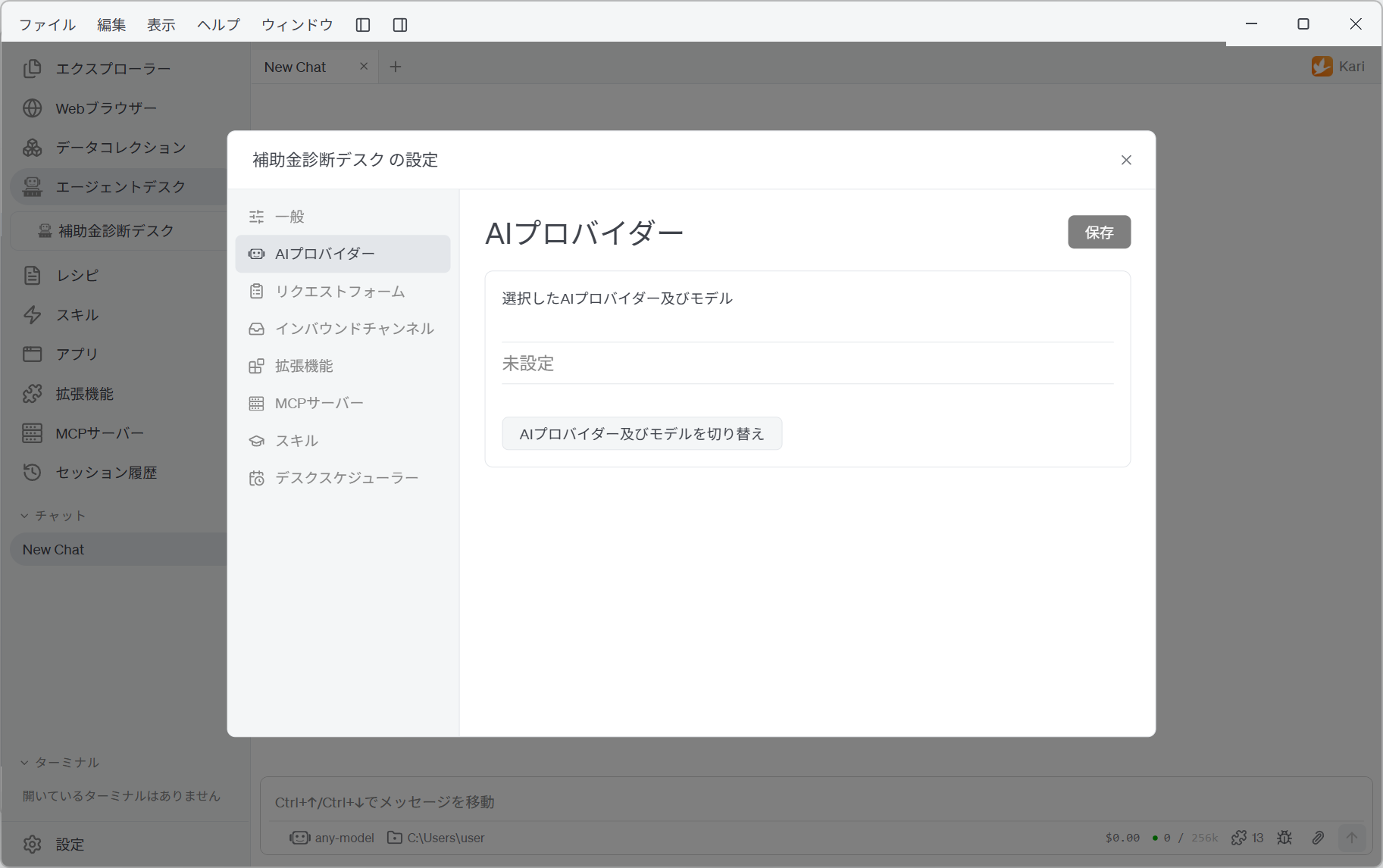
Click Change AI Provider and Model and pick a provider and model. Only providers already configured in Kari can be chosen.
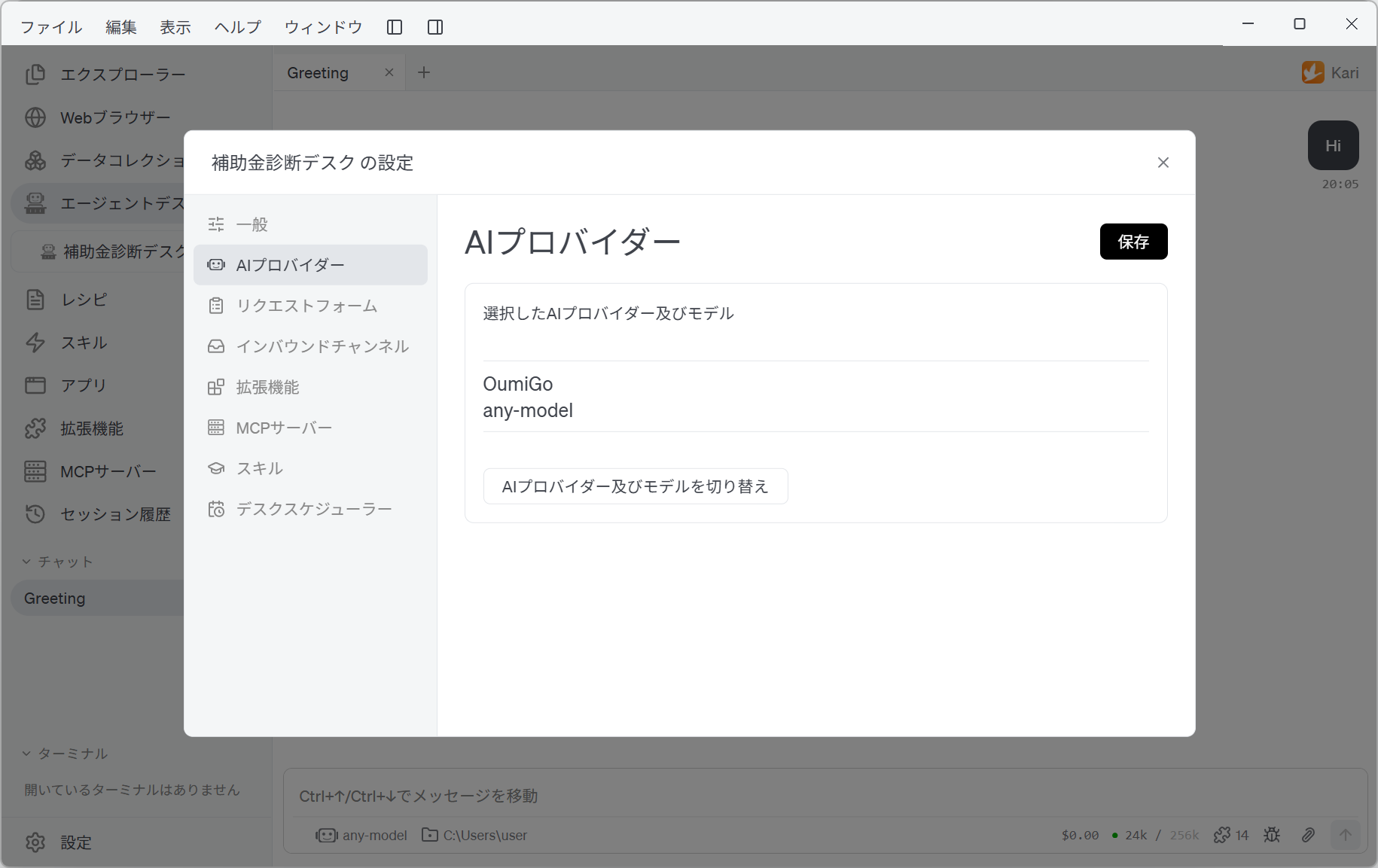
Click Save when you have chosen. Kari's own setting does not change: a desk holds its own.
Personal Claude and ChatGPT subscriptions do not appear in the list. A desk keeps processing requests with nobody attending it, so only providers that use an API key can be used.
On a single request this desk reads several pages of a homepage, searches for subsidies, and reads the application guidelines of the strongest candidates. Expect something like 30 to 40 tool calls in all. Choose a model with room in its context length. Raising the thinking level improves the judgement, and also the time and the cost.
Look over the contents
Before starting, look at what the import brought in.
The skill
Open Skills and 「補助金診断スキル」 is enabled.
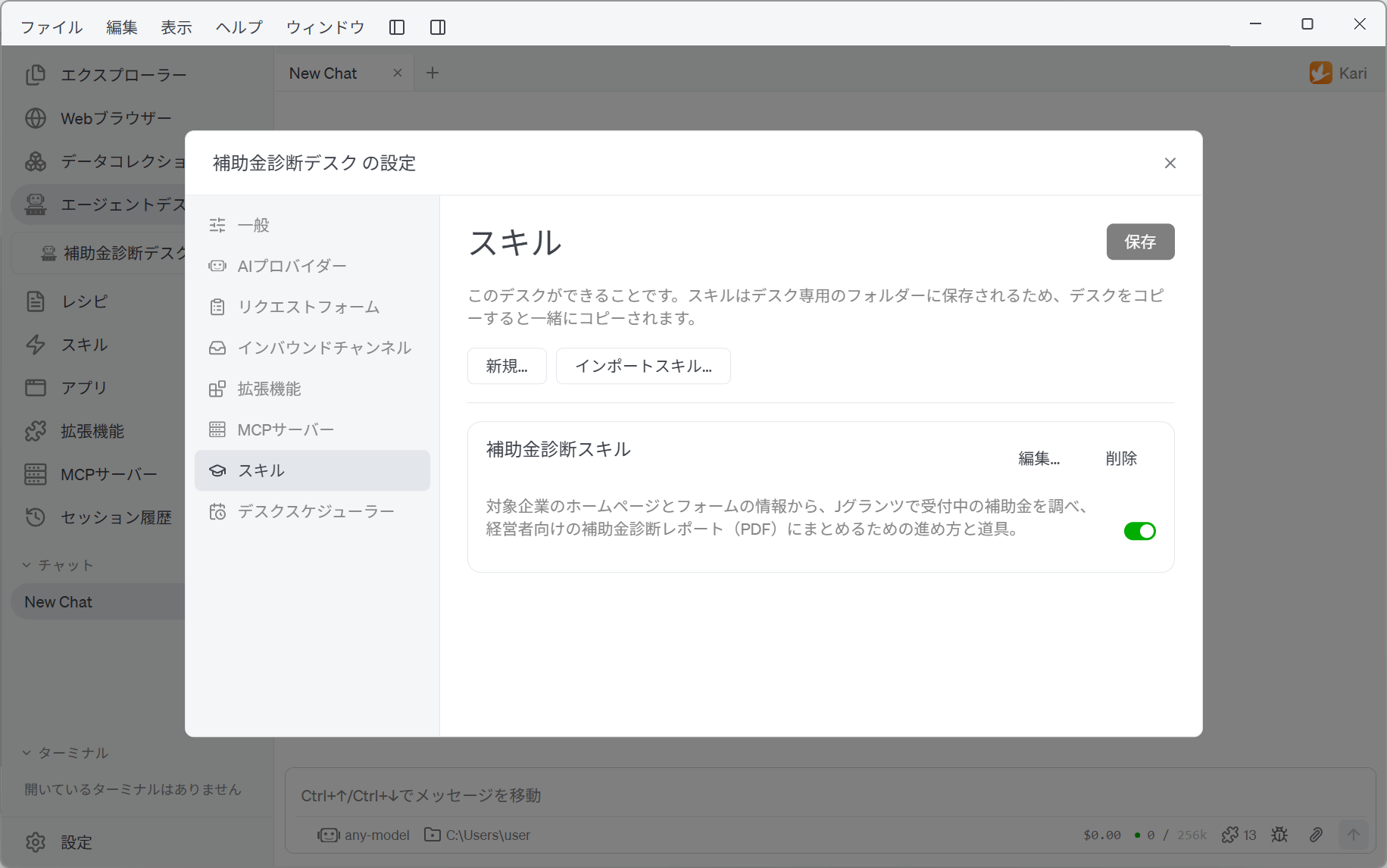
This skill holds how to search for subsidies (use one keyword at a time; search the prefecture and 「全国」 — nationwide — separately, and so on), which ones can be ruled out by name, the criteria for how well a subsidy matches, the structure of the report, and build_report.py, which lays the report out as a PDF. Edit… lets you read what is in the folder.
Request Form, Extensions and General
| Topic | What was imported |
|---|---|
| Request Form | 「エージェントデスクデモ: 補助金診断依頼フォーム」. Company name (required), homepage URL (required), main industry, headcount, intended use, planned investment, recipient email address (required, with Code Verification) |
| Inbound Channels | Web Intake Portal, port 8001 |
| Extensions | Python and Web Fetch are on |
| General (Parallel Jobs) | 1 — one request at a time, in order |
| General (How deliverables are sent) | The download portal (port 18001) with email attachments on. Files are kept for 24 hours |
| General (Monitor Console) | Port 28001 |
This desk reads the company's homepage with Web Fetch to get a picture of the business. Turn it off and the diagnosis rests on what the form says alone, which costs it a great deal of accuracy. Web Fetch runs on the Python extension, so leave Python on as well.
Under General, the Desk Overall Instructions hold this desk's job description: always follow the skill's procedure; this is not an application service, and eligibility is never asserted; anything that cannot be confirmed is left marked 「要確認」; always cite jGrants as the source; and zero candidates is an acceptable answer when nothing fits. They are read on every request.
Start it
Close the settings window, right-click 「補助金診断デスク」 and choose Start.
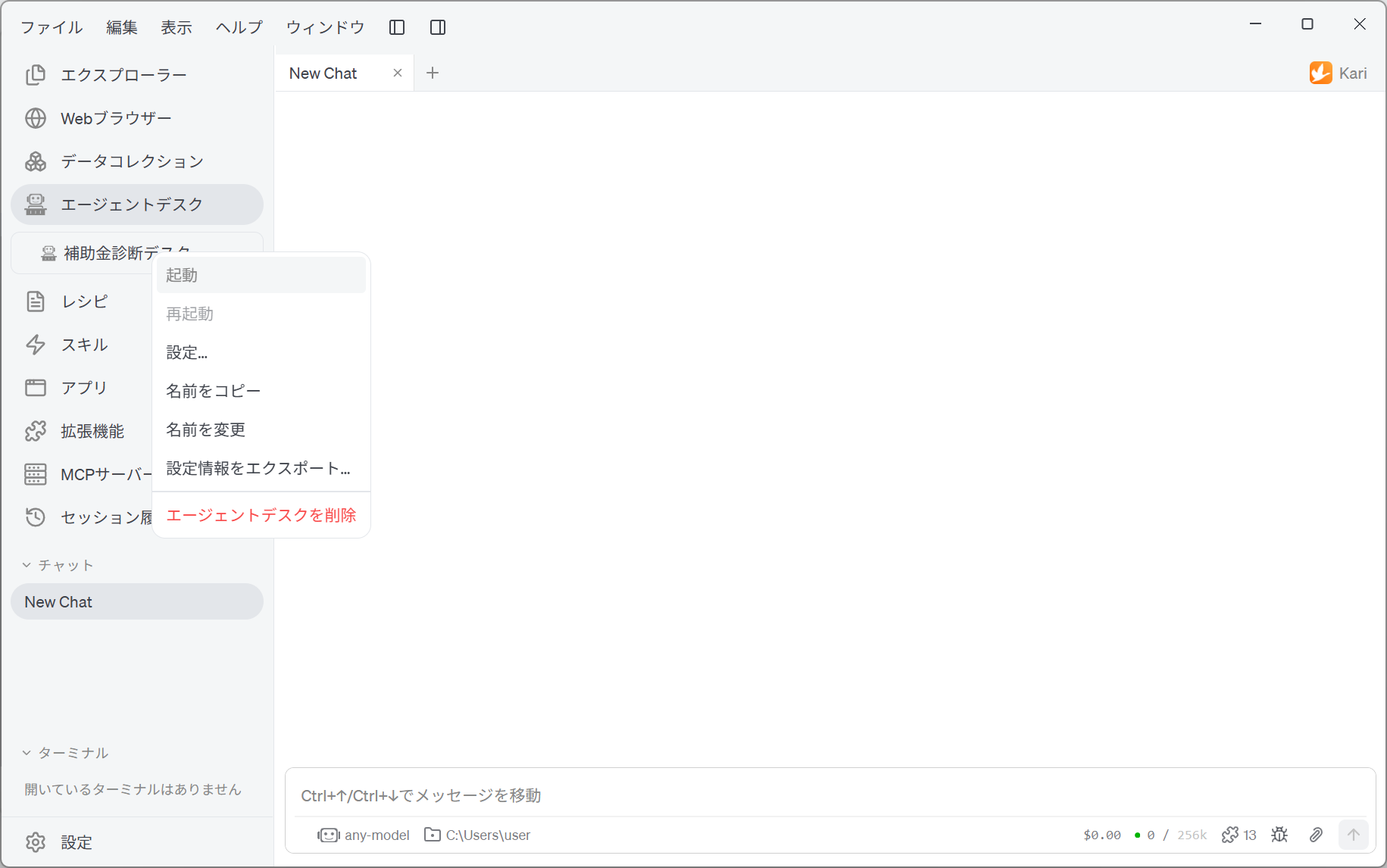
Once it starts, the icon to the left of the desk name turns green. Three web pages now begin to answer.
| Page | Address |
|---|---|
| Web Intake Portal (for requesters) | http://localhost:8001 |
| Deliverable Download Portal | http://localhost:18001 |
| Monitor Console (for administrators) | http://localhost:28001 |
A desk with settings missing does not start, and lists everything that is missing. Three are common:
- Set the administrator's receiving email address under General → Setting up email
- Set the sending email account under General → Setting up email
- The AI provider and model are not set → the top of this page
Note that whether an MCP server exists is not checked at startup. A desk will start with the JGrants Util step skipped, but its requests will fail. Finish Setting up the MCP server before starting.
While a desk is running its settings can be read but not changed. To change them, right-click and choose Stop. After changing them, Restart applies them.
Next, go on to Submitting a request.