Submitting a request
Copyright © 2026GotoAI Inc.Based on the goose project
From here you take the requester's side: open the Web Intake Portal in a browser and ask for a diagnosis.
Open the portal
Open http://localhost:8001 in a browser. The desk's request form appears.
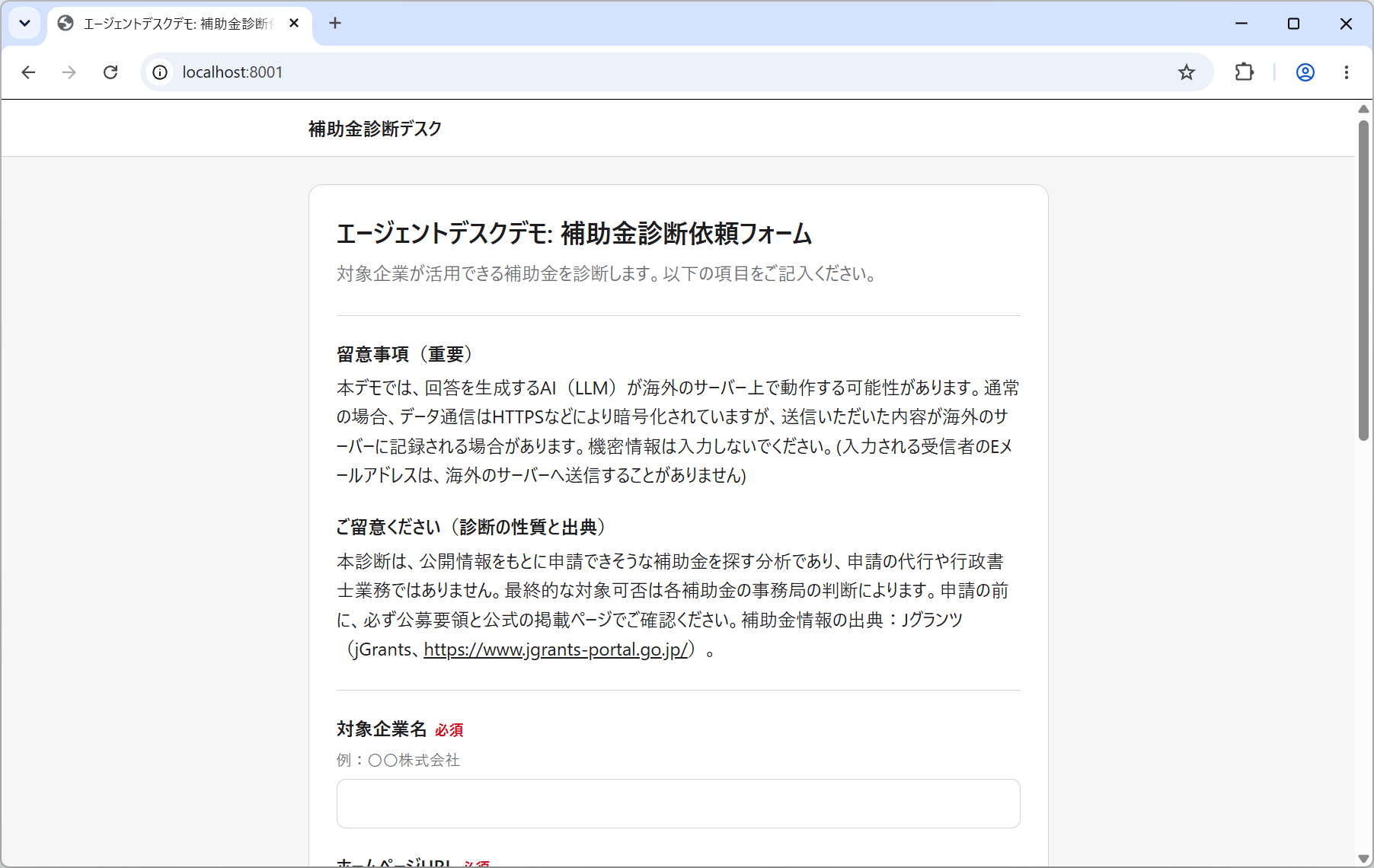
At the top of the form are two notices for the requester to read.
| Heading | What it says |
|---|---|
| 留意事項(重要) — Important notice | That the AI generating the answer may run on servers outside Japan, and that what is submitted may be recorded there. Do not enter confidential information |
| ご留意ください(診断の性質と出典) — About this diagnosis and its sources | That this is not an application service or the work of a licensed administrative scrivener, and that eligibility is decided by each subsidy's administering office. Check the application guidelines and the official page before applying. The subsidy information comes from jGrants |
These are built with the Description field type in the request form. When you build a desk for your own organisation, anything the requester should be told up front can go in the form the same way.
In this arrangement the portal can only be opened from the computer Kari is running on. To accept requests from another computer on the network, or from outside, set up a gateway or reverse proxy that answers on that address.
Enter the company information
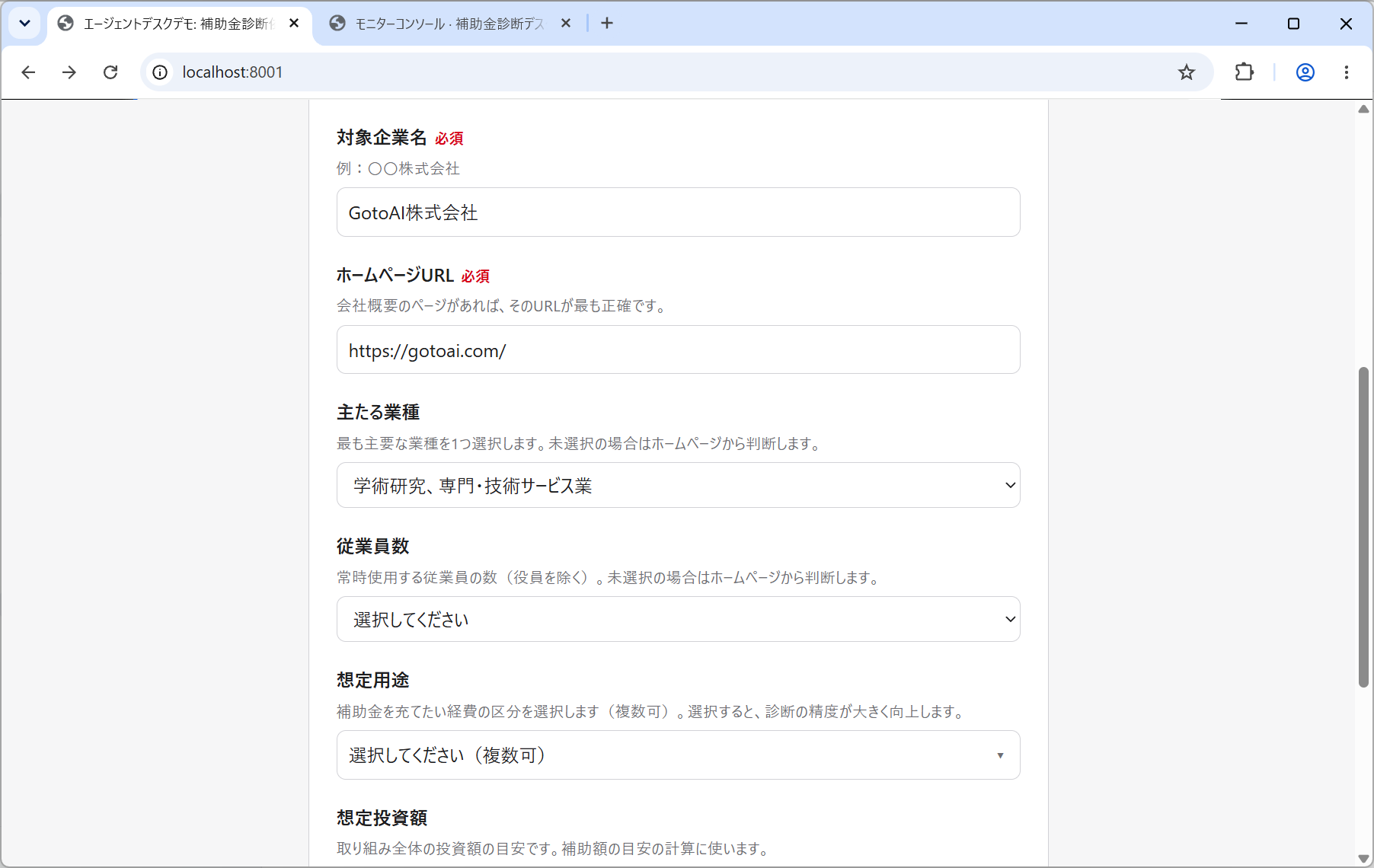
| Field | Required | What to enter |
|---|---|---|
| 対象企業名 — Company name | Required | The name of the company being diagnosed |
| ホームページURL — Homepage URL | Required | If there is a company profile page, its URL is the most accurate |
| 主たる業種 — Main industry | Optional | One of the major divisions of the Japan Standard Industrial Classification. Left unset, it is judged from the homepage |
| 従業員数 — Headcount | Optional | The band for the number of regular employees, excluding officers. Left unset, it is judged from the homepage |
| 想定用途 — Intended use | Optional | The expense categories the subsidy would go towards (several may be chosen) |
| 想定投資額 — Planned investment | Optional | Roughly what the whole undertaking will cost. Used to estimate the subsidy amount |
Only the company name and the URL are required, but choosing the intended use changes the accuracy a great deal. The desk builds its search terms from it: "software and system development" leads to terms like DX, IT adoption and digital; "machinery and equipment" leads to equipment, labour-saving and productivity.
The planned investment is used with the subsidy rate and ceiling to estimate the amount. Leave it empty and the amount in the report comes out as 「要確認」 — to be checked.
If the industry or headcount is not chosen, the desk does not go back to the requester. It reads what it can from the homepage and carries on. What it cannot read it leaves marked 「要確認」 in the report rather than filling in a guess. This follows from an Agent Desk's rule that nothing waits on a person part-way through.
Enter the recipient email address
受信者Eメールアドレス — the recipient email address — is required. The delivery notification for the diagnosis report goes to it.
This form has Code Verification on that field.
- Enter the address and click 認証コードを送信 (send verification code).
- A six-digit code arrives at that address. It is valid for 10 minutes.
- Enter the code and the form confirms that the address is verified.
Without completing the verification the request cannot be submitted. It is what stops a result from going to an address that does not exist, or to somebody else's.
The code is sent from the sending email account configured in Setting up email. If no code arrives, check that account's settings.
Submit
Click 送信 (submit) at the foot of the form. Anything wrong with the entries is pointed out field by field, there and then. No request has been created at this stage.
Once it is accepted, the screen changes.
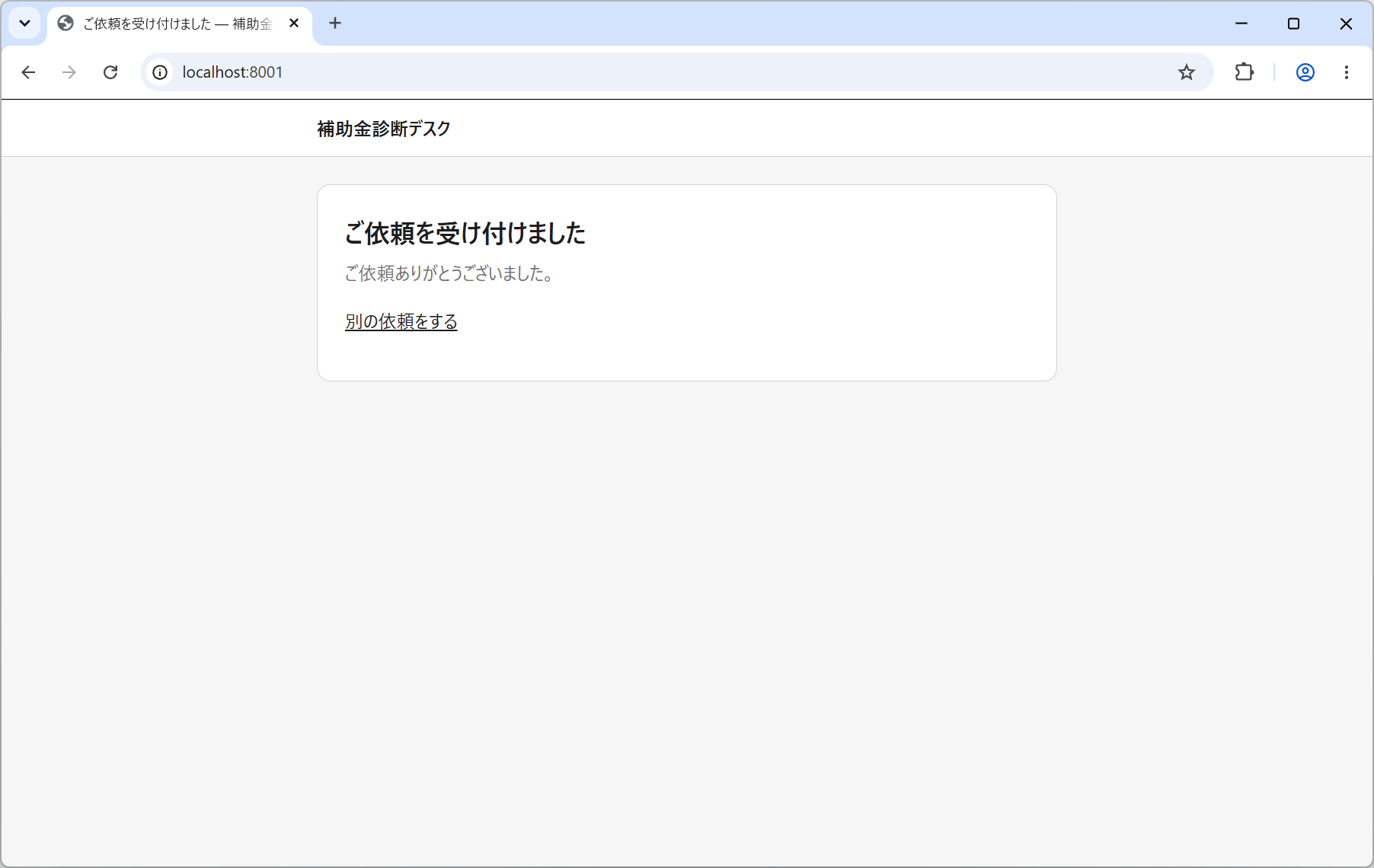
The request is now in the queue and the desk has begun work. The requester does not have to keep the page open: the result arrives by email.
Next, go on to Checking the result.