Submitting a request
Copyright © 2026GotoAI Inc.Based on the goose project
From here you take the requester's side: open the Web Intake Portal in a browser and ask for a diagnosis.
Open the portal
Open http://localhost:8002 in a browser. The desk's request form appears.
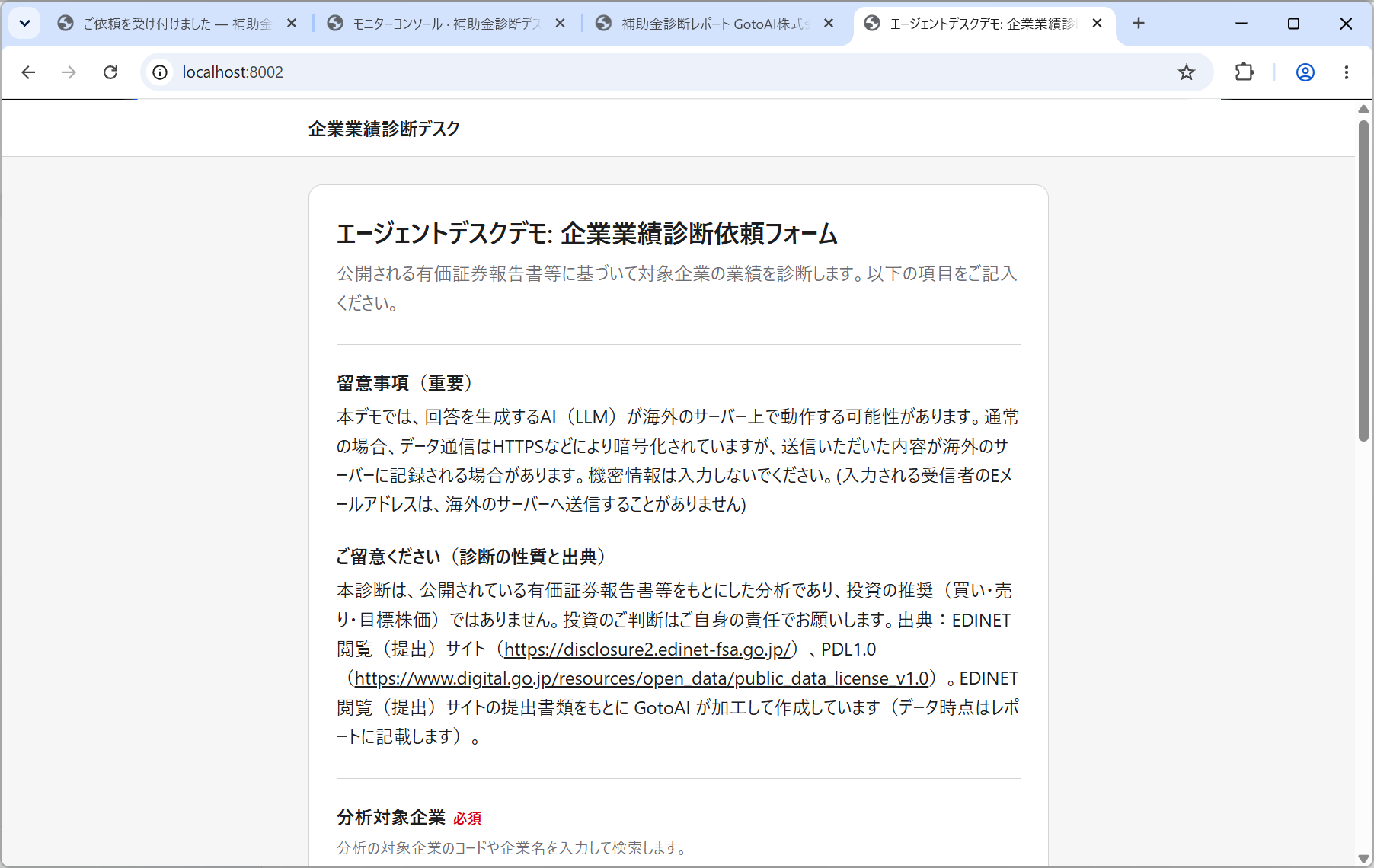
At the top of the form are two notices for the requester to read.
| Heading | What it says |
|---|---|
| 留意事項(重要) — Important notice | That the AI generating the answer may run on servers outside Japan, and that what is submitted may be recorded there. Do not enter confidential information |
| ご留意ください(診断の性質と出典) — About this diagnosis and its sources | That this is analysis and not an investment recommendation, that the source is EDINET, and that GotoAI has processed that data under PDL1.0 |
These are built with the Description field type in the request form. When you build a desk for your own organisation, anything the requester should be told up front can go in the form the same way.
In this arrangement the portal can only be opened from the computer Kari is running on. To accept requests from another computer on the network, or from outside, set up a gateway or reverse proxy that answers on that address.
Choose the company to analyse
分析対象企業 — the company to analyse — is required. Type a securities code or a company name and the candidates narrow down.
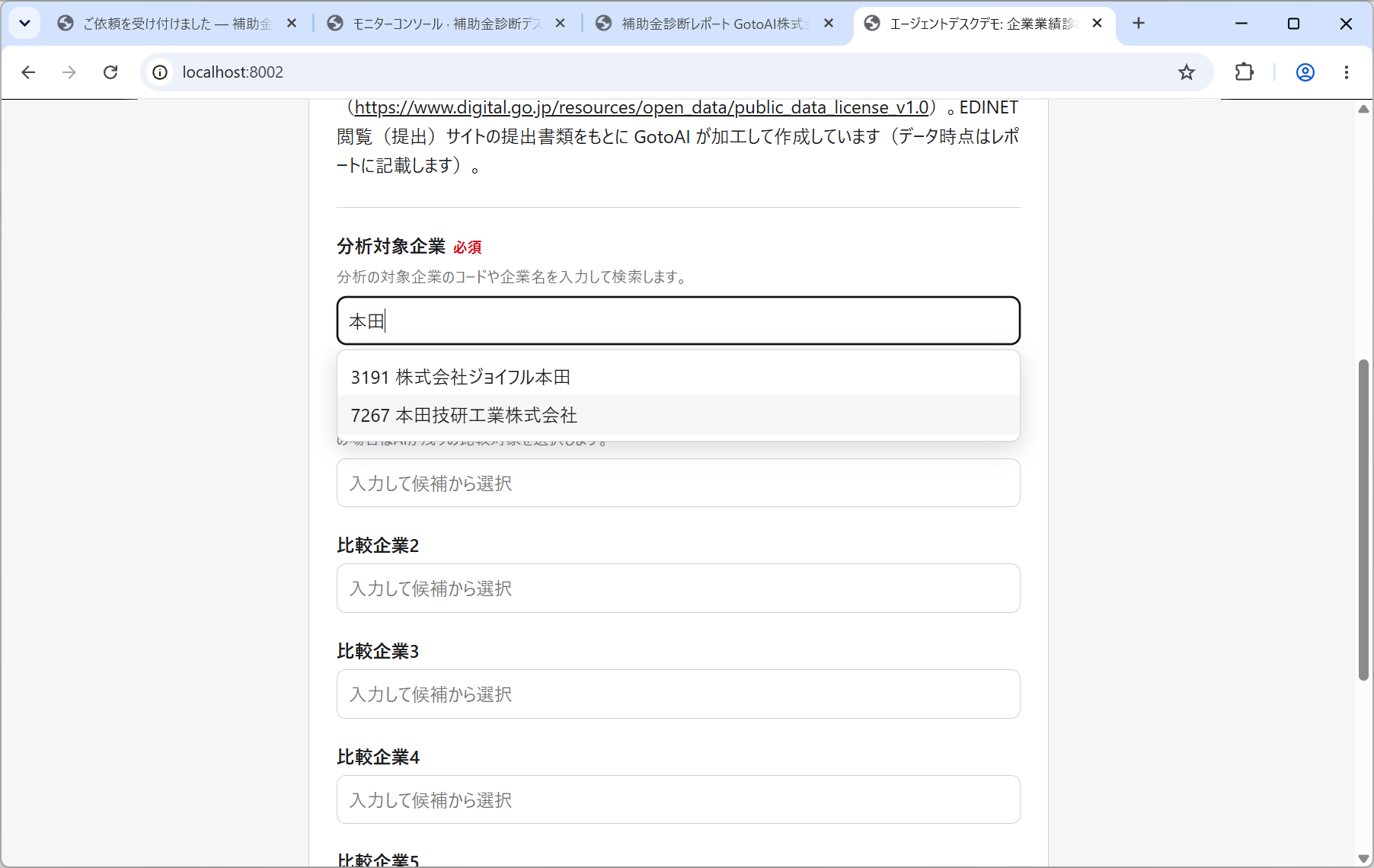
Candidates appear as a securities code and a company name, such as 7267 本田技研工業株式会社. Pick one from the list; free text is not accepted.
Company names vary a great deal in how they are written — 本田技研工業, ホンダ, HONDA — and with free text the desk would fail to identify the company. Picking from a list settles the securities code at the moment the request is made.
On a desk that never asks part-way through, preparing inputs that cannot be mistaken is, in itself, the success rate.
Choose the peers
比較企業1 to 比較企業5 — peers 1 to 5 — are optional. They are searched and chosen the same way.
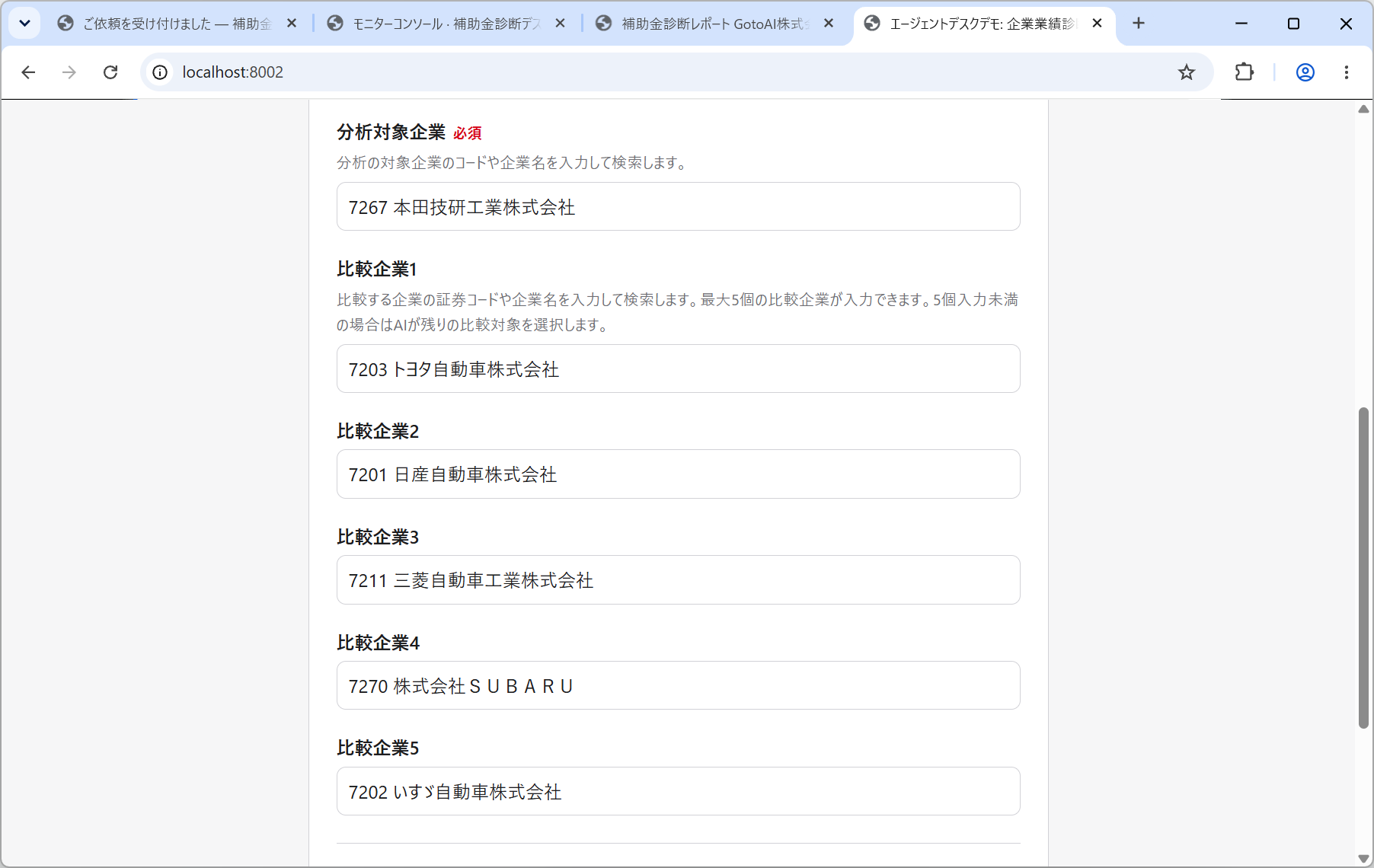
The example here uses:
| Field | Value |
|---|---|
| Company to analyse | 7267 本田技研工業株式会社 (Honda Motor) |
| Peers 1 to 5 | 7203 トヨタ自動車 (Toyota) / 7201 日産自動車 (Nissan) / 7211 三菱自動車工業 (Mitsubishi Motors) / 7270 SUBARU / 7202 いすゞ自動車 (Isuzu) |
If fewer than five are given, the desk picks the rest itself. Give none at all and it picks all five from its peer candidates. If a company it picked is an odd choice as a competitor — a company in the same group, say — the desk swaps it out and writes the reason into the report.
Enter the recipient email address
受信者Eメールアドレス — the recipient email address — is required. The delivery notification for the diagnosis report goes to it.
This form has Code Verification on that field.
- Enter the address and click 認証コードを送信 (send verification code).
- A six-digit code arrives at that address. It is valid for 10 minutes.
- Enter the code and the form confirms that the address is verified.
Without completing the verification the request cannot be submitted. It is what stops a result from going to an address that does not exist, or to somebody else's.
The code is sent from the sending email account configured in Setting up email. If no code arrives, check that account's settings.
Submit
Click 送信 (submit) at the foot of the form. Anything wrong with the entries is pointed out field by field, there and then. No request has been created at this stage.
Once it is accepted, the screen changes to 「ご依頼を受け付けました」 — your request has been accepted. (For the screen, see Submitting in Example 1: Subsidy diagnosis desk.)
The request is now in the queue and the desk has begun work. The requester does not have to keep the page open: the result arrives by email.
Next, go on to Checking the result.