Setting up the MCP server
Copyright © 2026GotoAI Inc.Based on the goose project
To read the annual securities reports themselves, this desk uses an MCP server called EDINET Util. The desk settings record only the server's name, so the server itself is something you provide on the Kari side.
The EDINET Util MCP server is a standard Python package, developed and distributed free of charge by GotoAI Inc.
Package page on pypi.org: https://pypi.org/project/edinet-util-mcp-server/
There are three steps.
- Obtain an EDINET API key
- Add the MCP server to Kari
- Allow the desk to use it
1. Obtain an EDINET API key
The EDINET API is the Financial Services Agency's API for retrieving disclosure documents. Using it requires registration.
- Register for API use at the EDINET filing and viewing site, https://disclosure2.edinet-fsa.go.jp/, and obtain a Subscription Key (the API key).
- Registration involves verifying a phone number. Follow EDINET's own instructions for the procedure.
- The key is entered into Kari's MCP server settings in the next step.
An API key belongs to the person who obtained it. Do not share it, and do not write it into a settings file or a script. In Kari it is registered as an environment variable, as the next step shows.
2. Add the MCP server to Kari
Open MCP Servers from the left navigation of Kari itself.
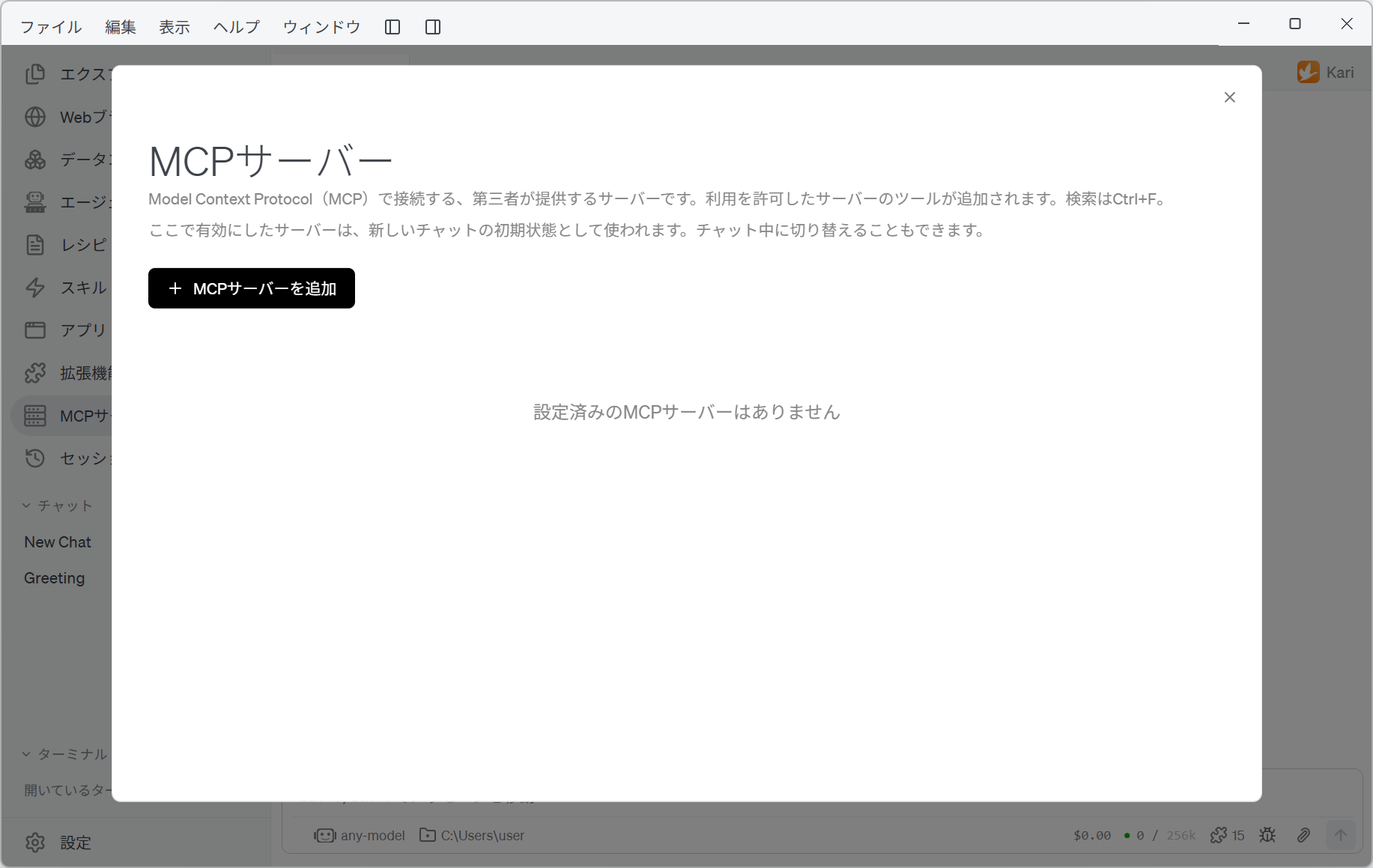
Click + Add MCP Server and fill in the following.
| Field | Value |
|---|---|
| MCP server name | EDINET-Util |
| Type | Python package (stdio) |
| Package | Choose pypi.org, then edinet-util-mcp-server |
EDINET-UtilDesk settings match an MCP server by name. "EDINET Util", with a space, counts as a different name, and the desk will not see the server. Type it hyphenated, as EDINET-Util.
The list and the desk settings display it as "EDINET Util", but that is only Kari formatting it for display; the recorded name is still EDINET-Util.
Enter the package name and click Install, and a confirmation dialog appears. Choose Install, and edinet-util-mcp-server and its dependencies go into Kari's Python environment.
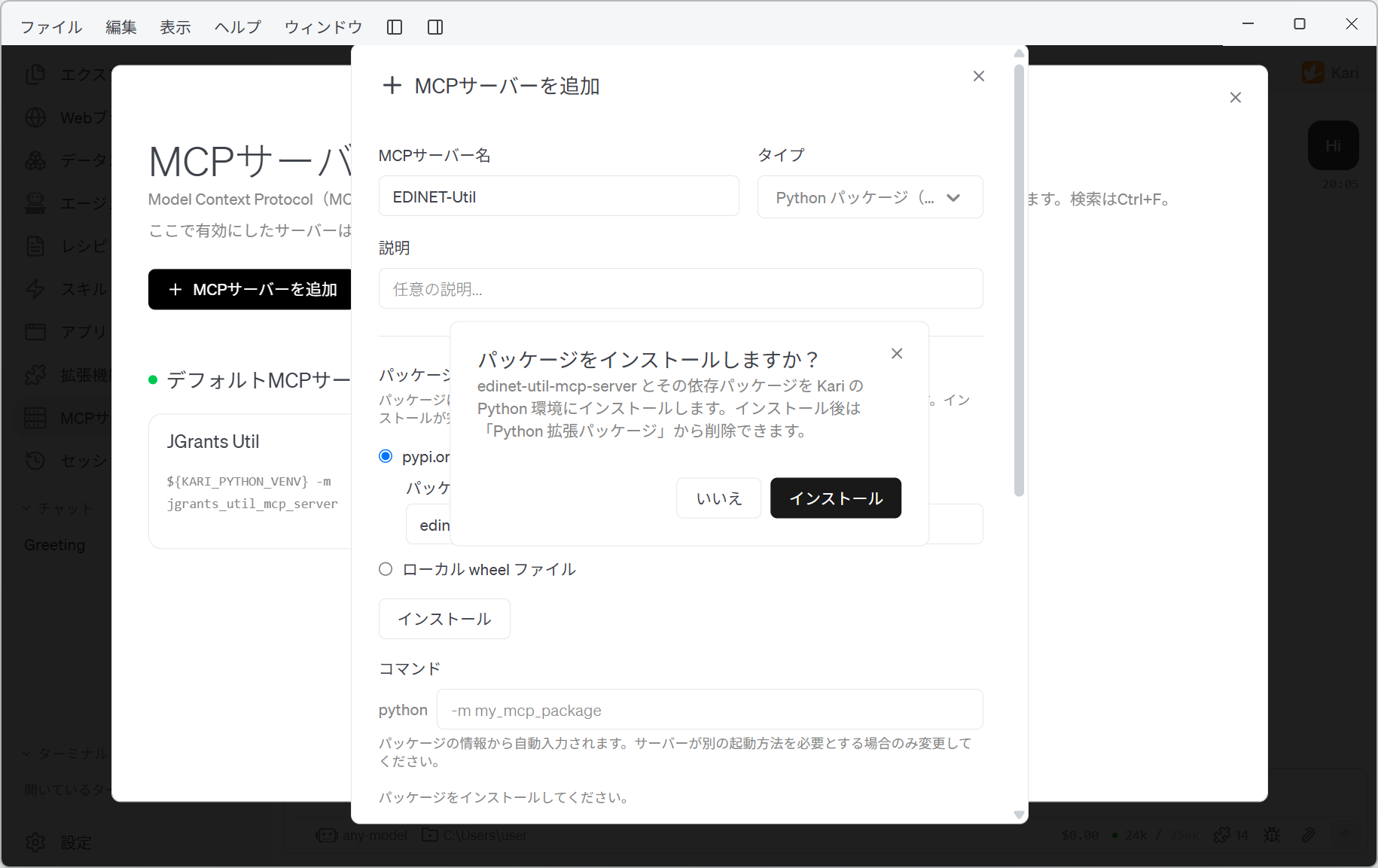
When the install finishes, the Command field is filled in from the package information (-m edinet_util_mcp_server).
Register the API key as an environment variable
Scroll down in the same dialog and add the following pair under Environment variables. Fill in both boxes, then click + Add.
| Variable | Value |
|---|---|
EDINET_API_KEY | The Subscription Key obtained in step 1 |
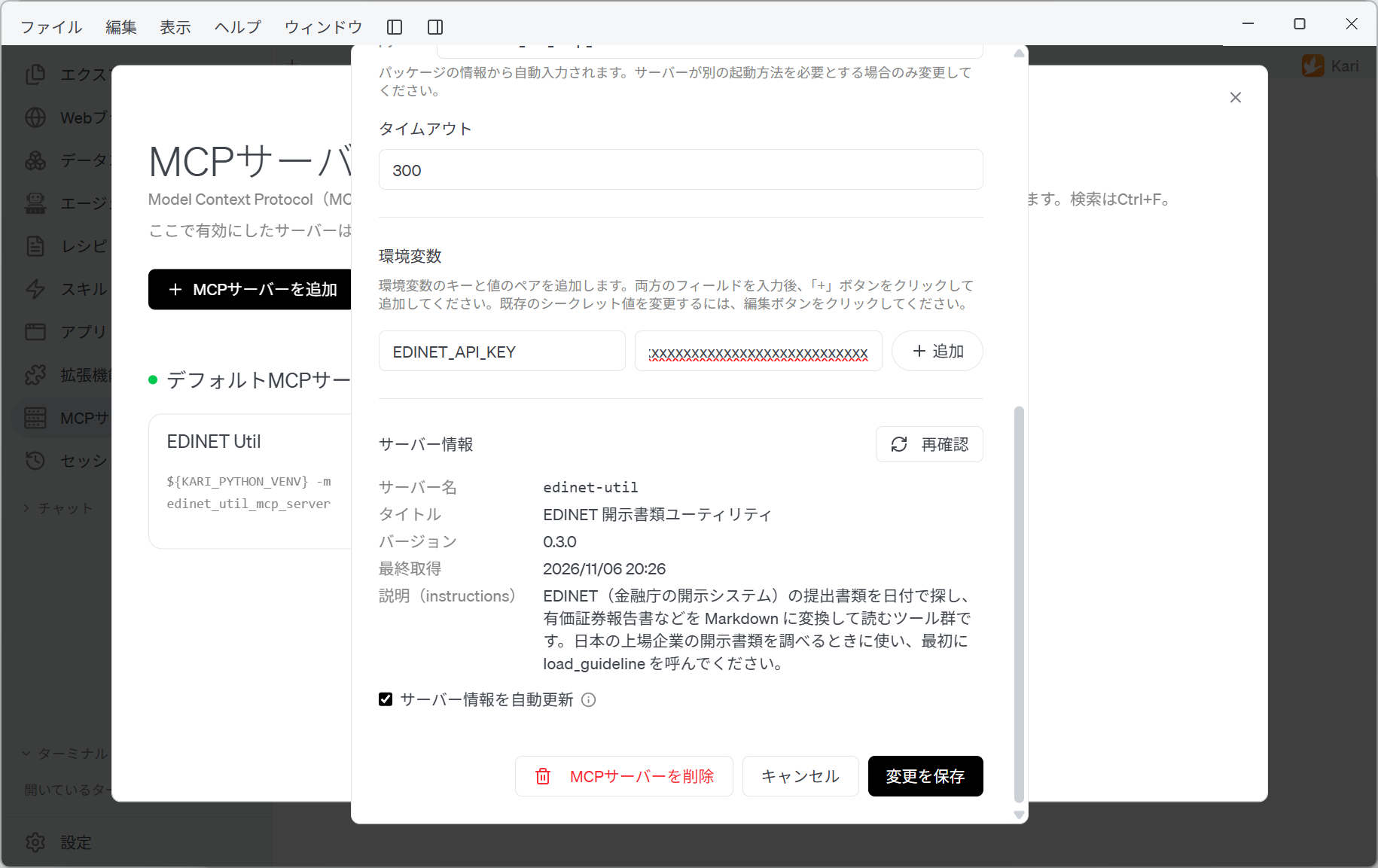
Leave the timeout at 300. Annual securities reports are long, and fetching and converting one takes time.
Confirm the server information
Click Re-check under Server information, and Kari starts the server and reads its details. If it comes back like this, the server is working.
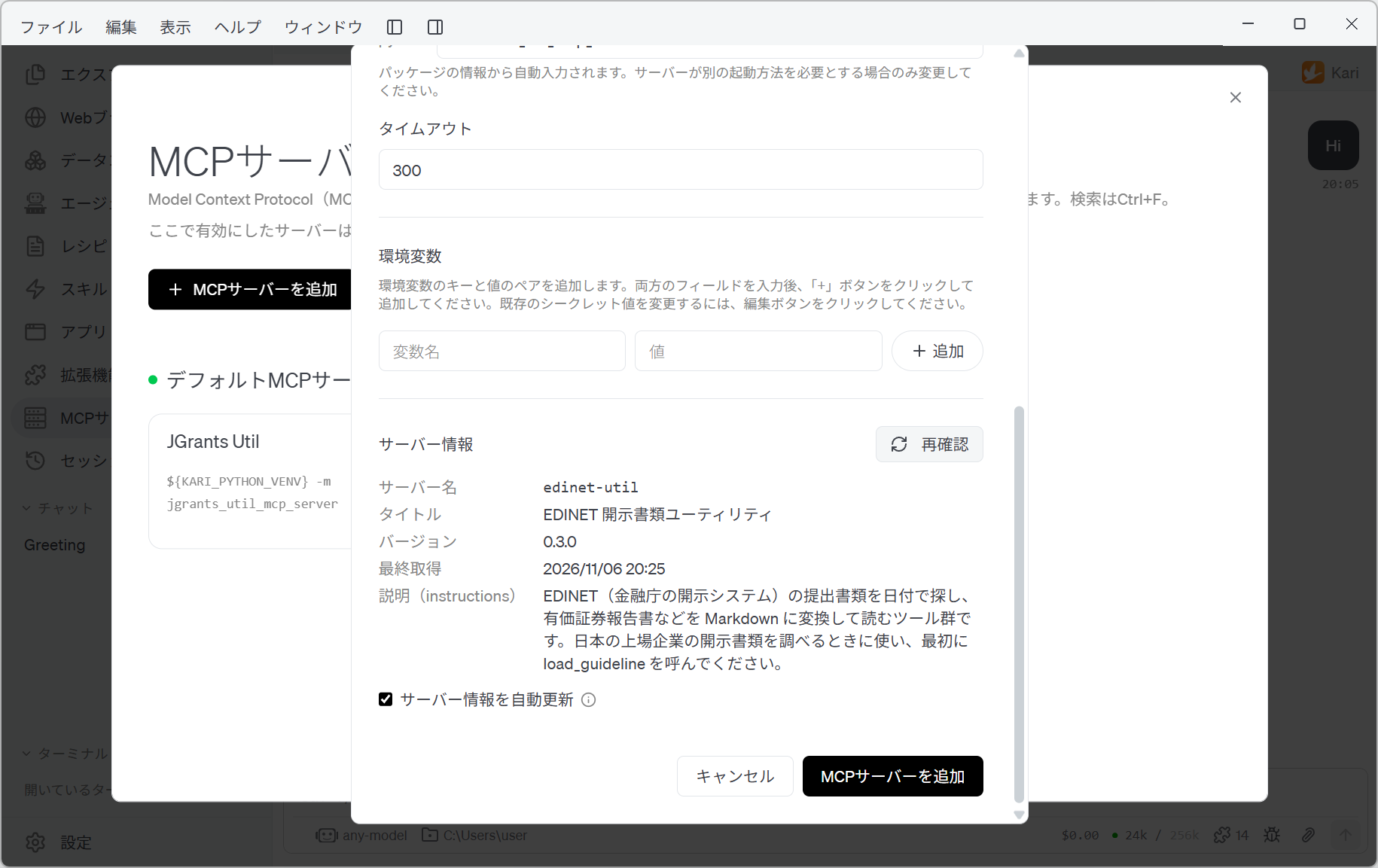
| Item | What is shown |
|---|---|
| Server name | edinet-util |
| Title | EDINET 開示書類ユーティリティ (EDINET disclosure document utility) |
| Instructions | A set of tools that find filings in EDINET (the Financial Services Agency's disclosure system) by date and convert annual securities reports and the like into Markdown for reading… |
If this stays empty, something is wrong with the install or with the command. Do not go on; check what you entered.
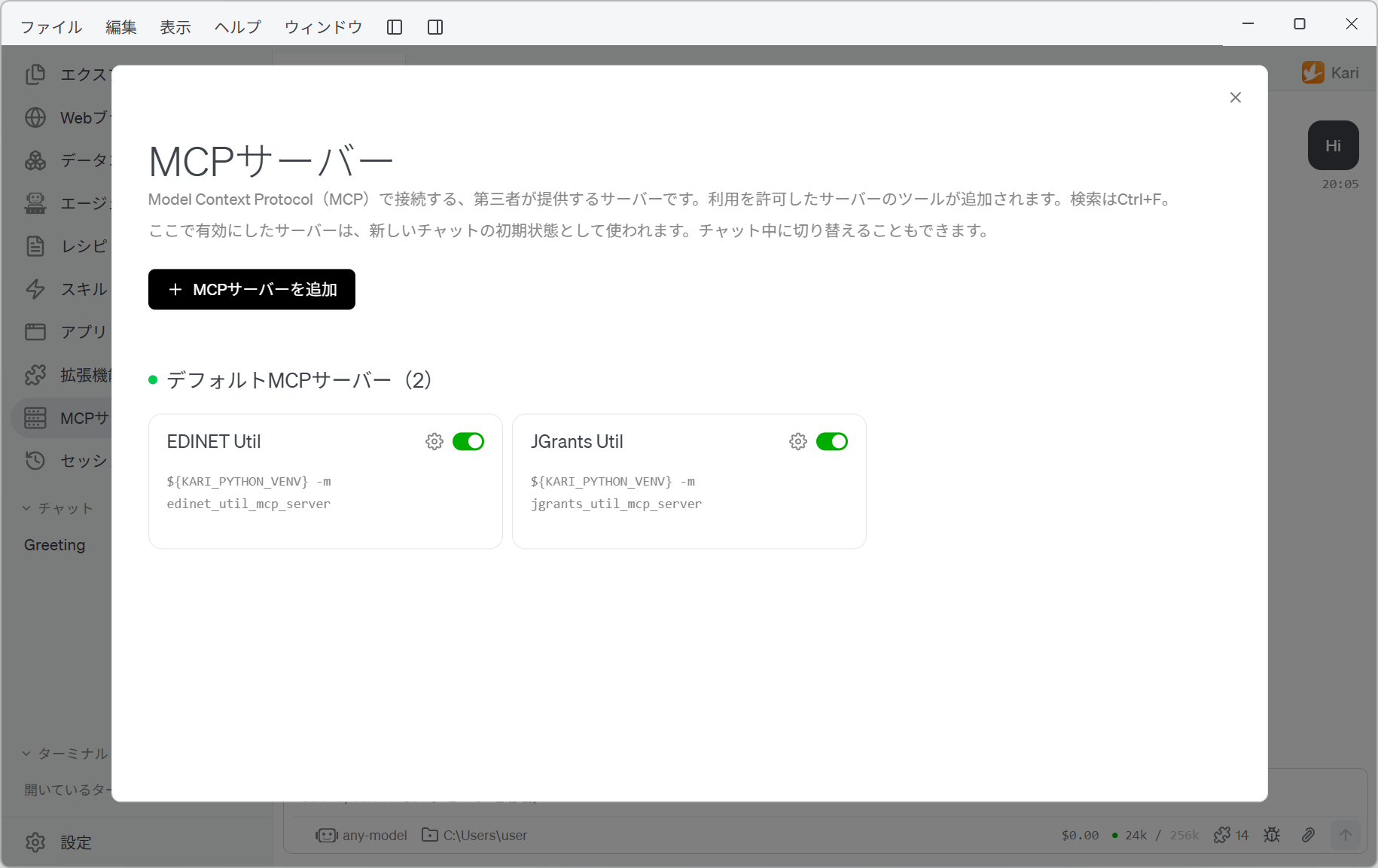
Finally, click Add MCP Server. EDINET Util appears in the list.
3. Allow the desk to use it
Adding the MCP server to Kari is not enough on its own. Which desks may use it is decided per desk.
Right-click 「企業業績診断デスク」, choose Settings…, and open MCP Servers. Confirm that the switch for EDINET Util is on.
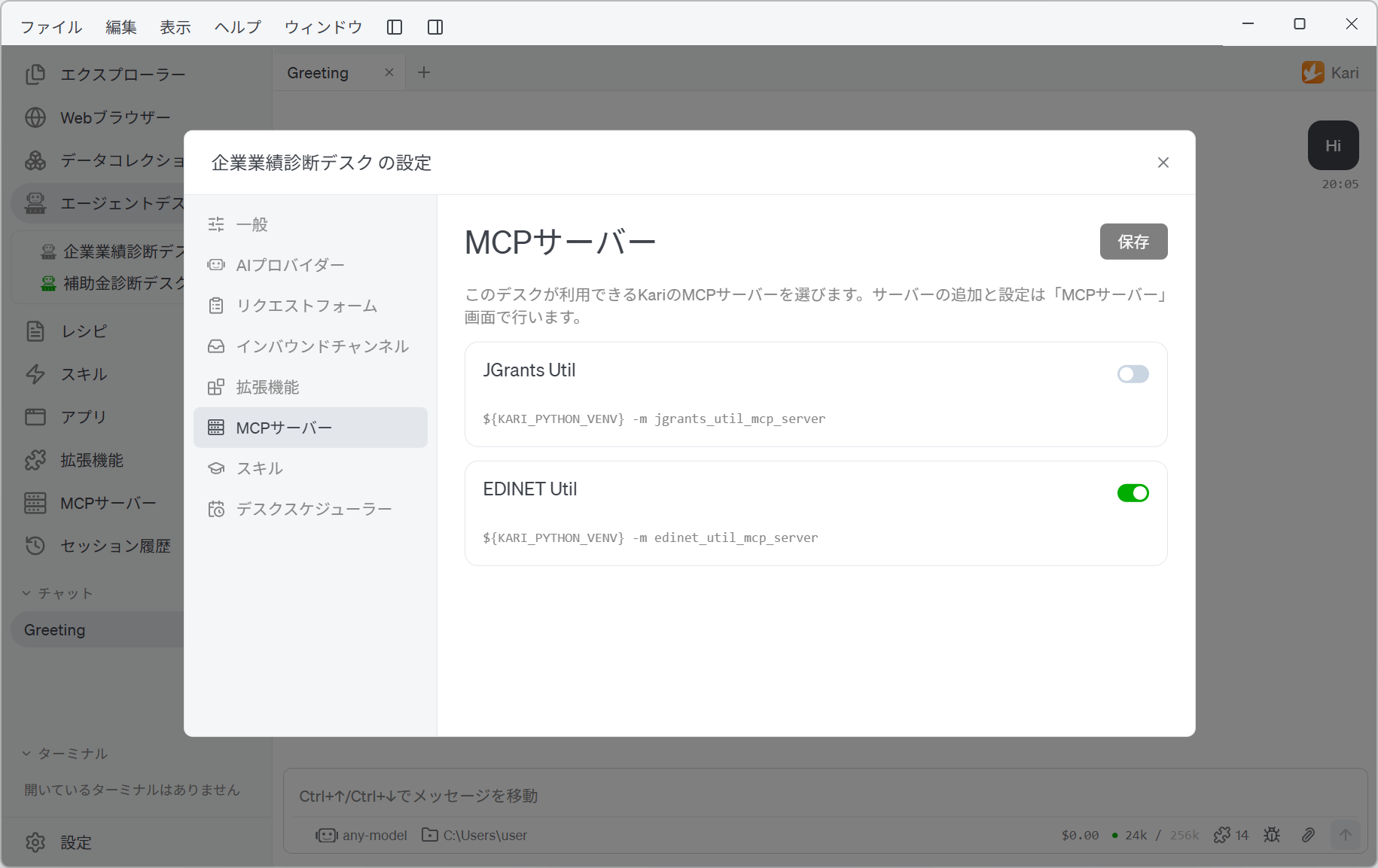
The imported settings record this server name, so if the names match, it is already on. If it is still off, check that the server name you entered in step 2 is EDINET-Util.
If you changed anything, click Save.
If "JGrants Util" also appears in the list, that is the server used in Example 1: Subsidy diagnosis desk. This desk does not use it, so leave it off.
Next, go on to Setting up email.